

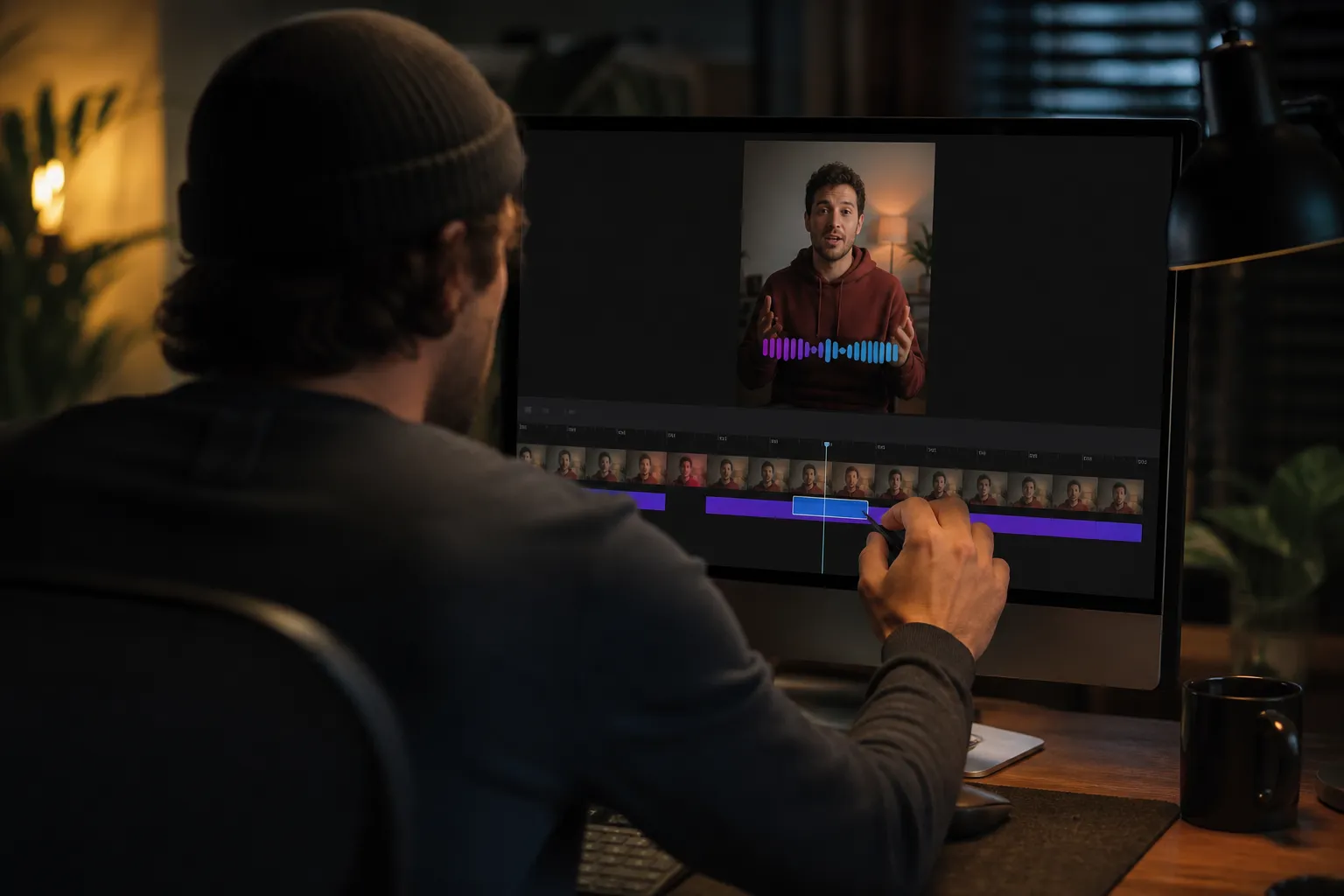
Your video might be great, but most people scroll with sound off. Captions decide if they stop. You do not need to type every word or hand-sync lines to get there.
An ai subtitles generator can transcribe speech, timestamp each line, and give you readable captions in minutes. Use it for short clips, long explainers, or music-led edits. This guide shows the exact steps from first pass to export so you ship clean, on-brand captions fast.
How an AI subtitles generator works
The tool listens to your audio, converts speech to text, and stamps timecodes so the right words appear at the right moment. Modern AI Subtitles support 50+ languages and word-level timing, which powers Karaoke Style Subtitles and Karaoke Style Captions where each word highlights in sync.
What you get out of the box
- Timed transcript. An automatic transcript split into subtitle segments with start and end times.
- Word-level highlighting. Karaoke-style timing for spoken words, ideal for lyrics and punchy shorts.
- Subtitle Style Customization. 30+ animated styles with fonts, colors, and animations you can match to your brand.
- Translate Subtitles. Turn captions into other languages to reach new audiences.
- Burned-In Subtitles. Export captions baked into the video so they look the same everywhere.
That takes you from blank timeline to a watchable draft. Then you refine.
Record and run a clean first pass
AI is fast, but clean input saves you edits. A few simple habits improve accuracy and readability.
Record for captions
- Keep the mic close. Aim for clear speech with minimal room noise. Reduce wind and hum. Keep background music well under your voice.
- Speak in short sentences. Natural pauses help the generator find line breaks.
- Say names and terms clearly. If a term is tricky, say it slowly or spell it once.
- Set sane audio levels. Record voice at a healthy level without clipping. Keep background music about 6 to 12 dB lower than the voice so captions match what viewers hear.
Run your first pass
- Upload your video. You can add subtitles to video online without installing anything.
- Select the spoken language. Pick the right model for better word choices and timing.
- Generate AI Subtitles. Let the tool transcribe and time your captions.
- Skim the transcript. Fix proper nouns, brand names, product names, and numbers first. These are the errors people notice.
- Set line length and breaks. Keep each subtitle under 2 lines and around 32 to 40 characters per line. Aim for a reading speed near 12 to 17 characters per second. Minimum on-screen time about 1 second. Maximum about 6 to 7 seconds.
If you plan to use Karaoke Style Captions, keep each line to a short, meaningful phrase. Word-level highlighting will look smoother and more intentional.
Style captions for readability and brand fit
Raw captions work. Styled captions get watched. Use Subtitle Style Customization to make them clear and on-brand without turning them into clutter.
Make them easy to read
- Use high contrast. Light text on a dark box, or dark text with a thin outline. Aim for strong contrast so text stays visible over any background.
- Pick clean fonts. Sans-serif fonts read best on small screens. Medium or bold weight helps at phone sizes.
- Add separation. A semi-opaque box, drop shadow, or 1 to 3 px stroke keeps text readable over busy footage.
- Respect the safe area. Keep captions away from platform UI. In vertical 9:16, sit lines a bit above the bottom so scrub bars and buttons do not cover them. Leave comfortable padding on the left and right.
- Size for the frame. For 1080x1920 vertical, a 48 to 64 px text size is readable on most phones. Adjust to taste after a quick preview.
Make them feel like your brand
- Choose an animated style. 30+ animated options add motion without stealing focus. Use gentle fades or slides for talking heads. Save bigger moves for punchlines.
- Match colors with intent. Use brand colors for emphasis words, quoted lines, or speaker tags. Keep the base text neutral so color accents stand out.
- Use karaoke effects where they fit. An animated karaoke subtitles editor is perfect for lyrics, poetry, or jokes that land word by word. Karaoke subtitles and Karaoke Style Captions can help viewers track each beat.
Fit the platform
- Change Aspect Ratio. Use 9:16 for TikTok and Reels, 16:9 for YouTube, and 1:1 for some Instagram posts. After changing, reflow captions to stay inside safe margins.
- Tune pacing. Short-form clips need quicker line changes and fewer characters per line. Long-form videos can hold lines a bit longer.
Fix mistakes fast and translate with care
Even a good first pass needs light cleanup. A simple order keeps you moving.
Edit the words, then the timing
- Correct text first. Scan for names, numbers, and jargon. Fix typos and punctuation. Replace filler like “um” unless it matters for tone.
- Adjust line breaks. Split long lines at natural pauses. Merge stutters so viewers are not reading dead air.
- Nudge timing. If a line pops in early or lingers, slide its in and out points so words land when spoken. Avoid flashing by holding each line at least 1 second.
Use Timeline Editing to trim and arrange clips so subtitle changes hit on cuts or pauses. Clean cuts make timing feel precise because lines start with new shots and end on silence.
Translate when it helps reach
- Finish your source language first. Clean captions translate better and reduce rework.
- Run Translate Subtitles. Choose one or two target languages where your audience lives or shops.
- Spot check idioms. Adjust slang, units, and currency so the line still lands. For right-to-left languages, make sure alignment and punctuation look natural.
- Recheck karaoke. Use Karaoke Style Subtitles in each language only if phrasing fits the rhythm. If not, keep standard captions for clarity.
Export and post with confidence
Once the words and look are set, package your video for the platforms you use.
When to burn subtitles into video
- TikTok and Reels. Burn subtitles into video so your style is consistent across devices. Platform auto-captions vary in color and placement.
- YouTube. For long videos, upload soft subtitle files like SRT or VTT. For Shorts, export a version with Burned-In Subtitles so the style stays intact.
- Cross-posting. Burned-in is the safest way to keep your brand style when a clip moves across apps and group chats.
Export settings that just work
- Resolution and ratio. 1080x1920 for vertical 9:16, 1920x1080 for 16:9, 1080x1080 for 1:1.
- Codec. H.264 video with AAC audio at 48 kHz. Bitrate around 8 to 20 Mbps for 1080p keeps captions crisp.
- File format. MP4 for widest compatibility. If you need soft captions, export an SRT or VTT alongside your video.
Polish the package
- Add Music. Drop a background track directly in the editor. Keep it 6 to 12 dB under your voice so captions mirror what viewers hear.
- AI Thumbnail Generator. Create a bold thumbnail that mirrors your caption colors. A clear face and a big visual hook earn more taps.
If you are juggling content and distribution, you can also offload other work. For example, RankGoat automates SEO tasks like writing posts, getting dofollow backlinks, and fixing indexing and technical issues so your site shows up in search and AI answers. That frees up time to finish your edit and hit publish.
With AI Subtitles for the first pass, Timeline Editing for pacing, Subtitle Style Customization for clarity and brand, and Translate Subtitles for reach, you can go from raw footage to a captioned video that holds attention.
Key takeaways
- Start with an ai subtitles generator to get timed captions in minutes. Fix names, numbers, and line breaks first.
- Style for readability. High contrast, clean fonts, and safe placement keep captions easy to follow.
- Use Karaoke Style Captions and animated styles when it fits the content so viewers track words and beats.
- Change Aspect Ratio for each platform and burn subtitles into video for consistent posting.
- Translate Subtitles to reach new audiences once your main captions are clean.