

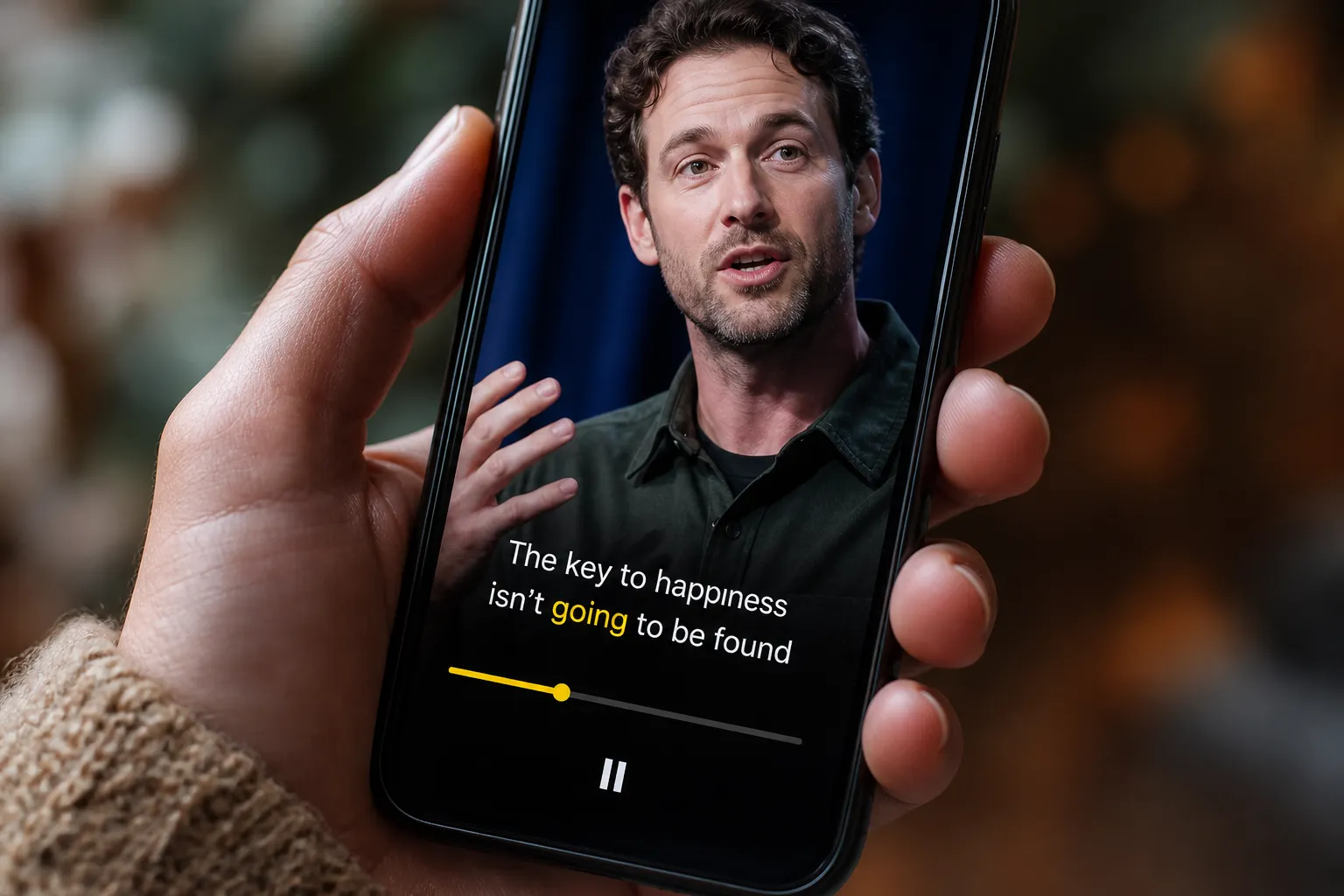
You want captions that lock eyes in silent feeds, look like your brand, and take minutes instead of hours. An AI subtitles generator can do that, but the difference between a quick win and a messy export comes down to a few specific features and settings.
Here is how the tech actually works, what a creator-friendly workflow looks like, and the checklist to use before you commit.
How an AI subtitles generator works
At its core, the tool runs automatic speech recognition on your audio. It segments the track, predicts the words, and returns text with timestamps. Good systems do more than dump raw tokens. They add punctuation and casing, keep numbers readable, and generate word-level timestamps so each word can light up exactly as it is spoken.
Word-level timing is what enables karaoke style captions. Instead of flashing whole sentences on and off, the highlight walks across the line in sync with the speaker. That makes fast cuts easier to follow and helps viewers stay oriented even when you edit aggressively.
Accuracy and timing are shaped by what you feed the model and by the controls around it:
- Source quality. A clean mic, 48 kHz audio, and light compression will usually beat a noisy room or phone mic at arm’s length.
- Noise and music. Consistent background music under -18 LUFS and a touch of noise reduction give the model less to guess.
- Names and jargon. A custom vocabulary or “dictionary” saves you from fixing product names, acronyms, and brand terms later.
- Speed changes. If you time-stretch a clip, the tool should automatically retime captions to match the new duration.
SubtitlesFast uses word-level timestamps by default, inserts punctuation so lines read naturally, and lets you correct misheard words inline. A global find and replace helps you fix a term once across the whole timeline.
Edit on a timeline without breaking sync
Captioning does not stop at transcription. Once the text is on the canvas, you still need to shape the story. With SubtitlesFast, Timeline Editing keeps subtitles tied to your clips as you cut, trim, and shuffle.
Concrete ways this helps:
- Ripple trims and splits. Remove an “um,” tighten a pause, or shorten a ramble. Captions close the gap and keep their timing.
- Silence tightening. Auto-detect low-energy sections, then pull them out to speed up short-form pacing.
- Speed ramps. If you change clip speed for emphasis, the subtitles retime so the highlight still tracks with the words.
- Scene-level moves. Reorder beats in a tutorial or podcast clip. The associated subtitles move with each segment.
Short-form creators can punch up jokes by pulling the punchline forward and letting the caption highlight land on the beat. Long-form editors can trim tangents and carve chapters without redoing hours of manual caption shifts. Because the text stays linked to the media, you edit once and the captions follow.
Style captions so people actually read them
Plain auto captions look generic. SubtitlesFast gives you Subtitle Style Customization with 30+ animated presets plus granular controls for fonts, colors, size, stroke, shadow, and alignment. You can turn a transcript into motion typography that fits your channel.
Use Karaoke Style Subtitles when you need to stop the scroll. The per-word highlight guides the eye through each sentence and makes reactions, hooks, and CTAs land. A few practical rules keep things readable:
- Use 1 - 2 lines per subtitle, with roughly 32 - 42 characters per line. Break lines at natural pauses.
- Keep each subtitle on screen about 1.5 - 3 seconds. Fast punch-ins can be shorter if the line is only a few words.
- Add a stroke or shadow for contrast. On vertical video, high-contrast colors and a subtle background box help over busy footage.
- Respect safe areas. Keep captions clear of on-screen UI and platform overlays so nothing gets clipped.
Platform cues:
- TikTok and Reels. Go bold with bigger type and strong color contrast. Fast highlight speed matches the cut rate.
- YouTube. Pick a cleaner lower-third style with lighter animation so the text supports the story without fighting the frame.
SubtitlesFast also includes Karaoke Style Captions that tune highlight speed to speech pace, so the effect feels natural rather than frantic.
Translate and export for every platform
When your video works in more than one language, you can publish once and reach more people. SubtitlesFast adds Translate Subtitles so you can generate localized tracks from the same timeline. It covers 50+ languages and lets you keep the same visual preset for each output so the look stays on brand.
Details to watch when translating:
- Line reflow. Different scripts change line length. Tweak font size per language so text does not cover faces or UI.
- Right-to-left support. Arabic and Hebrew need RTL layout, including punctuation and highlight direction.
- Terminology. Lock product names in source language or provide approved translations to keep consistency.
- Numbers and units. Dates and decimals vary by region. Scan for these before export.
For delivery, SubtitlesFast supports Burned-In Subtitles so your captions appear everywhere by default. That is ideal for TikTok, YouTube Shorts, Instagram Reels, and X, where viewers rarely toggle CC settings. If you also upload long-form to YouTube, export an SRT or VTT sidecar so viewers can turn captions on or off and search inside the transcript.
Want the same story on multiple feeds? Use Change Aspect Ratio to create 9:16, 1:1, and 16:9 cuts from one timeline, with subtitle placement adjusted for each frame. Add finishing touches with Add Music for background tracks and the AI Thumbnail Generator to create a cover that fits platform guidelines.
If you publish videos on your site and care about search, this ecommerce website development guide to checking your website SEO score with free tools shows simple ways to audit content signals beyond the video embed.
What to look for in an AI subtitles generator
- Accurate AI Subtitles. Word-level timestamps, reliable punctuation, and solid handling of accents and filler words.
- Custom vocabulary. Add brand terms and names so they are recognized on the first pass.
- Simple Timeline Editing. Ripple trims, silence tightening, speed-change retiming, and clip-level moves that keep captions in sync.
- Subtitle Style Customization. Animated presets plus granular control of fonts, weight, color, stroke, background box, and alignment.
- Karaoke Style Subtitles. Per-word highlight with adjustable speed for short-form pacing.
- Translate Subtitles. Multi-language output with RTL support and per-language style tweaks.
- Flexible export. Burned-in video, plus SRT and VTT sidecars when you need platform-native captions.
- Aspect ratio presets. One edit, multiple outputs, with safe-area guides so text avoids platform UI.
- Keyboard-first workflow. Fast review and correction with shortcuts, global find and replace, and snap-to-frame nudging.
- Privacy and performance. Secure processing, reliable autosave, and quick renders so you can publish on schedule.
SubtitlesFast covers these bases for both short and long-form work. A few common uses:
- Short promo. Cut a 20-second clip, apply a bold yellow karaoke style, and export burned-in vertical so the CTA is impossible to miss.
- YouTube tutorial. Edit a 7-minute explainer on the timeline, pick a clean lower-third style, translate to Spanish, and publish two versions with matching looks.
- Podcast pull. Grab a quote, add music, choose a high-contrast animated preset, and burn subtitles for quick cross-posting to Reels and Shorts.
Key takeaways
- AI subtitles turn speech into timed text. Word-level timestamps power smooth, readable captions and karaoke highlights.
- Editing on a timeline keeps captions in sync as you trim silence, move beats, and change speed.
- Style matters. On-brand fonts, contrast, and animation make viewers stop and read.
- Translate once, export everywhere. Burned-in for social by default, sidecars for platforms that support toggling.
- SubtitlesFast brings AI Subtitles, Timeline Editing, style controls, translation, and burned-in export into one browser workflow.
FAQ
What is an AI subtitles generator?
It is software that converts speech in your video to text and syncs each word to the audio so captions appear at the right time.
How can I add subtitles to video online without extra apps?
Use a web-based editor like SubtitlesFast to auto transcribe, style captions, and export with burned-in subtitles for instant sharing.
Are karaoke style captions useful for short videos?
Yes. Word-by-word highlighting guides viewers through each line, which helps retention on TikTok, Reels, and Shorts.
Can I translate subtitles for different markets?
Yes. Create AI subtitles in your main language, then generate translated versions and keep the same style preset for brand consistency.
What export should I use so captions always show?
Choose burned-in subtitles. The text becomes part of the video, so captions display reliably across TikTok, YouTube, Instagram, and X.