

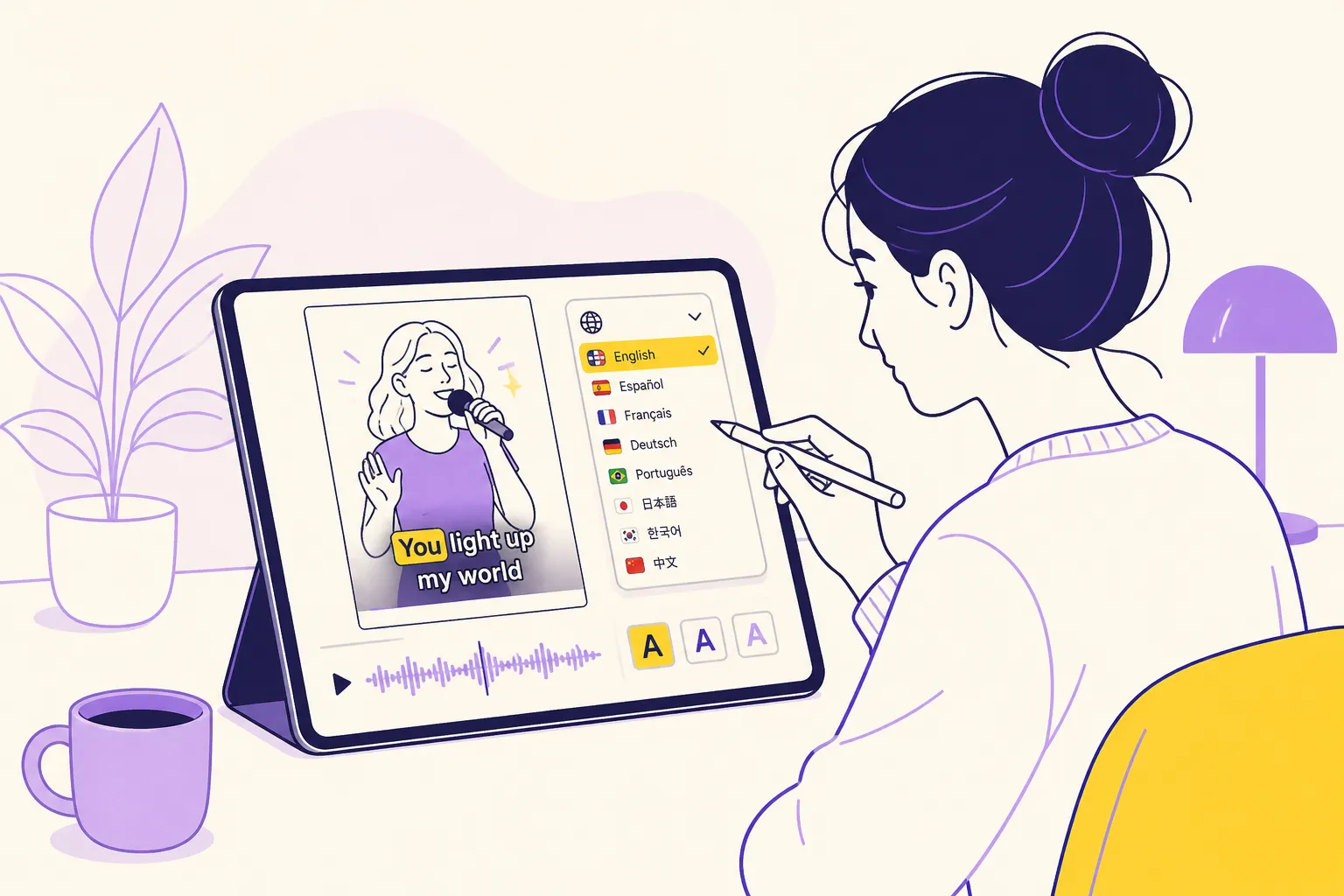
You want reach in more languages without rebuilding every video from scratch. The right ai translation app turns one solid edit into many local versions, with clean captions, accurate translation, and exports ready for every platform.
Here is a practical workflow built around subtitles. It keeps timing tight, styling on brand, and publishing fast.
Build a subtitles-first foundation
Everything starts with a clean transcript. Use an ai subtitles generator that aligns captions with audio and gives word-level highlighting. When each word is trackable, timing fixes take seconds instead of minutes.
- Auto transcription: Aim for alignment you can trust. Word-level highlighting lets you nudge a single word or phrase without throwing off the whole line.
- Edit on a simple timeline: Trim, cut, or reorder clips and keep captions glued to the right words. You should not lose sync when you tighten a scene.
- Translate the subtitles file, not just the audio: Converting the caption file preserves line breaks and timing so punchlines and beats still land.
- Check language coverage early: If you publish across markets, confirm your list is supported. SubtitlesFast offers AI Subtitles in 50+ languages with word-level highlighting, which covers most creator workflows out of the box.
Once the transcript is solid, translation becomes predictable. You fix mistakes once, then carry those fixes through every language.
Style captions for clarity and retention
Readable does not have to mean bland. Good styling keeps viewers oriented, especially on mute and on small screens.
- Start with a legible preset: High contrast text with a soft shadow or outline is easy to read on busy backgrounds. Save a preset so every language looks consistent.
- Use karaoke style captions to guide the eye: Word-level highlighting that tracks with speech helps viewers follow along and often keeps them watching through faster sections. It is especially useful for hooks and punchy edits.
- Animate the first line: An animated karaoke subtitles editor can add a small movement to your opening line. That little nudge helps the first three seconds do their job.
- Balance line breaks: Two lines per caption, roughly balanced in length, read best on phones. Keep each line short so the eye can scan fast. Avoid orphaned short words on a second line.
- Mind placement: Keep captions in a safe area so UI chrome does not cover them. Test a top and bottom placement for each platform and save both as presets.
Brand details matter in any language. Subtitle style customization with animated styles, custom fonts, colors, and subtle movement lets you stay on-brand without sacrificing readability.
Export for every platform without re-editing
Different feeds want different frames. Your ai translation app should make format changes quick and predictable.
- Hit the right aspect ratio: Switch to 9:16 for vertical, 1:1 for square, and 16:9 for horizontal inside the same project. Reframe once, then reuse that framing for every language.
- Burn subtitles when you need guaranteed visibility: Closed captions do not always render in embeds, downloads, or screen recordings. Burned-in subtitles live in the pixels, so your words survive reposts.
- Keep a captions file for search: When platforms index captions, upload the .srt or .vtt version alongside your burned export for accessibility and SEO.
- Ship auto captions for TikTok and YouTube: Fast, legible text with snap timing is table stakes in shorts. Pair auto captions with a clean style preset so you can move under tight deadlines.
Platform notes worth remembering:
- TikTok favors bold, high-contrast captions placed above the description area. Test top vs mid-low placements and save what wins.
- YouTube Shorts can crop tight. Leave padding above and below your text safe area so multi-line captions never clip.
- Instagram Reels compresses uploads. Burn subtitles at a size that stays crisp after compression and avoid ultra-thin fonts.
- X video uses different ratios in feed vs full screen. Save a preset for each so caption positions stay consistent.
Deciding between burned-in and closed captions:
- Use burned-in subtitles for short-form, ads, stories, and anywhere visibility must be guaranteed.
- Use closed captions when viewers may want to toggle languages or when platforms index captions for search.
- Ideal setup: keep a clean captions file in your project, burn subs on export when needed, and archive the text for reuse in descriptions and thumbnails.
Keep your workflow tight in one project
Jumping between apps burns time and creates sync issues. The more you can do where you edit, the faster you ship.
- Add music without bouncing elsewhere: Light background tracks can mask cuts and lift energy. Adjust levels so dialogue is always clear and consistent across languages.
- Create thumbnails where you edit: An AI Thumbnail Generator tied to your timeline helps you test copy variants that match each translated version.
- Repurpose text with small helpers: Going multilingual often means moving copy between platforms. A small utility like X-Post-Copier can grab a full X.com post to your clipboard so you can paste the text into your subtitle editor for quick translation and on-screen captioning.
SubtitlesFast focuses on creators. You get AI Subtitles, Translate Subtitles, Karaoke Style Subtitles and Karaoke Style Captions, Subtitle Style Customization, Burned-In Subtitles, Change Aspect Ratio, Timeline Editing, Add Music, and an AI Thumbnail Generator. That mix makes it easy to add subtitles to video online and publish in more languages with less back and forth.
A fast end-to-end workflow
Here is how this looks when you are moving fast but still want clean results:
- Record in your native language. Keep takes tight and leave short breaths for clean caption breaks.
- Auto transcribe with word-level highlighting. Fix names, brand terms, and obvious mishears once.
- Translate the subtitles to your target market. Skim for idioms or slang that will not land and swap in plain phrasing.
- Style with a saved preset. Use high contrast, an outline or shadow, and karaoke highlighting on the hook.
- Reframe for the destination. Switch aspect ratio and check safe areas for each platform.
- Decide visibility. Burn subtitles into video for shorts, ads, or repost-heavy channels. Keep a captions file for long-form and search.
- Add music and level it. Keep dialogue readable over the track and avoid sudden volume jumps between cuts.
- Export and upload. Reuse the translated script for descriptions, titles, and your thumbnail copy.
Tips for cleaner translations:
- Keep sentences short. Long compound sentences break poorly across caption lines.
- Avoid slang that will not translate cleanly. Prefer plain words over local idioms.
- Balance line breaks. Two lines per caption, similar in length, reduce eye strain.
- Spot-check proper nouns, product names, and brand terms before export.
Key takeaways
- Build on a subtitles-first workflow. Transcribe accurately, then translate the caption file to keep timing tight.
- Style for readability and retention. Use clear presets and karaoke highlighting, especially in hooks.
- Export with intent. Burn subtitles when visibility must be guaranteed and keep caption files for search.
- Format once, publish everywhere. Save aspect ratio and placement presets for TikTok, YouTube, Instagram, and X.
- Keep everything in one place. Transcription, translation, styling, music, and thumbnails move faster inside a single project.
If your ai translation app treats subtitles as a first-class part of the edit, you publish cleaner videos in more markets with less rework. That is the goal.