

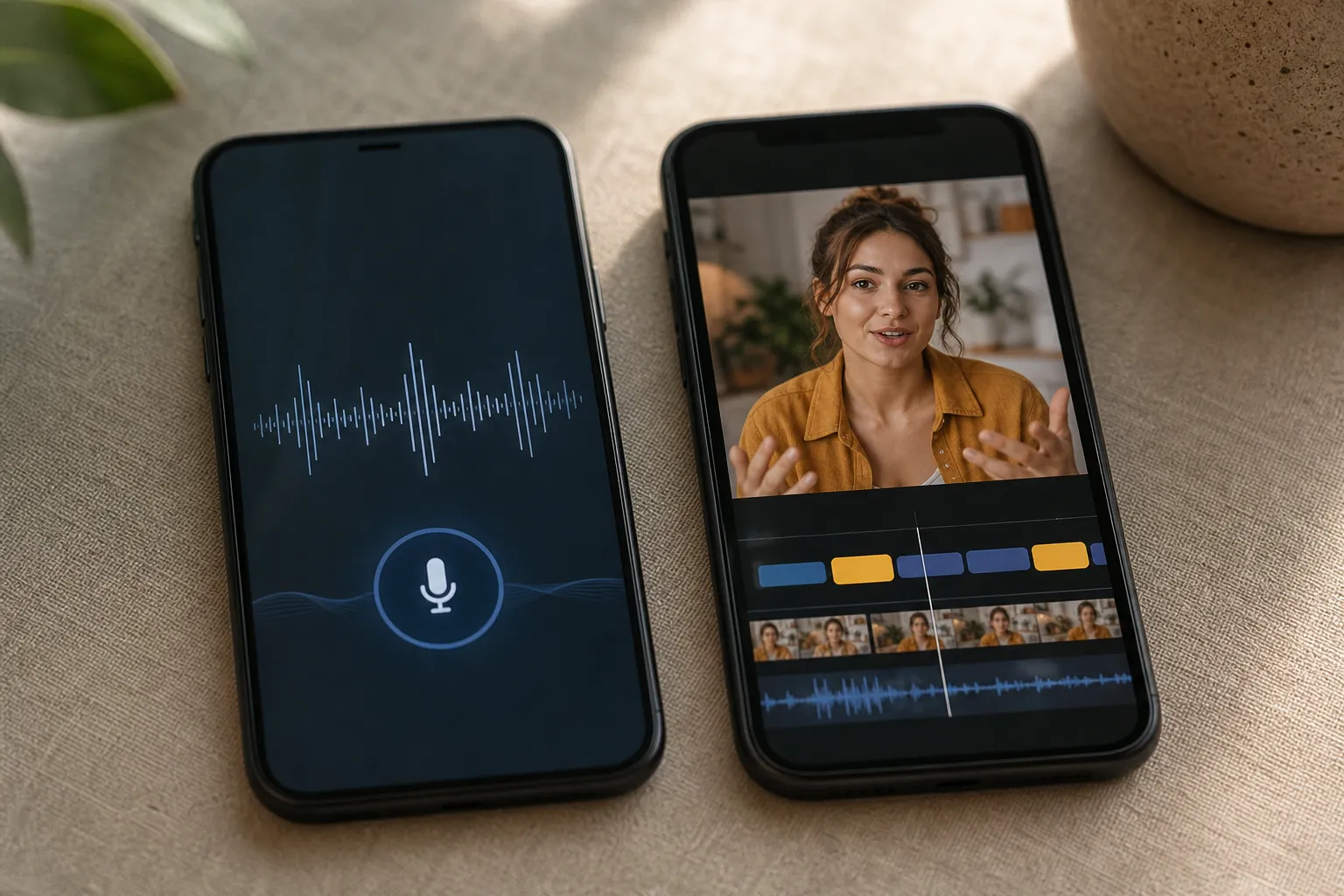
You have a video in one language and a deadline on TikTok or YouTube. Do you use an AI voice translator for spoken output, or switch to subtitles so you can edit, brand, and publish fast? The right move depends on accuracy, control, speed to publish, and how your audience actually watches.
Here is a creator-first breakdown so you can pick the tool that ships a finished post, not another step.
At a glance: three ways to translate voice
- Google Translate app. Built for live conversation and quick voice-to-voice translation in many languages. Fast spoken playback with basic on-screen text. Little timeline or styling control.
- Microsoft Translator. Similar voice-to-voice strengths with a focus on conversation and presentation scenarios. Reliable language coverage and simple playback controls.
- SubtitlesFast. Best when you want to add subtitles to video online, translate them, style them, and burn subtitles into video for TikTok, YouTube, Instagram, or X. Tools include AI Subtitles, Translate Subtitles, Subtitle Style Customization, Karaoke Style Subtitles, Karaoke Style Captions, Burned-In Subtitles, Change Aspect Ratio, Timeline Editing, Add Music, and an AI Thumbnail Generator.
Accuracy and editing control for creators
Google Translate and Microsoft Translator recognize speech quickly and can replay translated speech so two people can talk across languages. If you need a quick answer in a coffee shop, they are perfect. For a published video, though, accuracy improves when you can see every word against the timeline and fix it before you post.
SubtitlesFast uses AI Subtitles to automatically transcribe your video into subtitles in 50+ languages with word-level highlighting. That visual timing matters. You can click a misheard brand name, product term, or slang and correct it in place, then nudge timing so the highlight lands on the exact syllable. If a guest says “SKU A12” and the transcript reads “ask you A twelve,” you fix it once and keep moving. Search and edit through the whole track, then use Translate Subtitles to generate clean versions for other languages without redoing timing.
Creators who post a lot of how-tos and reviews run into proper nouns, acronyms, and code-switching. Voice-to-voice tools will speak back something intelligible, but you do not get line-by-line control. In SubtitlesFast you get editable text on a timeline, so you can split long sentences, break lines for better reading on mobile, and keep callouts tight to the moment you need them.
Workflow, branding, and speed to publish
Voice translators feel instant because they speak back quickly. That is ideal for travel or a live meeting. It does not move a video to a channel. If your goal is a finished clip, you still have to import audio into an editor, add captions somewhere, style them, position them for vertical or horizontal, and export. That extra chain adds friction and invites mistakes.
SubtitlesFast is built to post. The flow looks like this:
- Upload your clip and run AI Subtitles. Review with word-level highlighting and fix any names or jargon in seconds.
- Click Translate Subtitles to create language versions without losing timing.
- Use Subtitle Style Customization to pick from 30+ animated styles. Set font, color, background, and animation so captions match your brand instead of looking generic.
- Turn on Karaoke Style Subtitles or Karaoke Style Captions for word-by-word emphasis that tracks speech. This keeps eyes locked during intros and hooks.
- Change Aspect Ratio to 9:16, 1:1, or 16:9 so the same edit fits TikTok, Reels, Shorts, and desktop. No re-editing the whole piece.
- Burned-In Subtitles make the captions part of the video so they always display, even on silent autoplay. Export, post, done.
Polish does not end at text. If your clip needs punch, use Timeline Editing for trims, Add Music for a beat, and grab an image from the AI Thumbnail Generator so the post stands out in a feed.
All of that sits in one place. You are not bouncing between a voice app, a translator, and a separate editor. If you work through a stack of clips each day, those saved steps are what keep you publishing on schedule.
Most viewers hit play on mute and only turn sound on if the first seconds hook them. Subtitles do that job. On-screen text that moves in sync with speech both explains and holds attention. Voice translators from Google and Microsoft are not designed for this feed reality. They solve a different job, which is why they are great in rooms and not great in timelines.
Pro tip for attention resets during long edit days: a quick two-minute break with something simple like Jigsaw Station can help you come back fresh and catch small transcript fixes you would otherwise miss.
Which one should you use?
- Travel and live conversation. Choose Google Translate or Microsoft Translator. You speak, they speak back. No editing required. Perfect for menus, quick chats, and getting through a meeting with a language gap.
- Social video, tutorials, and short-form. Choose SubtitlesFast. It is an AI subtitles generator built for creators who need auto captions for TikTok and YouTube, animated karaoke captions, and fast exports that look on-brand. Subtitle Style Customization and Karaoke Style Captions give you control that voice apps do not offer.
- International reach. Publishing one clip in multiple languages today is practical with SubtitlesFast. Translate Subtitles, adjust any phrasing, style once, then burn subtitles into video for each language. Voice-only translators do not package a finished asset you can upload.
- Accessibility and silent autoplay. Subtitles are readable by default. Burned-In Subtitles reduce platform misconfigurations and make your content understandable in silent feeds.
If you just need a live ai voice translator, pick Google Translate or Microsoft Translator. If you need a finished post with consistent branding, pick SubtitlesFast. You get AI Subtitles in 50+ languages with word-level highlighting, Translate Subtitles for reach, and the tools to finish the asset. Style karaoke subtitles, add music, adjust aspect ratios, generate a thumbnail, and export with Burned-In Subtitles. The end result looks planned, not patched together.
Key takeaways
- Voice translators speak back fast, but they do not deliver a finished video.
- Subtitles-based workflows give you accuracy, editing control, and branding.
- SubtitlesFast is built to add, translate, style, and burn subtitles into video.
- Use karaoke style captions to boost watch time on TikTok and YouTube.