

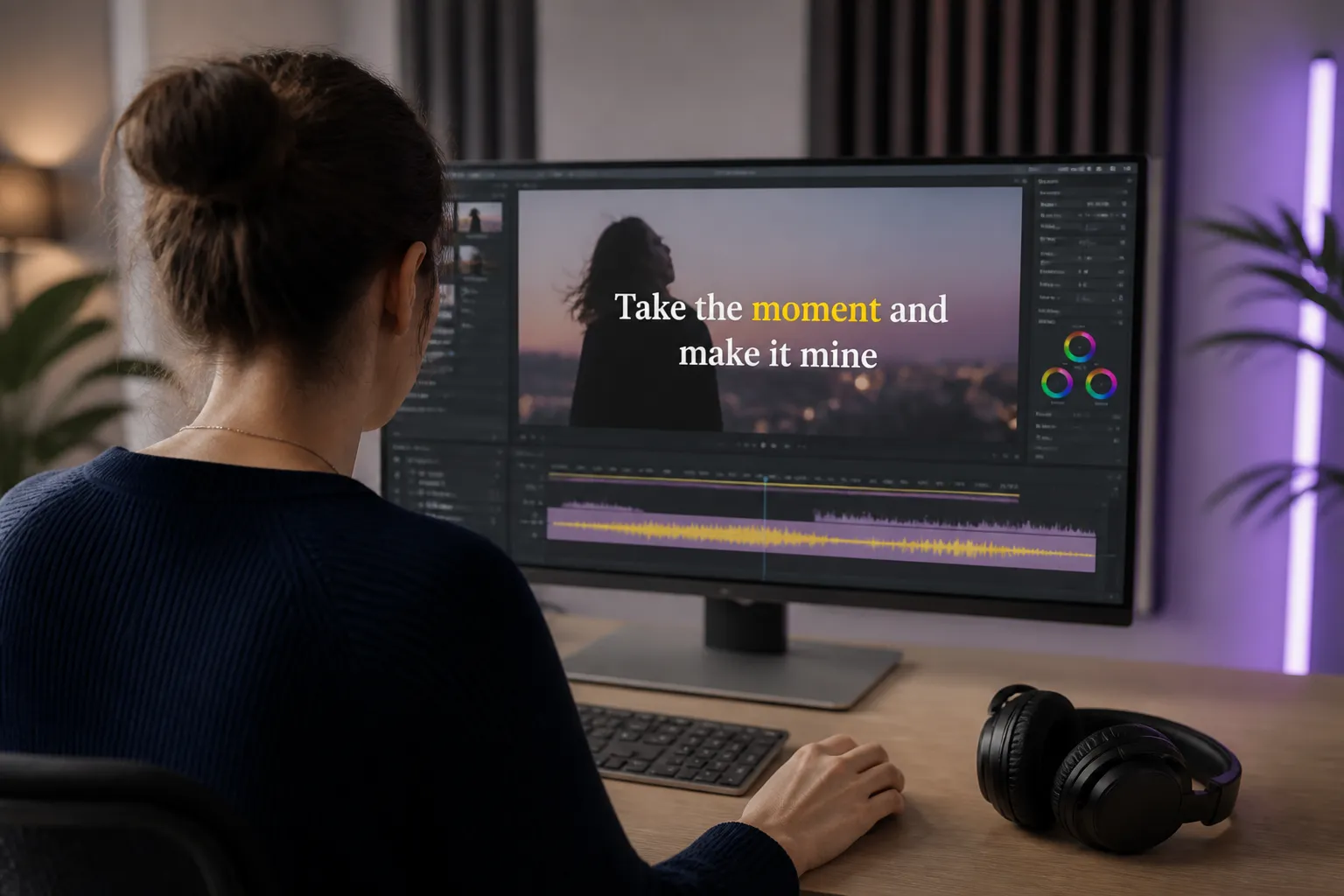
Lyrics land harder when every word lights up on the beat. If you make music videos, covers, or punchy reels, karaoke subtitles keep eyes locked to the screen and let the hook live in people’s heads. This guide shows how to set up word-level highlights, style captions for small screens, nail timing, and export files that look right on TikTok, YouTube, and Instagram.
Build accurate word-level highlighting with AI Subtitles
Karaoke subtitles highlight each word in time with the vocal. Start with clean text, then refine timing at the word level. In SubtitlesFast, AI Subtitles works as an ai subtitles generator for 50+ languages with word-level highlighting, so you can add subtitles to video online without bouncing between tools.
Prep your audio and script
- Record or import a clean vocal. Keep noise low, avoid heavy auto-ducking, and aim for steady levels so the transcript is accurate.
- Match the script to the take. Update ad-libs, repeats, and cut words before timing so you do not chase moving targets later.
- Split long sentences. One to two short lines per phrase read faster and avoid cramped frames.
Run AI Subtitles and select the right language
Import your video, pick the spoken language, and generate. If you plan to reach new audiences later, run Translate Subtitles after you lock timing on the original. That way only the text changes while the beat-aligned timing stays put.
Clean up text and spelling on the timeline
Open Timeline Editing to fix misheard words, add punctuation, and set line breaks where breaths or beats land. Keep casing consistent, and favor natural punctuation in rap so the flow stays readable. Clean copy now makes timing painless later.
Style karaoke captions viewers can read
Once the words are right, make them look like your channel. Subtitle Style Customization gives you 30+ animated styles with control over fonts, colors, and animation. Toggle Karaoke Style Subtitles or Karaoke Style Captions to light up each word as it is sung. These templates are built for short-form feeds, so you keep attention without clutter.
Prioritize contrast and color
- Use a solid outline or shadow on busy footage. White text with a 2 to 4 px black stroke is a reliable default.
- Pick a highlight color that fits your brand and still pops. Warm tones like yellow or orange stay legible on most scenes.
- Skip full neon on bright backgrounds. Lower saturation or add a semi-transparent box behind text when the shot goes high-key.
Place captions in safe areas
Keep captions above the bottom 10 percent of the frame so mobile UI does not cover them. If your scene has lower thirds or on-screen graphics, move subtitles up or left a touch. Use Change Aspect Ratio to preview 9:16 for TikTok, 1:1 for Instagram, and 16:9 for YouTube so placement survives every cut.
Match animation to tempo
- Fast tracks read best with simple highlight sweeps. Save bouncy per-letter effects for mid-tempo and slower songs.
- Use steady in-out easing on the highlight so eyes follow without stutter.
- Reserve heavier glow or scale for the chorus to give it lift without fatiguing the viewer across the verse.
Type choices and sizing
- Favor bold or semi-bold weights. Thin fonts shimmer on small screens and cause color fringing.
- Set size by frame height, not guesswork. As a starting point, vertical video reads well at roughly 6–8% of frame height, horizontal at 4–6%.
- Keep two lines max on vertical when lyrics are dense. If you need more, break across shots.
Sync lyrics and adjust timing like a pro
Great karaoke subtitles feel invisible, living right on the beat. Use Timeline Editing to trim, cut, and rearrange clips, then dial in each word’s in and out.
Lock line timing first, then words
- Align each line to when vocals start and end. Get the block across the full phrase first.
- Drill into word-level highlights. Nudge early words a hair before the vocal hits, and taper late words so they land clean on the beat.
Rule of thumb: start a word highlight 50–120 ms before the consonant or vowel on fast songs, and 120–200 ms before on slower ballads. Leave 80–150 ms of tail so the highlight does not snap off mid-phoneme.
Handle melismas and rapid syllables
- One word over many notes? Stretch that word’s highlight across the run. Only split into syllables if you want a bouncing-ball feel.
- Quick rap syllables? Split long words into two or three parts and line them to the subdivision you hear in the hi-hat or snare.
Use Add Music to align instrumentals and hooks
Cutting a lyric reel from performance footage? Add Music to bring in a clean instrumental or the mastered track. Line waveform peaks to snare hits, then set word highlights on those markers. The subtitles will ride the groove even if the camera cuts are frenetic.
Publish for phones and platforms
Most viewers see your captions on a phone, often with sound off at first. Design for that reality from the start, then export clean.
Check sizes across aspect ratios
- Use Change Aspect Ratio to preview 9:16, 1:1, and 16:9. Increase font size for 9:16 where captions are your main graphic.
- Keep line length around 30–42 characters per line on vertical video to avoid micro text and awkward wraps.
- Anchor captions away from on-screen buttons. TikTok, YouTube Shorts, and Reels crowd the bottom and right edges.
Ship clean files for social
When you are happy, Burned-In Subtitles give you a final file with captions permanently embedded. That avoids platform auto-styling and keeps your animated karaoke look intact across uploads. If you need auto captions for TikTok and YouTube for other clips, generate those in a separate pass so your karaoke export stays consistent.
Translate and repurpose
Run Translate Subtitles to publish multilingual cuts. Keep timing and style the same so the chorus hits identically in each language. If your video references a viral post, you can copy tweets from X (Twitter) with media and links to build an on-screen quote card that matches your captions. The extension includes screenshot, history, and bulk-copy options, which speeds up packaging.
Workflow checklist
- Import footage. Trim takes with Timeline Editing and set your hero performance cut.
- Generate AI Subtitles. Fix text and line breaks, then set lyric timing at the word level.
- Pick a Karaoke Style Subtitles template. Tweak font, color, stroke, and highlight animation with Subtitle Style Customization.
- Add Music if you need a cleaner bed. Re-check timing against the master waveform.
- Change Aspect Ratio for each platform cut, nudging placement to clear UI zones.
- Export with Burned-In Subtitles so your animated style survives platform compression.
- Generate a cover frame with the AI Thumbnail Generator so the video looks clickable in feeds.
Pro tips for captions that pop
- Use two-tone highlighting. A bright color for the active word and a softer brand color for the rest keeps context readable.
- Favor bold weights and clean sans serifs for small screens.
- Keep three lines max. Two is ideal on vertical, especially on busy shots.
- Repeat the same style and timing pattern on every chorus so the hook feels inevitable.
- Test on an older phone. If it reads there, it will read anywhere.
Key takeaways
- Generate accurate text with AI Subtitles, then time words to the beat on the timeline.
- Use Subtitle Style Customization to match your brand, keep contrast high, and size for small screens.
- Snap timing to musical markers, with 50–200 ms of lead depending on tempo.
- Design for mobile with Change Aspect Ratio, and export Burned-In Subtitles to preserve your look.
- Translate Subtitles and package posts with a strong cover from the AI Thumbnail Generator.
Whether you are producing full music videos or lyric-heavy Shorts, an animated karaoke subtitles editor turns words into part of the performance. Set the timing, keep the style clean, and let the highlight carry the hook.