

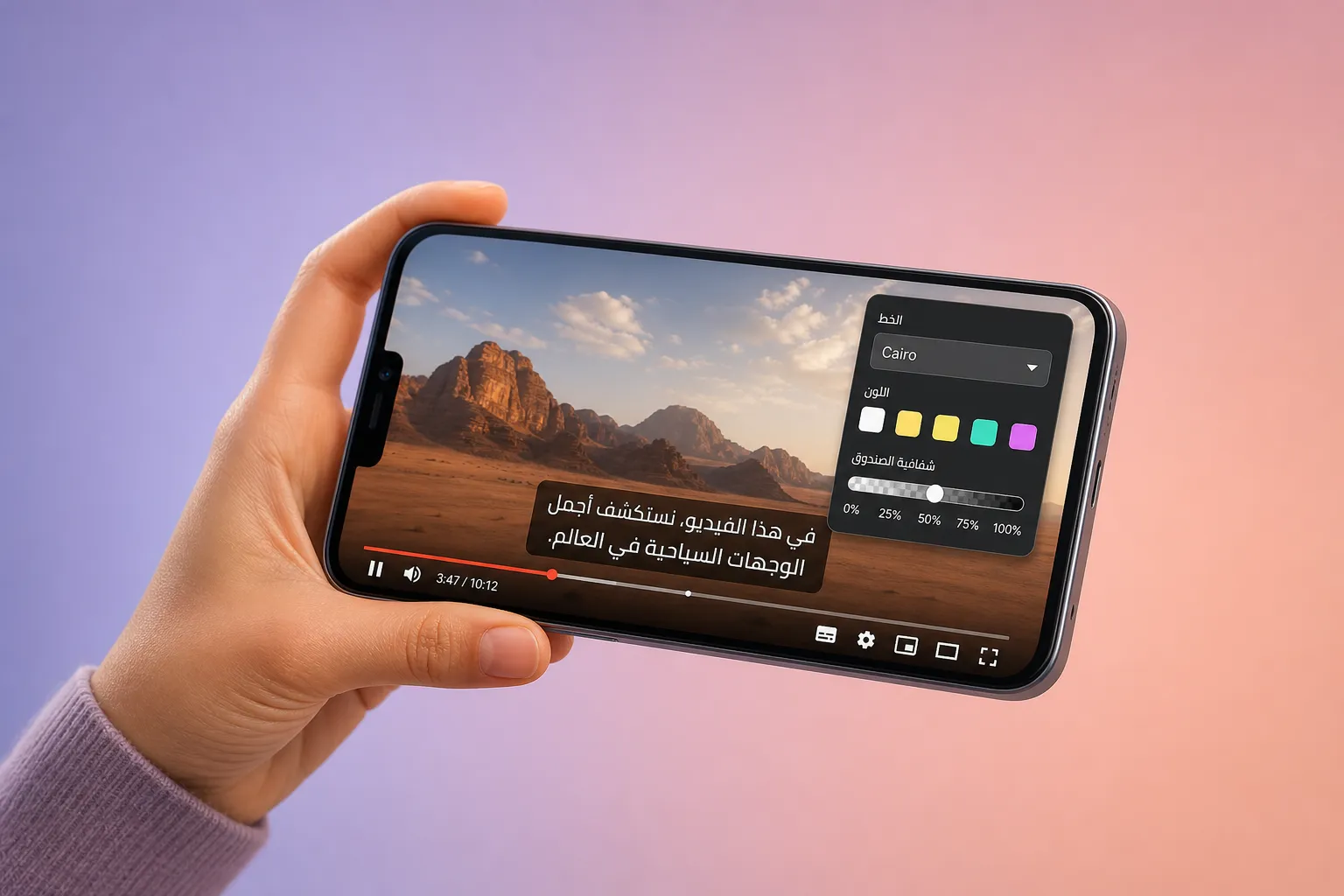
Your YouTube comments are filling up with Arabic, but your video has no Arabic captions. You could hand type a full track, or you can generate, translate, and style subtitles online in minutes, then publish with confidence. Below is a clear, repeatable workflow that gets Arabic captions right on the first pass.
Why Arabic captions help your channel
Many Arabic speakers watch on phones in public with the sound off. Clear captions keep them watching and make your message understandable without audio. Bilingual viewers also stick around longer when text matches what they hear, which can help session time and completion rate. For tutorials, explainers, and how-to content, accurate Arabic text removes guesswork around steps and terminology. On Shorts, subtitles are even more important because viewers decide in seconds whether to keep scrolling.
Good styling matters. High contrast, sane sizing, and clean animation make text easy to follow on a 6-inch screen. Done well, captions guide the eye without crowding the frame.
Step 1: Auto transcribe and translate to Arabic
Create a complete caption track with an AI subtitles generator, then translate it to Arabic in one flow. In SubtitlesFast, this takes a few clicks.
- Upload your video. Drop your file into SubtitlesFast. The editor opens to a timeline with waveform and clips so you can see where words land.
- Run AI Subtitles. Generate the base transcript in the spoken language. SubtitlesFast supports 50+ languages and shows word-level highlighting during playback so you can spot misses quickly.
- Translate Subtitles to Arabic. Use Translate Subtitles to create an Arabic track. Start with Modern Standard Arabic if your audience is broad. Switch to a regional voice only when your viewers are clearly dialect specific.
- Confirm right-to-left layout. Arabic text flows right to left. Check that punctuation and numbers render on the expected side and read in natural order. The editor will display RTL correctly, but a quick pass avoids odd spacing or flipped punctuation.
- Lock down names and terms. Keep brand names, acronyms, and code in Latin letters when that is how your audience expects to see them. Stay consistent across videos.
If a term looks tricky, a 2-minute check with a native speaker prevents guesswork. When you need more help, finding a tutor in your dialect on TutorListed can be faster than trial and error.
Step 2: Edit timing and phrasing on the timeline
Good captions read at a comfortable pace and appear with the line you speak. Use Timeline Editing in SubtitlesFast to trim, cut, and nudge segments until they feel natural.
Timing targets that work for Arabic
- Line length: Keep each line to roughly 35 - 42 characters. Break long sentences into two lines. Two short lines beat one crowded line on a phone.
- Reading speed: Aim for 12 - 15 characters per second. If a subtitle flashes, split it. If it lingers after you finish speaking, trim it.
- Duration: Minimum 1.0 s so viewers can read. Maximum about 6.0 s so text does not overstay.
- Gaps: Leave a small 0.1 - 0.2 s gap between subtitles to prevent a strobe effect.
- Cut alignment: Snap captions to shot changes and natural pauses, not mid-word. The word-level highlight helps you find clean cut points.
Arabic phrasing tips
- Favor clear MSA. It reads clean in tutorials, reviews, and tech topics unless you target a specific region.
- Skip diacritics unless needed. Vowel marks slow reading. Add them only to remove real ambiguity.
- Use Arabic punctuation. Prefer the Arabic comma ، and question mark ؟. Parentheses should open on the right and close on the left in RTL text.
- Break at natural joins. Split long lines at conjunctions like و أو ثم so each line feels like a unit.
- Keep casing consistent. Arabic has no capitals. Use spacing and punctuation for clarity.
Avoid these Arabic caption mistakes
- Flipped punctuation. If a comma or question mark looks wrong, retype it using Arabic punctuation after the word in RTL order.
- Overlong lines. Arabic words can be wide. Balance two lines rather than one crowded line.
- Mixed numerals with no rule. Pick Arabic-Indic (٠١٢٣٤٥٦٧٨٩) or Latin (0123456789) per video and stay consistent. Follow your audience norm.
- Unreviewed auto-translate. Machine output is fast, not perfect. Scan for idioms and technical terms before you ship.
Step 3: Style for small screens without clutter
Most viewers will see your captions on a phone. Style them to pop without blocking faces or UI. SubtitlesFast includes Subtitle Style Customization with 30+ styles and controls for fonts, colors, spacing, and animation.
Make it readable
- Contrast first. White or pale yellow over a semi-opaque dark box works on most footage. A 60 - 70% black box or a thin black outline keeps glyphs crisp on busy backgrounds.
- Size for the frame. As a starting point, set font height to about 3.5 - 5% of frame height for 16:9, and 6 - 7% for 9:16 Shorts. Test on your phone and adjust.
- Line spacing. Slightly tighten leading versus Latin fonts. Around 110 - 120% often looks clean for Arabic.
- Safe area. Keep captions above progress bars, lower-thirds, and on-screen buttons. Raise the baseline a touch for Shorts so faces are not covered.
- Font choice. Avoid ultra-thin or ornate scripts that blur after compression. A clean sans or modern Arabic UI face in medium or bold weight holds up.
When to add motion
- Karaoke Style Subtitles. For music, lyric explainers, or call-and-response edits, use karaoke highlighting so words light up in sync. It keeps eyes on key phrases without extra b-roll.
- Keep it subtle. A gentle pop-in, underline, or word highlight is enough. Heavy motion distracts in long videos.
If your goal is more watch time on short clips, try Karaoke Style Captions. They pull attention to key words without covering the frame, which helps on rapid-scroll platforms.
Step 4: Export and publish without surprises
Once the Arabic track looks right, you can upload a text track to YouTube or burn subtitles into the video for universal playback. SubtitlesFast supports Burned-In Subtitles so your text becomes part of the pixels and looks the same everywhere.
- Pick the platform shape. Use Change Aspect Ratio for 9:16 Shorts and TikTok, 1:1 for Instagram feed, or 16:9 for long-form YouTube. Resizing inside the editor keeps text proportions consistent.
- Upload a caption file. Export SRT or VTT. In YouTube Studio, open Subtitles, add Arabic, then upload “with timing.” If you name the file with the language code (for example, video-name.ar.srt), YouTube recognizes it faster.
- Or burn in. Burned-in captions avoid font mismatches and odd RTL rendering on third-party apps. They are ideal for Shorts and cross-posting.
- QC on your phone. Play the first 30 seconds in bright light and dark mode. Check size, contrast, and safe area, then publish.
- Finishing touches. Add Music inside the editor when the track is part of your cut so you can set levels under voice. Use the AI Thumbnail Generator to spin up a matching thumbnail and publish faster.
Key takeaways
- Start with AI, then fix details. It is faster and more accurate than manual typing.
- Style for phones first. High contrast, sane font size, and tight line breaks win.
- Use Arabic punctuation and consistent numerals. It reads cleaner and avoids confusion.
- Burned-in captions remove platform surprises and look the same everywhere.
- A quick human check beats a reupload later.
FAQ
Should I use Modern Standard Arabic or a dialect for YouTube captions?
Use Modern Standard Arabic for broad reach. Switch to a regional dialect only if your channel targets a specific audience and your on-screen language matches it.
Is it better to upload a caption file or burn subtitles into the video?
Uploading a caption file keeps text searchable and toggleable. Burned-in subtitles guarantee consistent display across apps and edits, especially for Shorts and reels.
What font and size work best for Arabic subtitles on mobile?
Choose a clean sans-serif Arabic font at a size that fits two lines without covering faces. Add a dark box or outline for contrast against busy backgrounds.
Can I rely on auto captions for TikTok and YouTube?
They are a decent start but often miss names and technical terms in Arabic. Create your own track and review it, or export burned-in captions for full control.
How do I handle numbers and punctuation in Arabic captions?
Keep punctuation on the right, follow Arabic order, and pick either Arabic-Indic or Latin numerals based on your audience. Stay consistent within each video.