

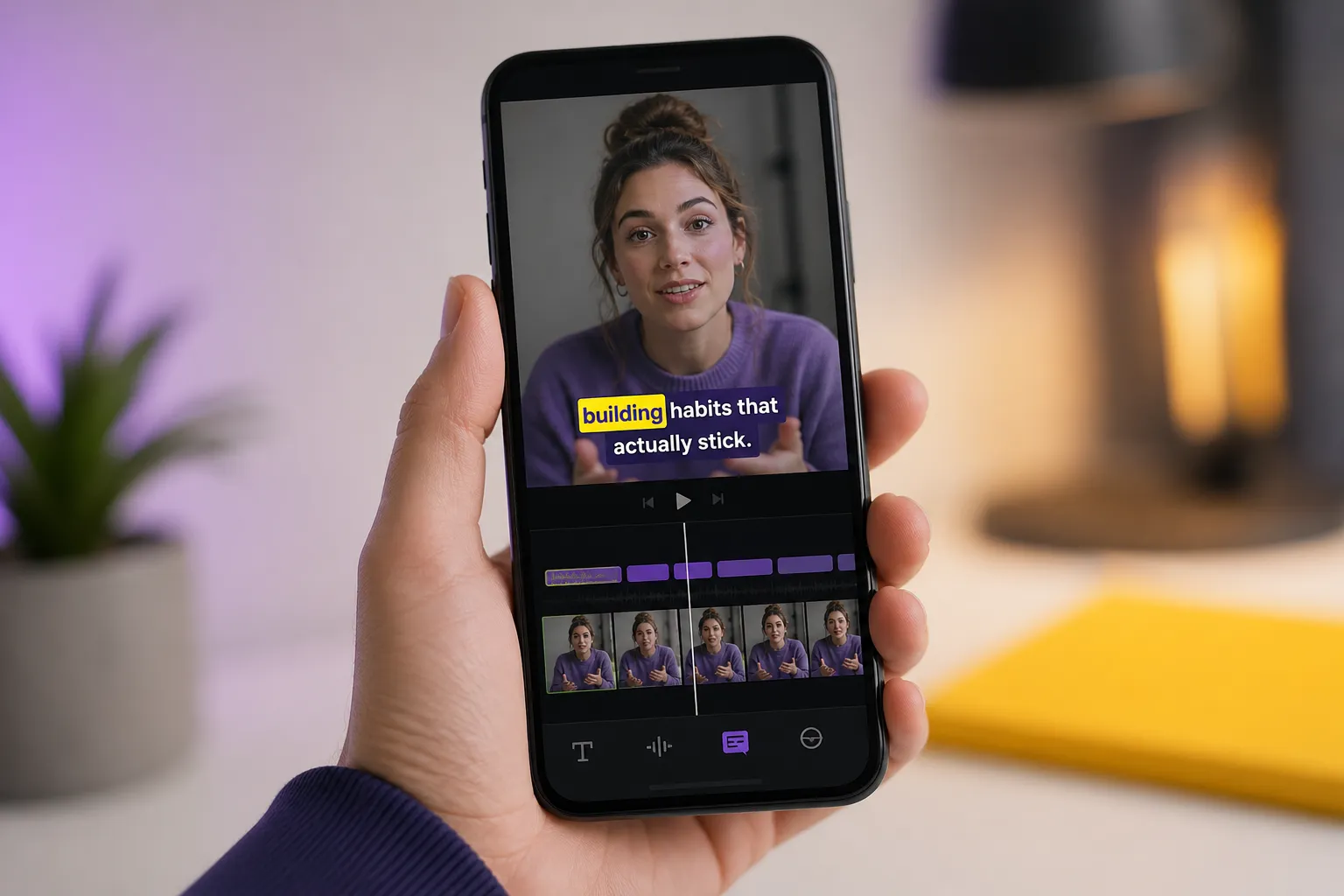
Auto captions can raise watch time and cut edit hours, but only if they are fast to read and never fight the footage. Small screens, app overlays, and fast feeds punish sloppy text. Use these 11 settings to get captions that track your voice, stay readable on phones, and export clean for every platform.
Set up for accurate auto captions
1. Improve AI accuracy from the start
Good audio is the whole game. Record with a clip-on lav or a directional mic 6 - 10 inches from your mouth. Kill fans and HVAC, and monitor levels so peaks land around -6 dBFS with no clipping. If you can, record 48 kHz, 24-bit audio. In SubtitlesFast, start with AI Subtitles and set the source language before you transcribe. Trim dead air and long pauses with Timeline Editing first so the timing grid hugs the words from frame one.
2. Pick the correct language before you auto-caption
Choose the exact language and dialect that matches your voice, like English US vs English UK or Portuguese BR vs PT. This gives the model the right vocabulary and reduces homophone misses. SubtitlesFast supports AI Subtitles in 50+ languages with word-level highlighting, which makes outliers easy to spot and fix during a quick pass.
3. Control line length for glanceable reading
On phones, lines should scan in a blink. Aim for 28 - 34 characters per line in vertical video and 32 - 42 in horizontal. Keep it to 1 - 2 lines whenever possible. Target a reading speed under 15 characters per second. Let each subtitle live at least 1 second and rarely longer than 6 seconds. Break at natural pauses, not mid-phrase. In SubtitlesFast, split or merge with the blade and join tools so each line lands on a beat you can feel.
Design captions for small screens
4. Font sizes and safe zones by platform
What reads fine on a laptop often shrinks on a phone. For vertical 9:16, size captions so the cap height is roughly 5 - 7 percent of frame height. For 16:9 YouTube, 4 - 6 percent is typical. Keep captions inside safe zones so app UI never touches the text. A good rule: avoid the bottom 12 - 15 percent of the frame and the right 12 percent on TikTok. In SubtitlesFast, switch with Change Aspect Ratio to 9:16 for TikTok or 16:9 for YouTube, then drag the bounding box until everything sits inside safe guides. Always preview on your phone at 100 percent scale.
5. Color contrast for tiny screens
Mobile compression softens edges, so build contrast into the style itself. Use off-white text, like #F5F5F5, with a 2 - 4 px dark outline or a soft shadow at 90 - 120 degrees. On noisy footage, add a semi-opaque background box at 60 - 80 percent opacity with 6 - 10 px padding. Avoid pure red or heavy blues for text or highlights since they fray under compression. With SubtitlesFast Subtitle Style Customization, lock a palette, outlines, and backgrounds that hold up when the video is scaled and re-encoded.
6. Placement that dodges UI clutter
Bottom center is standard, but TikTok overlays can bury it. Nudge captions a bit higher for vertical edits and keep a small margin from left and right edges so nothing kisses the frame. If you have lower thirds, product tags, or stickers, place captions above them and check the whole cut in a full-screen phone preview. When in doubt, choose clarity over symmetry.
7. Karaoke highlights that guide attention
Word-level highlights pull the eye through fast hooks and dense phrasing. SubtitlesFast Karaoke Style Captions and Karaoke Style Subtitles track speech at the word level, acting like an animated karaoke subtitles editor. Use a single highlight color that matches your brand, keep the glow subtle, and reserve full-line color swaps for chorus-like repeats or punchlines. This pacing cue helps short clips hold focus without shouting.
Edit, timing, and emphasis
8. Style for brand and speed of reading
Viewers should recognize your captions in a split second. In Subtitle Style Customization, pick a clean sans-serif for body, set line spacing to 110 - 130 percent, and save a preset with your brand colors. Keep motion simple. A quick fade or pop-in feels crisp in a fast feed. If you add subtitles to video online and want speed without a desktop suite, SubtitlesFast presets get you 90 percent of the way with one click.
9. Add clear emphasis and speaker cues
For two voices, add brief cues at the start of a line, like “Mia:” and “Jae:”, or use a dash. Reserve ALL CAPS for a single keyword, not the whole sentence. Accessibility wins matter: mark meaningful sounds in brackets, like [music fades], [applause], or [laughter]. Emojis can work on TikTok, but cap it at one per line and only when it clarifies tone.
Export, publish, and iterate
10. Export presets and final checks
Do not trust a single pass. Scrub for late entries, hyphen splits, and orphaned words. Check that no caption appears for less than 1 second. Then export with Burned-In Subtitles so your style survives platform quirks, and use Change Aspect Ratio to output platform-specific versions. Common picks: 1080x1920 at a high bitrate for TikTok, 1920x1080 or 2560x1440 for YouTube. Stick with H.264 video and AAC audio at 48 kHz so speech stays crisp.
11. Post-publish tweaks that matter
Watch retention graphs. If viewers drop when a dense block appears, break future lines shorter. If rewatch spikes hit a fast section, try Karaoke Style Captions there. Translate breakout clips with Translate Subtitles to cover new regions without re-shooting. If your channel hub or product pages need faster video pages and clean schema for captioned clips, a web team like RedStudio can build and tune that foundation while you keep creating.
SubtitlesFast also includes helpful extras for social workflows. You can Add Music once timing is locked so a backing track never drowns the voice, and an AI Thumbnail Generator can draft covers to test on Shorts and Reels. Keep your captions tight, your styles consistent, and your exports clean, and the feed will do the rest.
Key takeaways
- Record clean audio, set the exact language, then trim pauses before you transcribe.
- Keep lines short, reading speed under 15 CPS, and 1 - 2 lines on screen.
- Use big, high-contrast text inside safe zones sized for each platform.
- Karaoke word highlights guide attention without overwhelming the frame.
- Burned-in exports keep your style intact across apps, and analytics inform the next cut.
FAQ
What font size works best for TikTok and YouTube captions?
Aim larger for TikTok since it is vertical and UI-heavy. On YouTube, medium sizes are fine. Always test on your phone and keep a clear stroke or shadow.
Should I burn subtitles into my video or upload a caption file?
Burned-in subtitles guarantee your style and placement look the same everywhere. Files are flexible, but platforms can restyle or misplace them.
Do karaoke style captions help with watch time?
Often yes. Word-level highlights guide the eye and keep viewers pacing with your speech, which can reduce drop-offs on fast hooks.
How can I improve AI caption accuracy?
Record clean audio, choose the correct language, and trim dead air before transcribing. Then scan the timeline for names, slang, and brand terms.
Do I need different caption settings for vertical and horizontal videos?
Yes. Use larger fonts and tighter safe zones for vertical video, and adjust line breaks. Export in each platform’s aspect ratio to avoid UI overlap.