

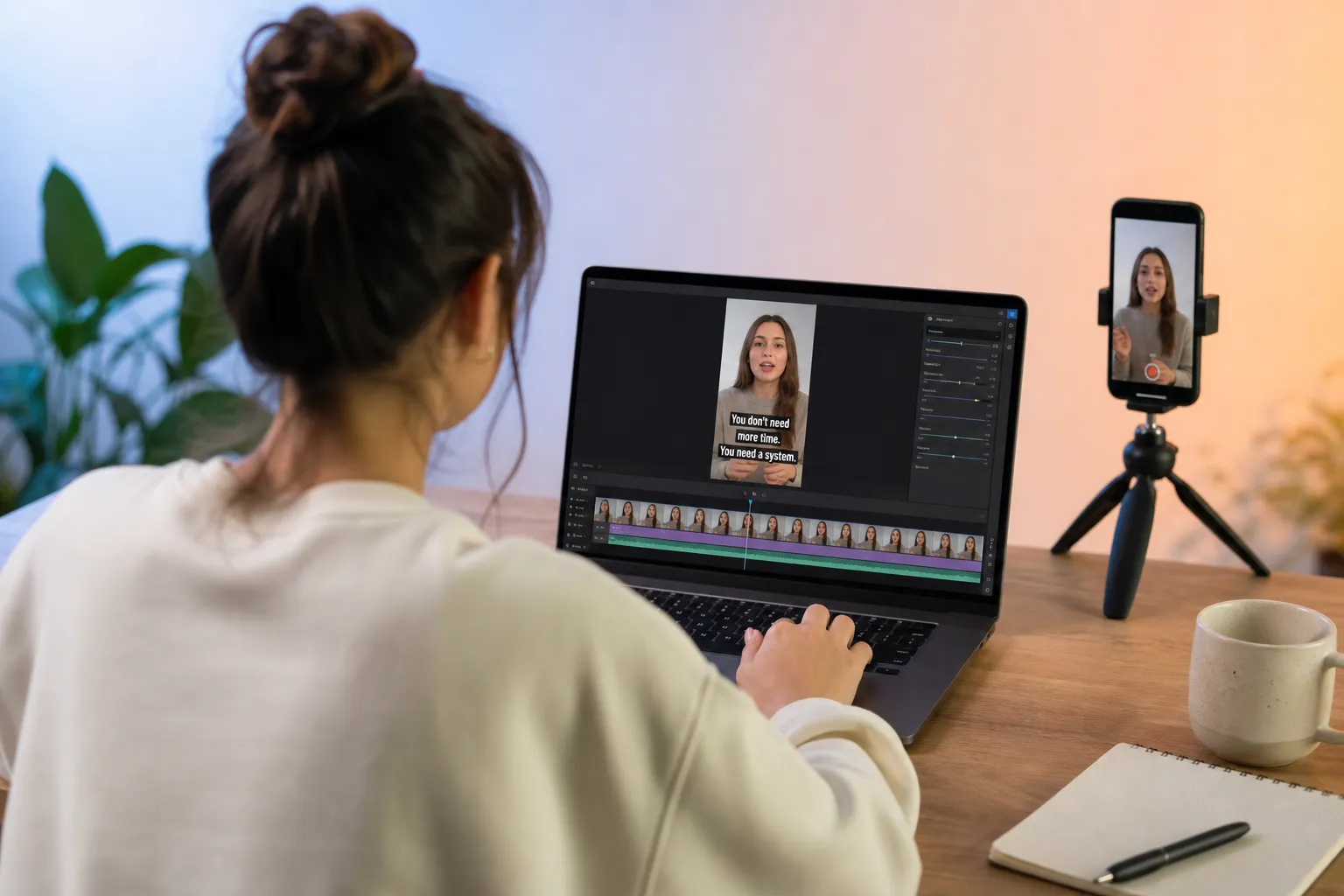
Auto captions are great until they butcher a name, split a sentence, or drift off the beat. If you want captions that look right on TikTok and YouTube and still ship fast, dial in a simple workflow: capture clean audio, generate a solid first pass, fix timing and line breaks, style for the screen, then export the right file for each platform.
Capture clean audio so AI nails the first pass
Accurate subtitles start at the mic. Clear, steady speech gives any AI subtitles generator less to guess and more to confirm.
Quick setup checklist
- Use a real mic. A wired lav pinned at your sternum or a USB dynamic mic 6 to 8 inches from your mouth will beat a phone on a desk every time.
- Tame the room. Turn off fans, close windows, and record in a soft space. A closet full of clothes is better than a bare office. A blanket off-camera can break up reflections.
- Protect levels. Aim peaks around -6 dB, never clip, and record at 48 kHz to stay in video sync. Keep background music off while you speak.
- Think in sentences. Finish a thought, pause, then start the next. Those gaps give the captioner clean boundaries.
- Monitor once. Wear earbuds for a 10-second test and listen for hiss, hum, or echoes before you roll.
On TikTok, pace can be quick but not breathless. On YouTube, you can leave a little more space. Either way, clean audio cuts transcription fixes in half.
Transcribe and translate in a web editor
Open SubtitlesFast in your browser and upload your clip. The web-based AI video editor will detect speech, create captions, and place them right on your video so you can add subtitles to video online without juggling timelines. Pick the spoken language to improve accuracy. If you post in multiple languages, translate after transcription so you keep timing while swapping text.
Review the draft from start to finish one time. Fix brand names, product terms, and slang first. Creators with recurring segments keep a short list of proper nouns nearby so they can scan for the usual suspects. Do not chase every comma in pass one. Get the words right, then make them read well.
Batching helps. If you are cranking through Shorts or Reels, drop the next clip in while you label the previous one. SubtitlesFast is built for simple editing, fast export, and vertical video defaults, so assembly-line publishing is realistic.
Edit reading flow and timing
Great captions read at conversation speed and land on the beat of your voice. Use these rules to polish quickly without second-guessing every frame.
- Two lines max. Aim for 32 to 42 characters per line so text does not wrap in odd places on small screens.
- Break on phrases. Keep names and verb-object pairs together. Prefer “how to grow | your channel faster.”
- Match reading speed. 15 to 17 characters per second is safe for phones. If a line feels rushed, split it or extend its duration a tick.
- Snap to speech. If a caption appears before you talk, nudge it later. If it lingers into the next idea, trim the tail.
- Cut filler on purpose. Drop most “uh” and “um” unless the beat is the joke. Viewers read faster than they hear.
Make this a repeatable checklist so you save decisions for things that matter. Borrow the mindset of a diet plan that adapts to you. Homecooked is a web app that builds personalized cookbooks from your favorite cuisines, dietary preferences, and what is already in your kitchen. It includes smart recipes with timers and parallel steps to save time, easy meal planning with automatic shopping lists, and curated cookbooks for goals like debloating or reducing inflammation. Name your caption steps, run them in the same order, and you will move faster with fewer mistakes.
Style captions for TikTok, Reels, and YouTube
Design for legibility first, brand second. Viewers should be able to read at arm’s length with one glance, even on a busy background.
Readability rules that travel well
- Font and size. Use a bold, clean sans serif. For vertical 1080 x 1920, set a size that is easy to read on a phone without squinting. Err on the larger side.
- Contrast. White or near-white text with a 2 to 4 pixel dark outline or a soft box holds up on footage with mixed lighting.
- Placement. Bottom center is standard. On TikTok and Reels, raise captions to clear the action bar and username. On YouTube, check safe areas for both Shorts and landscape so nothing hides behind the player chrome.
- Emphasis with restraint. Use one accent color to highlight a keyword or phrase. If everything pops, nothing pops.
If you like karaoke energy, keep it measured. Full animated karaoke fits music or punchline beats. For talking heads, a simple per-word highlight on the beat or phrase-by-phrase color change gives clarity without noise. SubtitlesFast lets you restyle per platform and save presets for Shorts, Reels, and long-form so you can switch looks in seconds.
Export, burn in, and upload without surprises
Decide early if you want sidecar captions or burned-in text. For TikTok and Shorts, burned-in captions give you full control of look and placement. For YouTube long-form, you can keep the burned-in brand style or upload a caption file if you prefer.
Export settings that work
- Aspect ratio. 9:16 for TikTok, Reels, and Shorts. 16:9 for YouTube long-form.
- Resolution and codec. 1080 x 1920, H.264 in an MP4 container, AAC audio at 48 kHz.
- Bitrate. 8 to 12 Mbps for vertical 1080p keeps text crisp without bloating file size.
- Frame rate. Match your source, typically 24, 30, or 60 fps. Do not convert 24 to 60 unless you shot it that way.
When you need to burn subtitles into video, SubtitlesFast renders what you see so there are no player surprises. If you choose sidecar captions on YouTube, export an SRT or VTT, check language codes, and scan a few timecodes on upload to confirm sync. Before posting anywhere, watch your export once with the sound off. If a stranger can follow the story, you are ready.
Key takeaways
- Clean audio equals fewer caption edits. Control the room, levels, and pace.
- Transcribe in a web editor, fix names first, then shape timing and line breaks.
- Keep two lines max, break on phrases, and target about 15 to 17 characters per second.
- Style for the screen. High contrast, safe placement, and simple emphasis beat clutter.
- For TikTok, Reels, and Shorts, burn captions in and export 1080 x 1920 MP4 for crisp text.
- SubtitlesFast adds, translates, styles, and burns subtitles, then exports fast to social.
Run this workflow a few times and you will feel it click. Auto captions become a quick polish step, not a project.