

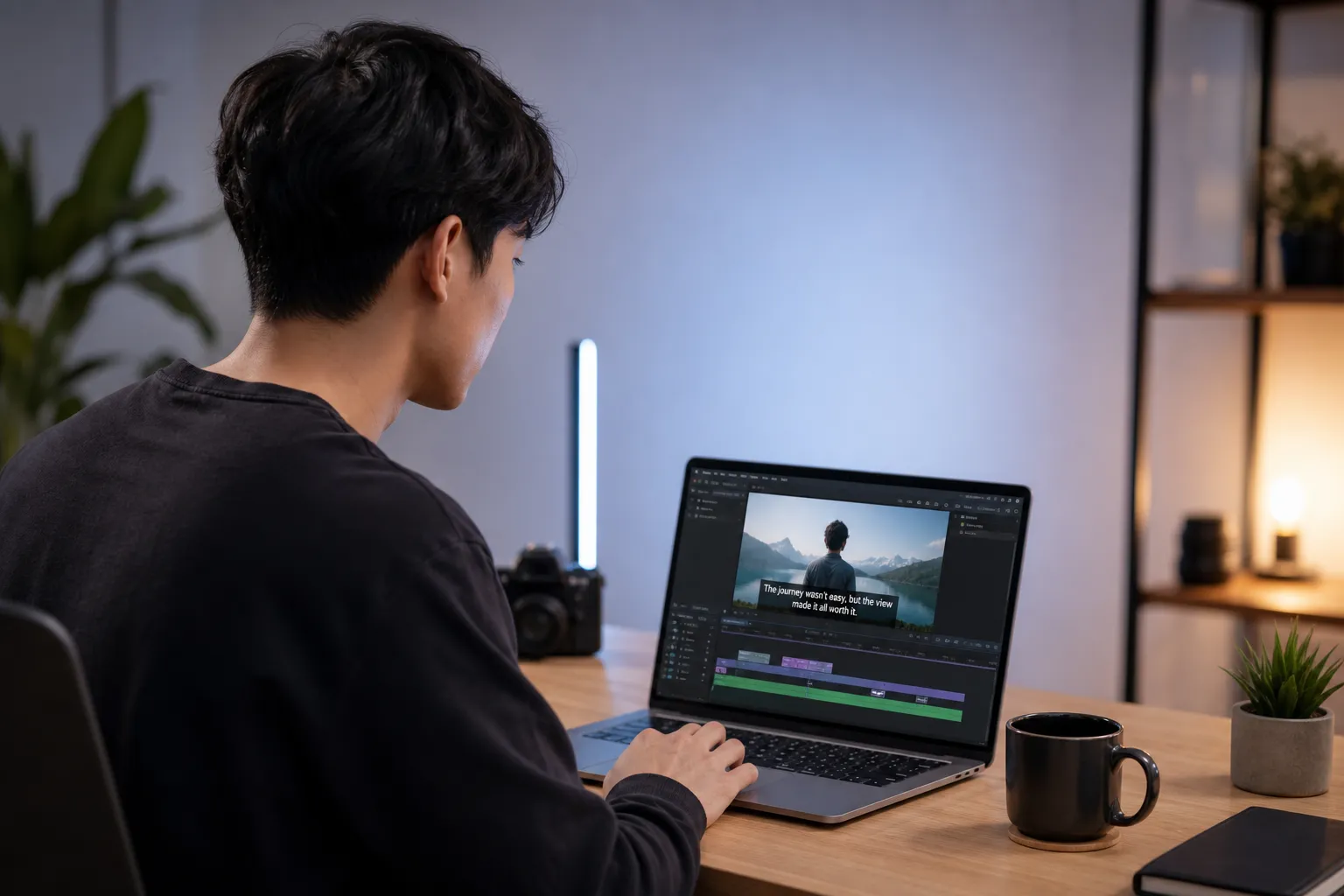
Most social video is watched muted first. If viewers cannot read along, they scroll. Whether you post Shorts, Reels, YouTube, or client deliverables, you need an AI subtitle generator that drafts captions fast, lets you fix them in seconds, and exports cleanly for every platform. We tested popular options and focused on accuracy, edit control, styling, translation, and export speed so you can pick the right tool for your workflow and budget.
What to look for in an AI subtitle generator
- Accurate auto captions with clean timing. Look for punctuation, numbers, and names that land correctly, plus a custom dictionary for product terms and acronyms.
- Fast, simple editing. You should be able to correct words in-line, split or merge captions, nudge timing by a frame, and batch-fix capitalization with find and replace.
- Word-level timing when needed. Essential for karaoke style captions and music-led edits so you can highlight syllables on the beat.
- Reusable brand styling. Fonts, colors, stroke, drop shadow, safe-area presets, and templates that lock in position across 9:16, 1:1, and 16:9.
- Translation you can trust. Support for multiple languages, glossaries to protect brand names, and the ability to reuse one master timeline for all languages.
- Flexible outputs. Burn-in for social, plus caption files like SRT, VTT, and ASS for platforms that render text natively.
- Export presets for speed. One-click targets for TikTok, Instagram, YouTube, and LinkedIn with correct resolution, bitrate, and codec.
- Privacy and portability. Clear data retention policies and easy ways to download caption files, fonts, and templates with your project.
The best AI subtitle tools compared
These tools consistently balance speed, control, and price. Here is how they differ and who they serve best.
SubtitlesFast
SubtitlesFast is a web-based AI editor built around captions. It generates a timed draft in seconds, then uses in-browser text editing so fixes feel natural. You can create brand styles once and apply them across aspect ratios, translate a finished cut without rebuilding timing, and burn captions into final videos. Export presets cover the main social platforms, including 9:16 and 16:9 at 1080p and 4K, with optional SRT or VTT downloads.
Pros
- Quick drafts with frame-level nudge and keyboard shortcuts for fast cleanup.
- Brand kits with fonts, colors, text boxes, and safe-area templates you can reuse.
- Built-in translation that keeps original timing and supports glossaries.
- Burn-in or sidecar caption files, plus social-ready export presets.
Cons
- Large uploads depend on connection speed since processing happens in the browser.
- Complex multi-track compositing still belongs in a full NLE.
Best for: Solo creators and small teams that want fast auto captions, consistent styling, translation, and quick social exports without juggling multiple apps.
CapCut
CapCut adds auto captions to a familiar short-form editor on desktop and mobile. Presets for vertical formats make TikTok and Reels output simple. Effects and templates speed up stylized looks, and word-level highlight animations can approximate karaoke timing for lyric clips.
Pros
- Auto captions tuned for vertical shorts with template-driven styles.
- Desktop and mobile apps that keep edits moving on the go.
- Easy burn-in exports for platforms that do not accept caption files.
Cons
- Templates can push a formulaic look unless you customize them.
- Long timelines feel cramped compared to dedicated long-form tools.
Best for: TikTok, Reels, and Shorts creators who want fast captions and quick visual flair inside a social-first editor.
Descript
Descript transcribes first and lets you edit video by editing text. That makes caption cleanup fast for podcasts, interviews, and webinars. Speaker labeling helps multi-voice projects. You can export SRT or VTT, burn captions into a video, and publish to hosting platforms.
Pros
- Text-first workflow with strong find and replace, filler-word removal, and speaker detection.
- Good for long-form accuracy and structured captions with timestamps.
- Flexible exports for YouTube and podcast workflows.
Cons
- The interface has a learning curve if you expect a timeline-first editor.
- Desktop app can feel heavy on older hardware.
Best for: Podcasters, educators, and YouTubers who need accurate transcripts, easy fixes, and reliable long-form captions.
VEED.io
VEED.io is a browser-first editor with quick auto captions and many ready-made styles. Teams can lock brand looks and reuse templates across creators. Translation supports multi-language publishing, and you can export with burn-in or download caption files.
Pros
- Fast online captioning with reusable style templates and brand assets.
- Team-friendly collaboration in the browser.
- Flexible outputs, including SRT, VTT, and burn-in.
Cons
- Free tiers add limits that stack up on busy teams.
- Very long or media-heavy projects can feel slower in-browser.
Best for: Teams and brand-led creators who want consistent styling and simple collaboration online.
YouTube Studio
YouTube Studio auto generates captions for uploads. It is a solid free baseline, especially if you already live in YouTube. You can edit text, keep captions attached to your video, or download the file for reuse elsewhere.
Pros
- Free auto captions with wide language coverage.
- Simple text edits and SRT downloads for other platforms.
- Integrated into your upload and publishing flow.
Cons
- No styling. Use another editor if you need burn-in or brand templates.
- Timing and punctuation may need cleanup with music or crosstalk.
Best for: Creators who want a zero-cost starting point and do not mind a quick cleanup or finishing in another editor.
Accuracy, languages, and karaoke timing
Accuracy rises with clean audio. Record in a quiet space, use a decent mic close to the mouth, and avoid heavy music under dialogue. Set your sample rate to 48 kHz and keep peaks below clipping. For niche terms, add custom words to your dictionary before generating captions. For interviews and panels, tools with speaker detection can split captions automatically and reduce manual relabeling.
Translation works best when you keep captions concise. Aim for 32 to 40 characters per line, a maximum of two lines, and about one to six seconds on screen depending on pace. When you translate, keep the original timing and only adjust where reading speed requires it. If you publish in multiple regions, prefer tools that convert a single master timeline into localized versions without rebuilding.
For karaoke subtitles where words highlight on the beat, you need word-level timecodes and per-word styling. Look for editors that let you tap tempo or align highlights to markers, then preview at full frame rate. Exports that support ASS or baked-in animated text help lyric videos look the same everywhere.
Editing, styling, and export workflows
Good AI gets you close, but polish wins attention. Use hotkeys to jump caption to caption, split long sentences, and fix casing. Keep lines short enough to read at phone distance. Place captions away from lower thirds, face close-ups, and platform UI.
Brand styling should be repeatable. Set fonts, weight, size, color, stroke, and shadow once. Save safe-area positions for 9:16, 1:1, and 16:9 so nothing collides with overlays. For courses and talking heads, choose clean lower-third blocks. For music and edits with emphasis, use animated templates or an animated karaoke subtitles editor with word-level highlights.
Pick outputs by destination:
- Social platforms that do not accept caption files (Instagram feed, many Reels) work best with burn-in. Use MP4 H.264 at 1080x1920 for 9:16, 8 to 12 Mbps video bitrate, and AAC 320 kbps audio.
- YouTube supports SRT and VTT. Upload a sidecar file to keep text searchable and let viewers toggle captions. For shorts, burn-in if you want a stylized look that matches brand kits.
- For 16:9 long-form, export 1080p or 4K with caption files for platforms that render natively, and burn-in only when exact styling is required.
Pricing and how to test tools quickly
Free tiers usually limit duration, watermark exports, or cap the number of projects. Paid plans remove those walls and often add translation, brand kits, higher resolutions, and faster exports. Before you commit, run a 20-minute practical test:
- Short clip: a 60-second vertical talking head with one cut and background music at -20 dB.
- Long clip: an 8-minute horizontal interview with two speakers.
- Measure time to first draft, number of manual fixes, and whether speaker labels are correct.
- Apply a brand style and check it across 9:16, 1:1, and 16:9 in one click.
- Export burn-in for social and an SRT for YouTube. Both should complete without handholding.
- Check privacy. Prefer tools that minimize data retention and let you delete projects easily. In other categories, creators benefit from on-device approaches, like a how to quit drinking app with on-device privacy for iOS and Android. The closer a subtitles tool gets to that principle, the better.
Key takeaways
- Match the tool to the job. Short-form needs quick presets and burn-in. Long-form needs accurate transcripts, speaker labels, and clean SRT exports.
- Set a house style once and reuse it across aspect ratios to save hours every month.
- Translate from a single master timeline and keep captions short for readability.
- Karaoke style captions require word-level timing and preview at full frame rate.
- SubtitlesFast is a strong all-rounder for fast edits, brand styling, translation, and exports.