

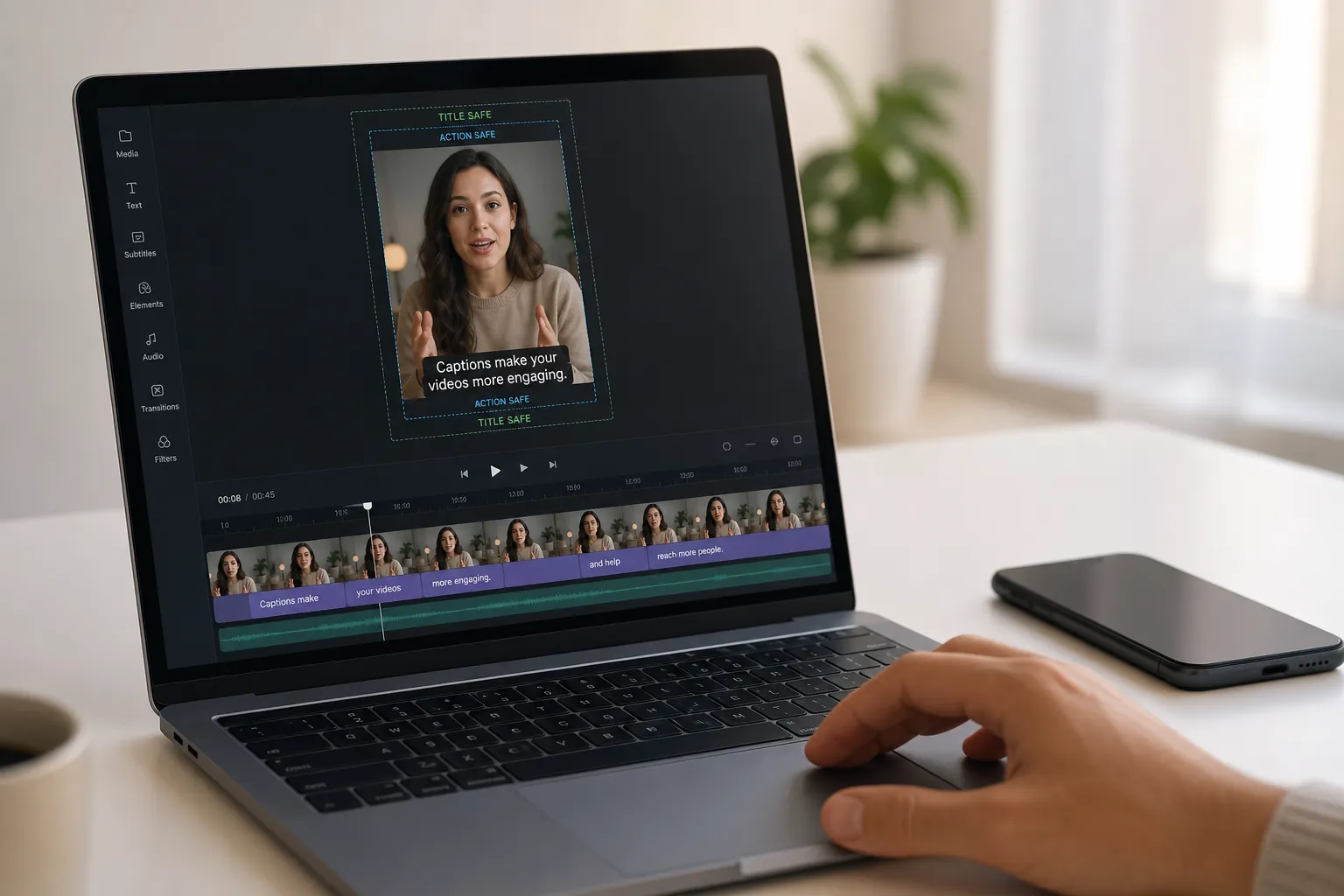
Your captions look perfect in the editor, then get swallowed by overlays, auto-cropping, and recompression in the app. Each platform frames, scales, and decorates video differently. If your export ignores those quirks, text will clip, blur, or sit under buttons. The fix is to export with platform-true presets that lock in sharp, UI-safe captions every time.
SubtitlesFast ships one-click presets for TikTok, Instagram Reels, YouTube Shorts, and standard YouTube. You focus on the words. The preset handles aspect ratio, resolution, title-safe zones, and quality so you can add subtitles to video online, translate them, style them, and burn subtitles into video without second-guessing the final look.
1. TikTok preset settings
TikTok is vertical-first. Export 9:16 at 1080 by 1920. Keep the caption block clear of the bottom UI and the right action rail. A practical rule is to keep the lowest baseline of your text at least 12 to 15 percent above the bottom edge and 7 to 10 percent from the right edge. This clears the timeline bar, caption field, CTA buttons, and the like/comment/share rail on most phones.
Set captions to a maximum of two lines, 28 to 32 characters per line. Use a bold, high-contrast sans serif with a 2 to 4 px stroke or a semi-opaque box so thin letterforms do not smear after compression. Font size that reads on small screens is about 3.5 to 4.5 percent of video height for body subtitles. In pixels, that is roughly 42 to 56 px at 1080 by 1920. Line height of 120 to 140 percent keeps stacked lines balanced. If your AI subtitles generator creates karaoke style highlights, reserve extra bottom padding so the active word never dips into the UI strip as it animates.
In SubtitlesFast, the TikTok preset centers all of this for you. Margins and safe zones are baked in, and captions can be burned at export so you are not relying on the app’s auto captions for TikTok, which can shift style or placement between updates.
2. Instagram Reels preset
Reels shares the 9:16 canvas at 1080 by 1920, but the overlays differ. Leave breathing room at the top for the profile name and follow button, and keep captions out of the lower progress bar area. A centered caption block with generous bottom padding usually reads best in the feed.
Plan for the grid preview crop. Reels can appear as 4:5 or 1:1 crops in the profile grid. Keep critical text within the central 4:5 safe area so it does not get trimmed in previews. As a quick check, imagine vertical side margins of about 10 percent on each side, then keep your caption box inside that column.
Brand styling should still prioritize legibility. Light-on-dark or dark-on-light with a subtle drop shadow or box withstands Instagram’s re-encodes. If you use karaoke word highlights, test timing in the Reels preset so the active word never runs under the bottom controls. SubtitlesFast’s one-click Reels preset includes these safe zones and ships your style intact from edit to export.
3. YouTube and Shorts preset
YouTube is two workflows. Shorts use 9:16 at 1080 by 1920, while standard videos use 16:9 at 1920 by 1080. For Shorts, treat placement like TikTok: keep captions above the scrubber and away from the right action rail, with at least 12 percent bottom padding and side margins of 6 to 8 percent. For 16:9, treat captions like lower-thirds. Keep them within a 90 percent title-safe region and at least 5 percent above the bottom edge. Some TV apps and embeds add subtle cropping, so hugging the edge is risky.
Repurposing landscape to Shorts? Frame the subject and caption block in the vertical center. Use a background box at 80 to 90 percent opacity if the underlying footage is busy. This preserves contrast with minimal distraction. If your long-form video already has lower-thirds, reduce duplicate text by timing captions to avoid overlap or move the caption block higher for those moments.
You can publish closed captions on YouTube for accessibility and search while still burning styled captions for TikTok and Reels to keep visuals consistent. Many creators export two versions from SubtitlesFast: a burned-caption vertical for Shorts and a clean 16:9 master with an .srt or .vtt upload for the main channel. That keeps naming, jargon, and brand terms accurate while matching style across platforms.
4. Safe zones and margins that always work
Safe zones make or break readability. As a baseline for vertical 9:16, reserve 10 to 15 percent padding at the bottom for UI, 6 to 10 percent on each side for rails and thumbs, and 6 to 8 percent at the top for nameplates and follows. On 16:9, keep captions at least 5 percent above the bottom and inside a 90 percent title-safe box. Test with a 10-second dummy export and scrub on an actual phone. Open comments, add a sticker, toggle captions, and make sure text stays visible in all states.
Keep animation gentle. A soft color change, underline, or weight shift compresses better than glow pulses or heavy blurs. Budget vertical space for karaoke highlights so active words never jump into UI trim. The point of presets is repeatability. If you want a non-video example of explainable automation, this playbook on AI CV screening with explainable AI shows the same idea: clear rules, predictable output, fewer surprises.
SubtitlesFast’s presets start with practical margins for TikTok, Reels, Shorts, and YouTube. If you need a special layout like split-screen or picture-in-picture, tweak once and save a custom preset so future exports stay consistent.
5. Bitrate and quality tips for sharp captions
Captions turn mushy when bitrate is too low or when the platform is forced to rescale. Export at platform-native resolution to avoid upscaling or odd aspect ratios. Keep your original frame rate. If you shot at 23.976, export 23.976. Avoid variable frame rate if you plan to edit further.
For 1080 by 1920 vertical exports, H.264 High profile at Level 4.2 with a variable bitrate target of 8 to 12 Mbps covers most talking-head and B-roll content. Bump to 12 to 16 Mbps for fast motion or detailed textures. HEVC can save size at similar quality, but H.264 has broader app compatibility. Use AAC audio at 128 to 192 kbps, 48 kHz stereo. Stick to Rec.709 color and standard gamma. If you captured HDR, tone-map to SDR unless you know the target app preserves HDR end to end.
Typography carries as much weight as bitrate. Use a readable sans serif like Inter, Roboto, or SF Pro. For 1080 by 1920, 42 to 56 px with a 2 to 4 px outline works for most phones. Aim for a minimum on-screen text height of 40 to 48 device-independent pixels when viewed on a modern phone to ensure distance legibility. Limit to two lines and avoid mid-tone overlays that sink into backgrounds. If you use a box, 70 to 90 percent opacity with 6 to 10 px padding per side keeps the look clean and compression-proof.
Before publishing, run a preflight check: verify margins, confirm two-line max, inspect a high-motion section for ringing around letter edges, and preview on iOS and Android if possible. SubtitlesFast’s instant preview mirrors safe zones and styles per platform so you can spot issues before you export.
Key takeaways
- Export native. 9:16 at 1080 by 1920 for TikTok, Reels, and Shorts. 16:9 at 1920 by 1080 for standard YouTube.
- Respect safe zones. Use 10 to 15 percent bottom padding on vertical and 6 to 10 percent side margins to dodge action rails.
- Style for compression. Bold sans serif, strong contrast, and a 2 to 4 px outline or 80 to 90 percent box opacity keep text crisp.
- Match quality to motion. H.264 High profile at 8 to 12 Mbps for most 1080 vertical, up to 16 Mbps for heavy motion.
- Use presets. SubtitlesFast one-click social export presets keep captions consistent and UI-safe across platforms.
Dialed-in exports save re-edits and comments about cut-off text. With SubtitlesFast, you can add subtitles to video online, translate them, style them for your brand, and burn them in or export clean with caption files. Whether you publish karaoke subtitles, fast-cut Shorts, or long-form explainers, good social export presets keep your words readable, on-brand, and right where viewers can see them.