

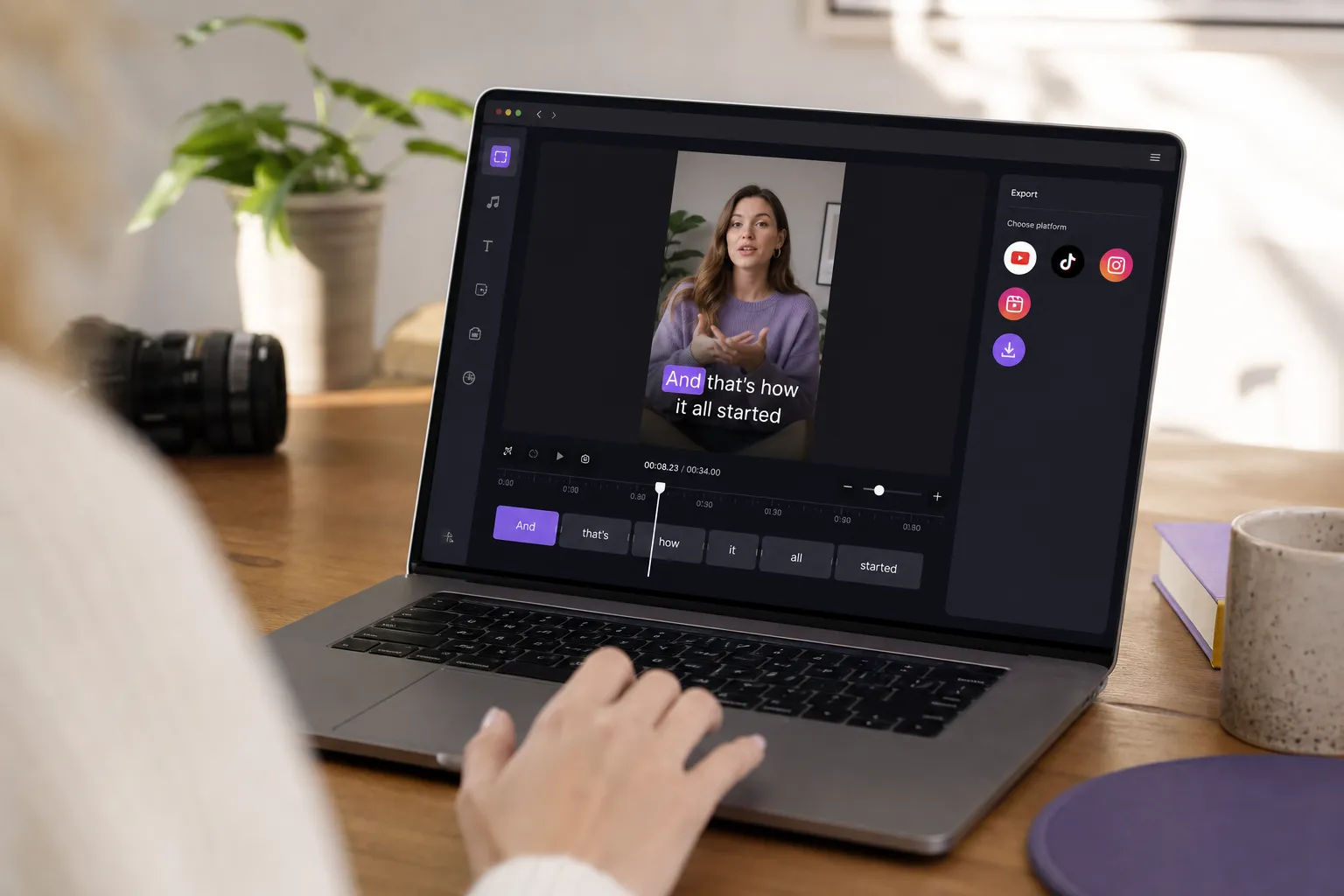
Subtitles are the difference between a scroll-past and a save. Many views happen on mute, and even when audio is on, captions boost clarity and watch time. The right tool should give you accurate text, good timing, and on-brand styles without turning edit day into a chore. Below is a simple way to choose, plus picks that fit real creator workflows.
What to look for in a subtitle generator
We evaluated tools the way creators actually work: short vertical clips, long explainers, and multi-cut social edits. The focus is speed, accuracy, and clean exports.
- Accuracy and timing. A good ai subtitles generator should track speech at normal and fast pace, keep punctuation sensible, and let you nudge timing by frame or millisecond. Look for easy word fixes on a timeline, not a separate pop-up.
- Style control. You want brand fonts, colors, line-height, stroke or shadow for contrast, and placement presets. True karaoke style captions need word-level highlights that follow speech or music beats.
- Workflow speed. You should be able to add subtitles to video online and make trims in the same place. Keyboard shortcuts for split, slip, and text fixes save minutes per clip.
- Platform fit. One-click aspect ratios for TikTok, YouTube, Instagram, and X. Safe zones are key so text clears UI overlays. Reliable auto captions for TikTok and YouTube are table stakes, but your own burn-in usually looks better.
- Export choices. You will need both: burn subtitles into video for social, and export SRT or VTT when the platform supports caption files.
- Translation. Simple language swaps that preserve timecodes. Bonus points for right-to-left support and CJK font handling.
- Pricing and limits. Clear caps on minutes, resolution, uploads, and teams. No surprises at publish.
As a point of view on speed, developers often pick tools like ShipAhead to skip boilerplate and launch faster. The same idea applies here. Pick a subtitle generator that removes grunt work so you can publish more.
Top picks and who they fit best
SubtitlesFast - best for quick, styled captions and social posts
SubtitlesFast is a browser editor that keeps the whole job in one tab. Upload an MP4 or MOV, generate AI Subtitles in 50+ languages with word-level timing, and edit text right on the timeline. Word-level timing enables real karaoke style captions without manual keyframes. Translate Subtitles for multi-language posts, then use Subtitle Style Customization to choose from 30+ animated looks, swap fonts, set brand colors, and tune stroke or shadow for legibility on busy video. Change Aspect Ratio presets cover TikTok, YouTube, Instagram, and X, with safe caption zones baked in. Timeline Editing handles trims and jump cuts. You can Add Music from the same interface and finish with Burned-In Subtitles for consistent look across platforms. An AI Thumbnail Generator helps you package the post fast.
Pros
- Fast AI Subtitles with word-level highlights for true karaoke effects
- 30+ animated styles plus full font, color, and placement control
- Translate Subtitles without re-timing
- Burned-In Subtitles and quick Change Aspect Ratio presets
- Trim, cut, and Add Music on the same timeline, plus AI Thumbnail Generator
Cons
- Runs in the browser, so uploads come first
- Not meant for heavy VFX or complex multicam
Best for creators, social teams, and YouTubers who want polished captions and the option to burn subtitles into video without leaving the browser.
Desktop editor with built-in speech to text - best for long-form control
If you already cut in a pro NLE and want everything under one roof, a local editor with speech to text fits. You get precise timeline edits, color, audio mixing, and caption tracks in one project. For karaoke looks you will likely hand-animate with title templates or plug-ins, which takes more time than tools built for animated captions.
Pros
- Full creative control with deep audio and color tools
- Local media stays on your machine
- Solid for hour-long podcasts and complex edits
Cons
- Steeper learning curve to style captions, especially word-by-word
- Exporting platform-ready versions and caption files can be manual
Best for editors who live in a desktop timeline and need captions as one step in a larger post workflow.
Mobile caption app - best for on-the-go shorts
When you film and post from your phone, a mobile caption app that auto-detects speech and places captions on top is the fastest route for Reels and Shorts. Expect basic fonts and a few templates. Translation and brand-perfect looks are rare, and free tiers often watermark exports.
Pros
- Fastest path from shoot to publish on mobile
- Decent auto captions for quick clips
Cons
- Limited style control and animation options
- Watermarks or short length caps on free plans
Best for creators who value speed over polish for daily short-form posts.
Open-source subtitle editor - best for SRT veterans and precise timing
If you need frame-level timing and already speak SRT, open-source editors are solid. You type, nudge, preview, and export caption files. There is no AI, no automatic translation, and usually no burn-in. You will style captions in your main editor or the platform, not here.
Pros
- Exact control over every line and timecode
- No cost and works offline
Cons
- Manual from start to finish, no AI assist
- No animated karaoke effects or brand kits
Best for teams that deliver caption files to clients or broadcasters and do not need visual effects.
Feature and pricing snapshot
Translation
When you switch languages, your timecodes should stay locked. Tools with Translate Subtitles reuse timing so you do not re-edit. For multilingual posts, check script support, right-to-left rendering, and font fallback. For CJK languages, set slightly larger font sizes and tighter line spacing to keep two lines within safe zones on vertical video.
Burn-in and export
Some platforms read SRT or VTT, some do not. For social feeds and reposts, it is often safer to burn subtitles into video so captions survive re-uploads, screen recordings, and story crops. Keep caption files for YouTube and long-form where viewers can toggle them. Aim for 1-2 lines, about 32-42 characters per line, and a reading speed that fits speech. Exports in H.264 at 1080x1920 for vertical or 1920x1080 for landscape cover most needs.
Aspect ratios and presets
Publishing across TikTok, YouTube, Instagram, and X from one master cut calls for instant ratio switches. Look for Change Aspect Ratio presets and safe caption zones so text clears native UI. As a rule, keep captions at least 10% from the bottom and away from left-right edges on 9:16.
Styling and brand control
At minimum you want fonts, sizes, colors, placement, letter spacing, and line height. For motion, pick a tool with animated styles and karaoke style captions that light up each word in sync. That is different from line-only fades. Use a contrasting stroke or drop shadow on busy footage, avoid pure white at 100%, and keep font sizes consistent across ratios. Save a brand preset so every editor on the team gets the same look.
Workflow extras
Timeline Editing prevents round-trips when you need to fix a cut before re-captioning. Add Music in the same place if you post reels with background tracks. An AI Thumbnail Generator trims packaging time. Small things like snap-to-word, ripple delete, and preset in-out animations add up over a month of posting.
Pricing and limits
Free tiers often cap minutes, watermark exports, or limit resolution. Paid plans may count transcription and translation from the same minute pool. Check maximum video length, monthly minute allotments, team seats, and whether export quality changes by plan. If you post daily, estimate your real minutes per month and add slack for promos or launches.
How to choose the right tool
- Match your content. For daily Shorts and Reels, presets and quick burn-in win. For long YouTube videos, timeline control and precise transcription matter most.
- List must-haves. Do you need translation, an ai subtitles generator, brand fonts, or the ability to add subtitles to video online from any laptop.
- Decide on export. If you post to social a lot, plan to burn subtitles into video. Keep SRT or VTT for platforms that support them.
- Think platforms. You will want Change Aspect Ratio presets and reliable auto captions for TikTok and YouTube.
- Run a 60-second test. Upload one clip, generate captions, correct five words, swap ratios, and export both burn-in and SRT. Time the steps. That result is your true fit.
- Plan your budget. Estimate minutes and exports per month so the plan you pick aligns with your posting cadence.
Key takeaways
- The best subtitle generator is the one you can use fast, every day.
- Word-level highlights deliver real karaoke subtitles and better readability.
- Burned-in captions are safest for social. Keep SRT or VTT for platforms that support them.
- Style presets, translation, and quick aspect-ratio switches save hours over a month of posting.
FAQ
What is the best subtitle generator for social videos?
Pick a tool that does AI subtitles, animated styles, quick aspect ratios, and burn-in exports in one place. Web editors built for social are usually fastest.
How do I make karaoke style captions?
Use a tool with word-level highlighting and animated styles. Import your video, auto-generate captions, then apply a karaoke effect and tweak timing as needed.
Should I burn subtitles into my video or upload an SRT file?
For social feeds, burned-in captions are safest. Use SRT or VTT for platforms that render captions natively and allow viewers to toggle them.
Can I translate subtitles without re-timing the video?
Yes. Tools with built-in translation can swap languages while keeping the original timing. You can still edit lines after the translation pass.
How accurate are AI subtitles?
Accuracy is strong for clear audio. Accents, overlapping speakers, and noise lower accuracy. Always review and fix names, brands, and technical terms.