

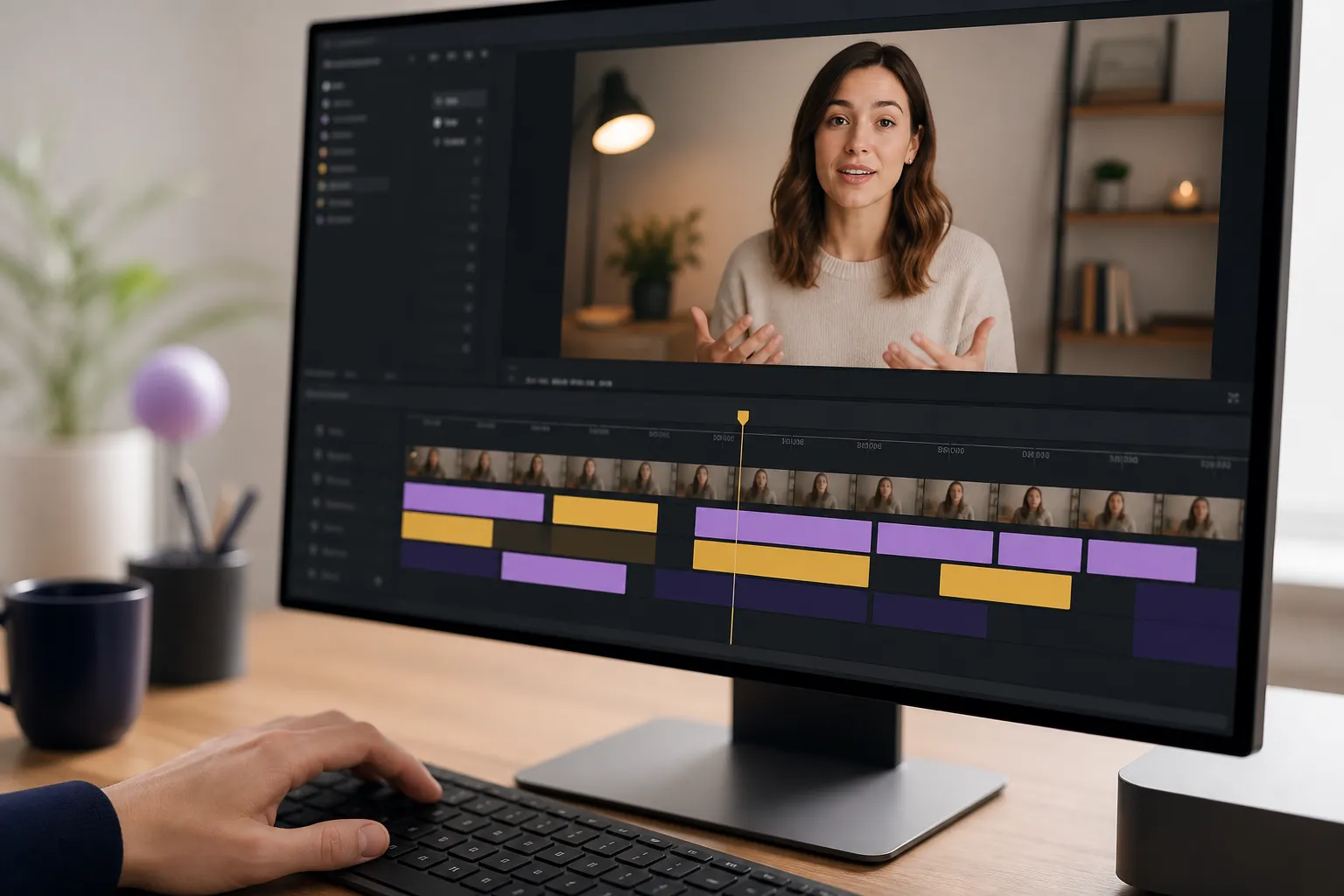
Soft captions get stripped on re-uploads, render differently by player, or hide under buttons. Burning subtitles into video keeps your styling, timing, and placement intact across TikTok, Reels, Shorts, and reposts. Here is a clear, mobile-first workflow to go from raw audio to clean, hardcoded captions that hold up on every platform.
1) Prepare clean, synced captions
If the words and timestamps are off, no amount of styling will fix it. Start by locking accuracy and timing.
Generate and sync quickly
- Run AI Subtitles to auto-transcribe. It supports 50+ languages and shows word-level timing so you can nudge entries precisely.
- Make all cut edits first. Use Timeline Editing to trim, cut, or rearrange clips so the transcript matches the final story. If you shuffle clips, re-sync the captions.
- Import existing files when needed. Pull in SRT or VTT and retime to the edited cut instead of starting over.
Clean the text for speed and clarity
- Keep 1–2 lines per subtitle. Aim for 32–42 characters per line. Break at natural phrase boundaries.
- Fix casing, punctuation, and names. Remove filler words that slow reading. Expand unclear abbreviations on first mention.
- Reading-speed targets: roughly 160–180 words per minute, max 15–17 characters per second. Keep each subtitle on screen 1.5–6 seconds based on length.
- Line-break example: instead of “We launched the feature today and it’s rolling out,” try:
“We launched the feature today”
“and it’s rolling out.”
If your video has tight cuts or fast delivery, try Karaoke Style Subtitles for word-by-word highlighting. It guides the eye and helps viewers keep pace on short-form content.
Reaching global audiences? Use Translate Subtitles to spin up language variants from the same timeline. For right-to-left scripts, pick a font that supports the script and verify punctuation direction.
2) Style for legibility on every platform
People watch on phones in bright sun and dim rooms. Your captions need contrast, size, and spacing that survive both.
Font, contrast, and motion
- Open Subtitle Style Customization. Start with a clean sans serif in medium or bold weight. Avoid ultra-thin styles.
- Contrast that always reads: white text over a black box at 70–85% opacity, or a solid 2–4 px black outline around white text. Add 6–10 px of box padding.
- Color accents: limit to one or two brand colors for emphasis only. If you animate, use a subtle pop-in or float so words remain primary. An animated karaoke look fits short clips; keep it quieter on long-form.
- Line spacing: set around 115–130% so two lines are distinct without drifting too far apart.
Size and placement with mobile in mind
- Size: as a rule, a two-line subtitle should cover about 18–22% of the vertical frame. On a 1080×1920 canvas, that is roughly 340–420 px tall for the full two-line block.
- Safe area: keep captions at least 8% away from edges to dodge UI overlays. Bottom center is standard; shift up for TikTok and YouTube Shorts to clear the timeline and action buttons.
- Speaker labels: if you need them, style labels smaller or in a muted color so the spoken line still dominates.
For short-form retention, try Karaoke Style Captions. The progressive highlight tees up the next word and often bumps watch time on TikTok and Reels without cranking animation.
3) Hardcode, frame, and check the details
When you burn subtitles, the words live in the pixels. That means your style will look the same everywhere, but you must frame correctly.
- Lock the look. Confirm font, color, outline or box, and any animation in Subtitle Style Customization.
- Match the destination with Change Aspect Ratio. 9:16 for TikTok and Shorts, 1:1 where needed, 16:9 for YouTube long-form. Reposition captions after any crop.
- Select Burned-In Subtitles on export so captions display identically regardless of player settings.
Before final export, preview at 100% on desktop and scrub the whole cut. Fix anything that will only get worse after platform compression:
- Fuzzy edges on text: increase outline thickness or box opacity. Avoid blur-based shadows that smear after upload.
- Jittery animations: shorten the easing or remove animation for long-form. On fast cuts, keep animations under 200 ms.
- Awkward wraps: insert manual line breaks and keep phrases together. Never split names or verbs across lines.
Export settings that protect text edges: H.264 High profile, 8–12 Mbps for 1080p vertical, 20–30 Mbps for 4K, 30 fps unless your footage truly needs 60 fps. Use CBR or a high VBR floor so captions do not get mushy in complex scenes.
4) Export and verify on real devices
This is where caption problems surface. Test on a phone before you post everywhere.
- Export with Burned-In Subtitles at the final aspect ratio. For multiple platforms, use Change Aspect Ratio and export per destination.
- Airdrop or send to your phone. Check readability at arm’s length at 75% brightness in daylight and low light. Look for thin strokes disappearing and box opacity feeling too heavy or too light.
- Upload privately or unlisted. On TikTok, confirm the timeline scrubber and buttons do not touch the text. On YouTube Shorts, watch for the description fold and channel bar. On Reels, avoid the like, comment, and share stack.
- Decide on platform captions. If you are burning in, most creators leave auto captions off to avoid double text. If you keep them on for accessibility or indexing, accept the overlap and make sure your burned styling stays readable underneath.
- Watch once with audio on, once off. Catch early or late entries, clipped edges, or wraps you missed on desktop. Fix and re-export fast rather than shipping a barely-there read.
Common pitfalls and quick fixes
- Only soft captions: you lose style control and risk them getting stripped. Fix: export with Burned-In Subtitles.
- Tiny text on phones: looks fine on desktop, unreadable in feed. Fix: size for mobile first and preview on a device.
- Low contrast: white on bright b-roll disappears. Fix: add a semi-opaque box or a thicker outline.
- Bad wraps: mid-phrase breaks slow reading. Fix: add manual line breaks at natural pauses.
- Out-of-sync after edits: cutting video without retiming captions causes drift. Fix: make cuts with Timeline Editing before finalizing captions, then re-check timings.
- One-size canvas: crops bite off text on some platforms. Fix: switch with Change Aspect Ratio and reposition per export.
Collect quick viewer notes on readability and placement. It beats guessing. If you need a lightweight way to gather and rank input across videos and platforms, this primer explains what customer feedback software is, common use cases, and ROI.
Key takeaways
- Burned-in captions keep your look, timing, and placement consistent across platforms and reposts.
- Accuracy and timing first, styling second. Keep 1–2 lines, 32–42 characters per line, and 1.5–6 second durations.
- Style for contrast and motion control. Use boxes or outlines, sane animation, and mobile-safe sizing.
- Frame per platform with Change Aspect Ratio, then preview at 100% and on an actual phone.
- When unsure, simplify. High contrast, clean wraps, and steady timing beat flashy effects.
Whether you want an AI subtitles generator to add subtitles to video online fast or you need polished karaoke style captions that pop, finish by exporting with Burned-In Subtitles so your words land every time.