

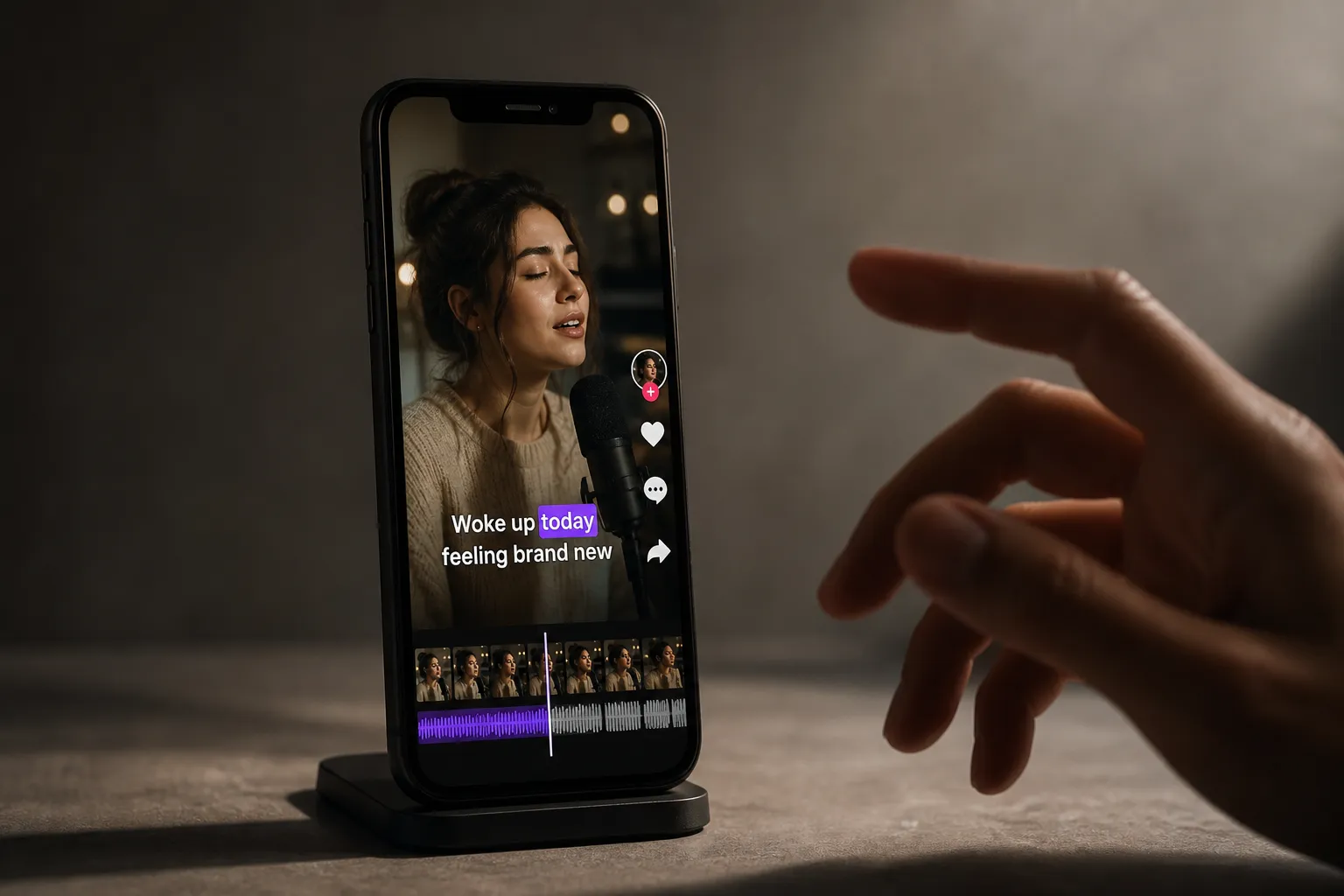
If your Shorts, Reels, or TikToks start strong but drop viewers by second three, captions are usually the fix. They keep silent viewers hooked, clarify fast talk, and add rhythm to the cut. CapCut gives you auto captions inside a full editor. SubtitlesFast focuses on fast, styled subtitles built for vertical video. Here is a clear, practical comparison based on the jobs creators do every day.
| At a glance | CapCut | SubtitlesFast |
|---|---|---|
| Auto captions accuracy | Good on clear speech. Manual fixes for slang, crosstalk, names, fast delivery. | 50+ languages, word-level highlighting for quick spot fixes on a simple timeline. |
| Styling and animations | Standard fonts, colors, basic motion. Template-friendly. | 30+ animated styles, brand fonts and colors, karaoke-style per-word highlight. |
| Aspect ratios | Common canvas sizes for 9:16, 1:1, 16:9. | One-click ratio swaps labeled for TikTok, YouTube, Instagram, X with intact timing. |
| Burn-in export | Exports visible text for baked-on captions. | Burned-in export tuned for social autoplay with animated timing preserved. |
| Workflow and extras | Full editor with templates and mobile-first flow. | Subtitle-first web editor. Translate, Add Music, AI Thumbnail, Timeline Editing. |
Auto captions accuracy
Both tools remove most of the typing. CapCut’s Auto Captions works best when the voice is close to the mic, the noise floor is low, and the speaker is not competing with music. Expect cleanup on slang, brand names, and fast exchanges. If you cut out ums and pauses after transcribing, plan to re-time a few lines or merge segments so the text lands on beats again.
SubtitlesFast centers the whole flow on speech. It transcribes in 50+ languages and highlights each word as it is spoken. That word-level view matters when you only need to fix one misheard word in a sentence. Click the word, type the correction, done. If you ship the same cut to multiple regions, you can Translate Subtitles in the same project so you do not rebuild the timeline or duplicate files.
Accuracy tips that help both tools:
- Record at 48 kHz, 16-bit or better, and keep the mic 6–12 inches from your mouth.
- Kill background tracks while auto-captioning, then bring music back under -18 to -12 LUFS integrated.
- Cut dead air first, then generate captions so timings match your final rhythm.
- On street clips, caption short chunks. Shorter sentences are easier to read on 9:16.
Styling, fonts, and animated timing
Readable comes first. Stylish keeps people. CapCut gives you standard fonts, color fills and strokes, and simple text motion. It is enough for clean lower-thirds or bold, high-contrast lines that match a template pack. Batch edit helps you apply a font or size across all segments at once.
SubtitlesFast leans into Subtitle Style Customization. You get 30+ animated subtitle styles, font and color controls, and karaoke-style highlighting that moves in sync with the voice. That per-word or per-syllable highlight guides the eye during hooks and punchlines, which reduces rereads on fast edits. For branding, lock in your hex colors and preferred font so every short looks like you. If your format is hook, proof, payoff, use a louder style for the hook and a calmer one for the proof section to pace the scroll.
Practical design rules:
- Two lines max, 28–44 px on a 1080x1920 canvas, with 8–12 px stroke or shadow for contrast.
- High-contrast pairs win: white on near-black, yellow on navy, or brand color with a dark stroke.
- Keep caps within safe areas. Avoid the bottom 240 px and right 160 px where UI buttons sit on TikTok and Reels.
Aspect ratios, safe areas, and burn-in
Most creators cut once and post everywhere. CapCut lets you set common aspect ratios so you can go from 16:9 to 9:16 as needed. If you switch late in the edit, plan to nudge text blocks and reset line breaks so nothing clips.
SubtitlesFast has Change Aspect Ratio presets labeled for TikTok, YouTube, Instagram, and X. Swap to 9:16 for Shorts and TikTok or 1:1 for feed posts, and captions keep their timing and line breaks. That saves you from re-hyphenating or hand-breaking every sentence after a ratio change.
Burned-in captions are still the safest way to guarantee readability on silent autoplay. CapCut can export with the captions visible on the video. SubtitlesFast is tuned for Burned-In Subtitles that preserve animated styles and karaoke timing. If you rely on color, motion, or word highlights for your hook, that consistency matters across platforms.
Export tips:
- 1080x1920, H.264, high bitrate (12–20 Mbps) to keep text edges clean.
- Check a 0.5x playback pass. If you can read every line at half speed without pausing, the pacing is good.
- Avoid stacking captions over lower-third graphics, stickers, or progress bars.
Workflow speed, editing, and extras
CapCut is a full editor with templates, effects, and a mobile-first flow. If you are cutting the whole piece in one place, it is convenient. The tradeoff is context switching. You jump between the main timeline, text panels, and style menus whenever you tweak timing or design. On heavy template projects, that back-and-forth adds minutes per clip.
SubtitlesFast is a web-based AI video editor that starts at the subtitle. The path is short: import, run AI Subtitles, fix a few words with Timeline Editing, apply Subtitle Style Customization, then Translate Subtitles if you post in multiple languages. Add Music inside the project, create an AI Thumbnail that matches your caption style, Change Aspect Ratio for each platform, and finish with Burned-In Subtitles. Because captions are the spine of the project, you spend less time hunting through panels and more time on pace and delivery.
Example flows:
- Talking head tip: trim dead air, auto-caption, batch style, set karaoke highlight only on key words, export 9:16 baked.
- Street vox pop: split per answer, caption each clip, color-code speaker names, stack into a 60-second cut, export square for feed and 9:16 for stories.
- Product demo: caption steps, pin callout emojis or shapes above the subtitle block, keep the bottom third clear for UI.
Pricing and which one to pick
CapCut offers a free app with paid add-ons. It is a strong pick if you want one editor for everything and subtitles are just one step. Templates and basic text motion are enough if your format is consistent and you rarely translate.
SubtitlesFast focuses on speed-to-post for short-form. If captions carry your hook, if you rely on karaoke-style timing, or if you publish the same cut in multiple languages and ratios, the subtitle-first flow pays off in volume. You get repeatable styling, faster fixes, and exports that look the same across platforms.
Building your own captioning or video tool instead? Consider a Nuxt SaaS boilerplate for Vue that ships with authentication, payments, i18n, admin, and deployment so you can launch faster.
Key takeaways
- CapCut is a capable all-in-one editor with solid auto captions if you want everything in a single app.
- SubtitlesFast is built for short-form speed with AI Subtitles, karaoke effects, one-click ratio swaps, and clean burned-in exports.
- Design for readability first, then add motion. Keep captions inside safe areas to avoid UI overlap.
- If you post the same cut to TikTok, Reels, and Shorts, consistent burn-in and preserved timing matter more than fancy effects.