

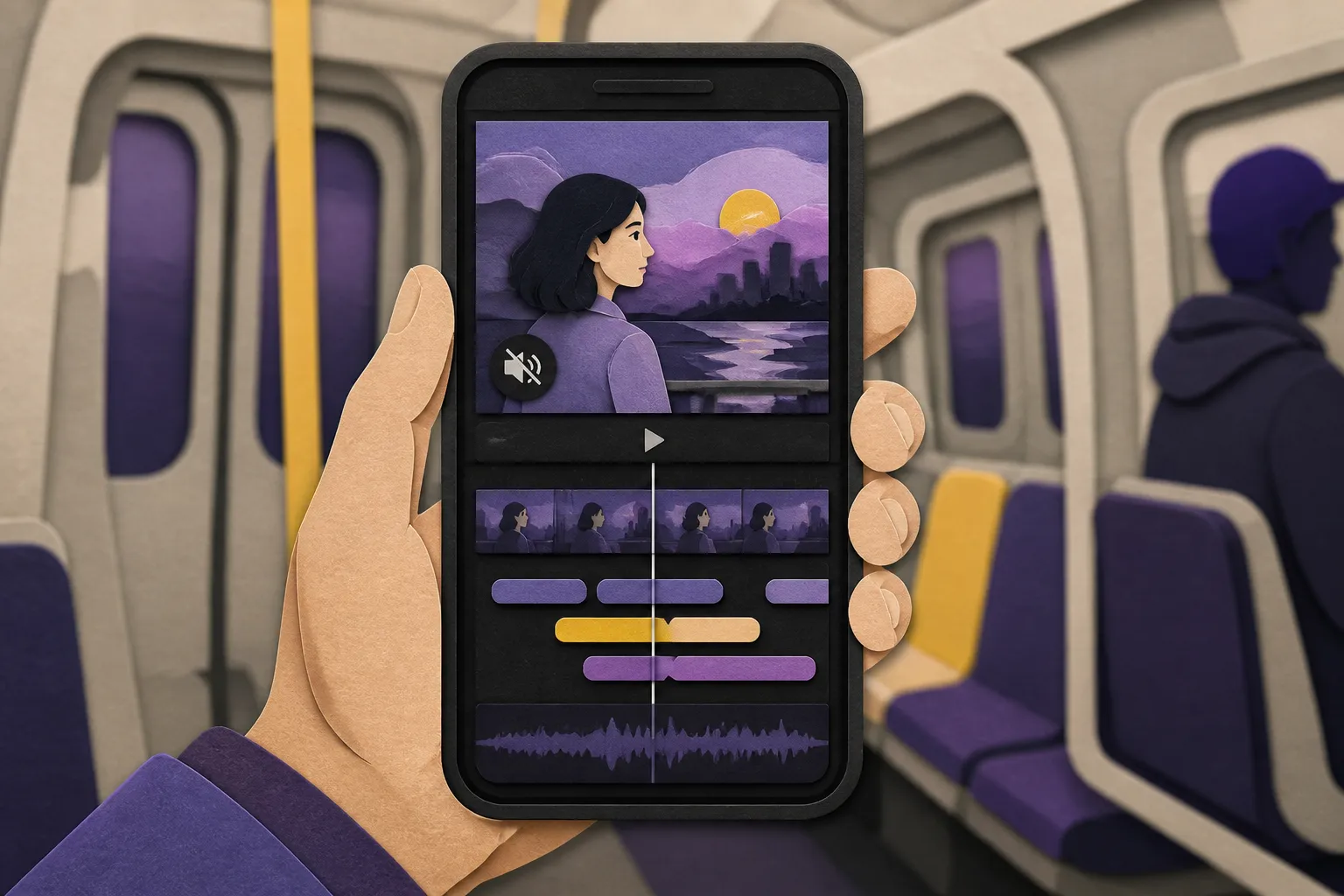
Most social video starts muted, and you only get a few seconds to earn a swipe-stay. The choice between subtitles and closed captions changes how many people understand your video, how long they watch, and how far it travels. In short, closed captions include spoken words plus key sounds, while subtitles show only the dialogue and are often used for translation.
Subtitles vs closed captions: what they include
Subtitles
Subtitles assume the viewer can hear. They display the dialogue, either in the original language or as a translation. Typical traits:
- Only spoken words, no sound cues.
- Timing synced to speech, usually 1 - 2 lines at a time.
- Translations for multilingual audiences without changing the audio.
Use subtitles when your main goal is clarity or translation for people who can hear but want text for speed, accents, or noisy environments. They are also handy when viewers want to copy phrases or search terminology from the screen.
Closed captions
Closed captions are written for people who cannot rely on audio. They include:
- Spoken words.
- Non-speech sounds that matter, like [music], [laughter], [door slams], or [applause].
- Speaker IDs when it is unclear who is talking, for example, [Host] or [Off-screen].
Good closed captions let someone follow your video with sound off and still get the same information and tone. If a clip has only visuals and a song, captions should note the track or vibe, such as [upbeat synth pop] or lyrics when relevant.
When to use which, plus formats and platform behavior
- Purpose: Subtitles help with language and clarity. Closed captions help with hearing access and silent autoplay.
- Audio cues: Subtitles skip them. Closed captions include them.
- Viewer control: Closed captions are often toggleable in the player if you upload a sidecar file. Subtitles can be toggleable too, or you can burn them in so they always show.
- Files: SRT and WebVTT are the common formats. Sidecar files keep text searchable and style-flexible. Burned-in text bakes words into pixels and always displays, even where caption files are ignored.
Simple scenarios
- How-to on YouTube with clear narration: Subtitles work. They support skimming and translation without clutter.
- TikTok with street noise and jump cuts: Closed captions make it understandable on mute and surface sound cues the mic picked up.
- Product teaser set to music: Closed captions can note [upbeat music] and summarize on-screen text. If the story is visual, keep captions short and purposeful.
- Comedy sketch with off-screen voices: Closed captions identify speakers and cue [crowd laughs] so jokes land without audio.
- Global announcement: Subtitles in target languages help you reach non-native speakers fast, no dubbing needed.
Silent viewing is common on short-form platforms, so many creators default to captions. If you prefer a cleaner frame, keep lines concise and limit characters per line, whether you choose subtitles or captions.
Accessibility and styling that read well on a phone
Captions are essential for Deaf and hard-of-hearing viewers. Subtitles help language learners, people in noisy or quiet spaces, and anyone who likes to read along. Make them easy to read with these practical tips:
- Keep it to two lines. Aim for about 32 - 42 characters per line. Shorter on vertical video.
- Respect reading speed. 160 - 180 words per minute is a safe ceiling for subtitles. If the speaker is faster, split lines at natural pauses and trim filler words.
- Font and size: Use a clean sans serif and set text to roughly 5 - 7% of video height. Test on a phone at arm’s length.
- Contrast and outlines: White or light text with a dark stroke or box. Maintain clear separation over busy backgrounds.
- Placement: Keep captions inside safe areas. Avoid the bottom 15% of the frame on TikTok and Reels where UI covers text. Shift up when lower thirds or product labels appear.
- Speaker labels and cues: Use brackets for sounds, for example, [groans], and simple tags like [Host] when voices overlap.
- Punctuation and casing: Use sentence case. Prefer commas and periods to ellipses. Avoid all caps unless you mean to shout.
Karaoke-style captions can boost comprehension for fast talkers. With word-level highlighting, each word lights up as it is spoken. That style works well for music clips and education. If you work with songs, a tool with karaoke support doubles as an animated lyrics editor so you can hit the beat cleanly.
Some viewers always watch on mute during commutes or at work. Tools outside video editing often assume sound is available. For example, ApplyTOP helps job seekers with alerts and tailored resumes while they scroll, but your job tips video still needs clear captions to make sense with volume off.
SEO and performance gains from on-screen text
On social feeds, engagement drives distribution. Subtitles or captions make silent autoplay watchable, which raises average watch time and completion rate. Better early comprehension also cuts the three-second drop-off by giving instant context in the first frame.
On platforms that read caption files, accurate text can support discoverability. Viewers search topics and phrases, and your video may surface when your captions match the query. Burned-in text is not machine-readable in the same way, but it still helps indirectly by improving retention, shares, and saves.
For YouTube, upload an SRT or VTT with the correct language code, then align your title, description, and chapters with the way people actually talk about the topic. Avoid keyword stuffing in caption files. For TikTok and Instagram, short lines, clear placement, and correct names and jargon matter. Auto captions are a good start, but always review them for proper nouns, brand names, and profanity filters that can change meaning.
If your content is global, translated subtitles expand your addressable audience without reshoots. Start with 2 - 3 high-priority languages based on your analytics. Watch retention by language in your next upload to decide what to add.
Fast workflow with AI subtitles, captions, and styled exports
If you want an ai subtitles generator that handles both subtitles and captions, SubtitlesFast focuses on speed and clarity for social publishing. A quick workflow that works for shorts, VOD, and explainers:
- Upload and transcribe. Use AI Subtitles to automatically transcribe your video in 50+ languages with word-level highlighting. This gives you a clean base for subtitles or closed captions.
- Choose subs or caps. For accessibility, add non-speech cues and speaker IDs to create closed captions. For language support, keep only spoken words for subtitles.
- Style for readability. Pick from Subtitle Style Customization with 30+ animated styles, then tune fonts, colors, and animations to match your brand. For dense speech, try Karaoke Style Subtitles or Karaoke Style Captions so viewers track every word.
- Edit timing. Clean up cuts with Timeline Editing. Keep to two lines max, prune filler, and split on natural pauses to stay within comfortable reading speed.
- Frame for each platform. Use Change Aspect Ratio for vertical, square, or horizontal outputs sized for TikTok, YouTube, Instagram, or X. Leave safe margins so UI elements do not cover text.
- Translate as needed. With Translate Subtitles, create versions for priority languages and export per market.
- Add polish. Drop in a track with Add Music if your edit needs energy, then generate a visual hook using the AI Thumbnail Generator.
- Export with confidence. Use Burned-In Subtitles when you want text to always show, including in embedded players that ignore caption files. Also export SRT or VTT for platforms that support toggles.
Examples that work on social
- 30-second product teaser: Short subtitles that hit beats, with a final line that states the value prop. Use a bold high-contrast template so it pops in the first frame.
- Interview clip: Closed captions with [sighs], [chuckles], and a speaker tag when voices overlap. Add karaoke highlighting for fast quotes.
- Music moment: Lyrics timed with karaoke subtitles, color-changing word highlights on each beat. Keep to 1 - 2 lines on screen.
- How-to short: Subtitles for steps plus on-screen labels. If the host talks quickly, karaoke style captions help viewers keep pace on mute.
Key takeaways
- Closed captions include audio cues and speaker IDs. Subtitles show dialogue only.
- Use captions for accessibility and silent viewing. Use subtitles for language clarity and translation.
- Readable, well-placed text lifts watch time, which supports discovery and SEO on social platforms.
- Karaoke style captions increase clarity for fast speech and lyrics.
- Export burned-in text for universal playback and sidecar files where platforms support toggles.
FAQ
Are closed captions the same as subtitles?
No. Closed captions include dialogue plus sound cues and speaker IDs for viewers who cannot hear the audio. Subtitles show only the spoken words, often for translation.
When should I use closed captions instead of subtitles?
Use closed captions when many viewers watch on mute or when you need to serve Deaf and hard-of-hearing audiences. Use subtitles when you need language support without extra sound cues.
Do captions help with SEO on YouTube and TikTok?
They help by improving watch time and completion, which platforms reward. On sites that read caption files, accurate text can also aid discovery for relevant searches.
What are burned-in subtitles?
Burned-in subtitles are baked into the video pixels. They always show, even if a platform does not support caption files or if the viewer cannot toggle captions on.
What are karaoke style captions?
They highlight each word as it is spoken, often on the beat for music or fast speech. This makes dialog and lyrics easier to follow at a glance.