

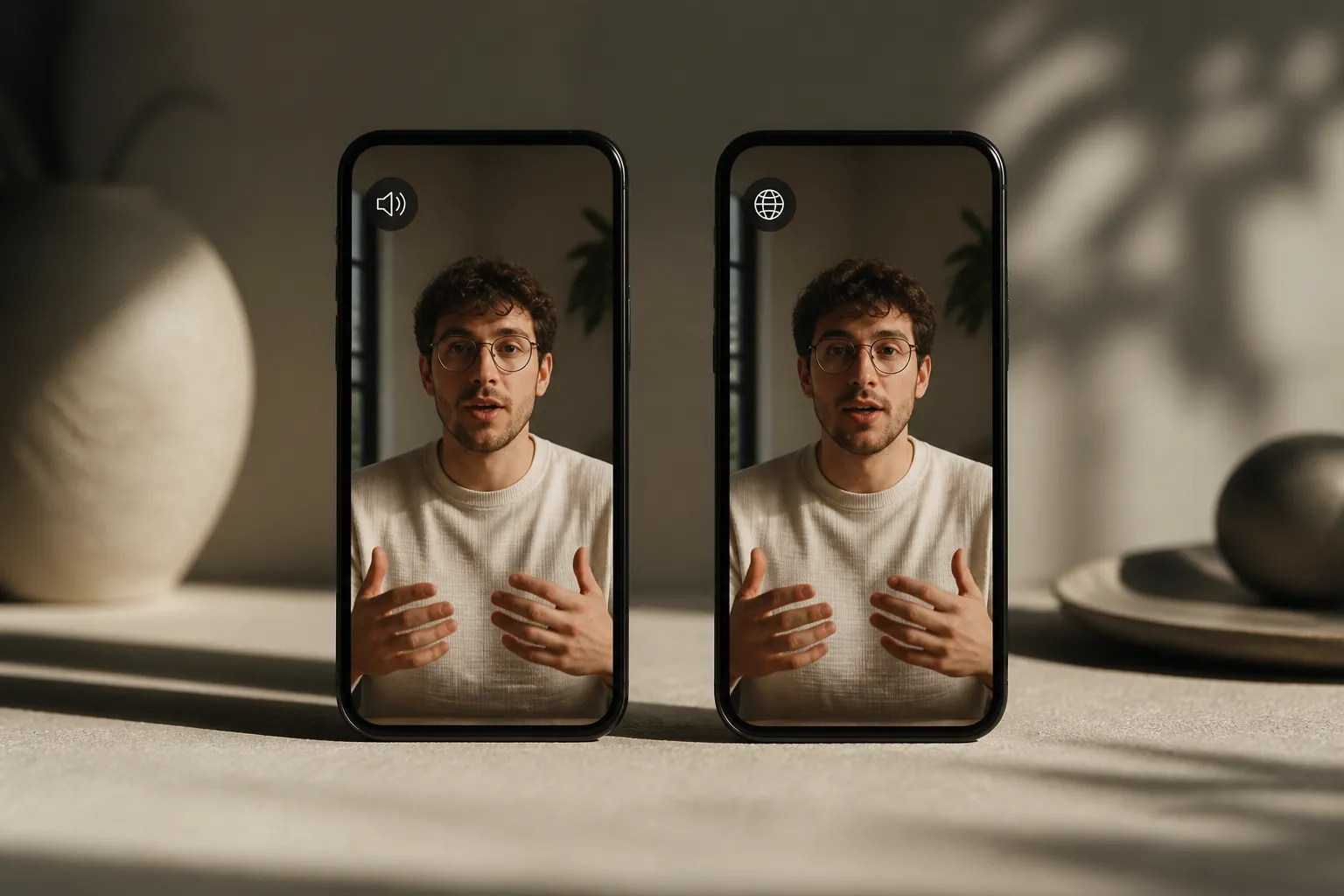
Scrolling feeds are noisy, phones are often muted, and viewers bounce fast. The on‑screen text you choose decides who understands your video and whether your post travels well across apps.
Here is a clear, creator‑first guide to closed captions vs subtitles. You will learn what each one includes, how platforms treat them, when to pick one over the other on social, and a fast way to make them look great.
Closed captions vs subtitles, clearly defined
Closed captions (CC) are timed text for people who cannot rely on audio. They include spoken words plus key non‑speech sounds and speaker labels. Examples:
- [music swells], [laughter], [applause], [door slams]
- Speaker labels when voices change, like [Alex] or [Host]
- Meaningful audio cues, like [siren] or [whispering]
Viewers can usually toggle CC on or off in players that support caption files.
Subtitles are timed text of spoken dialogue only. They assume the viewer can hear the soundtrack. Subtitles are common for translation, for noisy environments, and for silent autoplay.
You may also see SDH (Subtitles for the Deaf and Hard of Hearing) in film and streaming. SDH looks like subtitles but includes sound cues and speaker info, similar to captions.
Karaoke subtitles or karaoke style captions describe a visual style where words highlight in sync with speech or lyrics. That is a styling choice, not a different file format.
At a glance
- Audience: Captions serve deaf and hard‑of‑hearing viewers. Subtitles serve hearing viewers who want on‑screen dialogue.
- Content: Captions include non‑speech sounds and speaker IDs. Subtitles focus on spoken lines.
- Delivery: Both can be closed (toggle) or burned in. Social feeds often favor burned‑in text so it always shows.
Accessibility, formats, and platform support
Captions exist to make video understandable without audio. If a sound changes meaning or tone, it belongs in the text. Without cues like [alarm beeping] or a clear speaker label, viewers can miss jokes, warnings, and context.
File formats
- SRT (SubRip): widely supported, simple timestamps and text.
- WebVTT (VTT): web‑friendly, supports positioning and limited styling.
When a platform supports caption files, upload a proper file so viewers can toggle text, choose languages, and adjust player settings. YouTube supports uploaded caption and subtitle tracks for long‑form. TikTok, Instagram, and Shorts favor on‑video text and built‑in auto captions. If a player does not read files, burn the text into the video.
Quality checklist
- Accuracy: names, jargon, and numbers should be correct.
- Timing: text should appear when words are spoken; avoid big delays or early flashes.
- Readability: 1–2 lines per event, roughly 32–40 characters per line, enough time on screen to read once.
- Sound cues: include only what adds meaning, in brackets.
- Speaker changes: label who is talking when it is not visually obvious.
- Placement: keep text off faces and UI; use safe margins so phone controls do not cover it.
Burned‑in vs closed
Closed captions give viewers control and are best when a platform supports them. Burned‑in text is reliable in feeds that autoplay muted, on screens in public, and on apps that do not accept caption files. If you burn text, include the same cues you would in a caption file so the video stays accessible everywhere.
When to choose captions or subtitles on social
Pick based on goal and the way the app displays video
- YouTube long‑form and education: Upload closed captions for accessibility. Add subtitle tracks for other languages. This helps learners, global viewers, and anyone watching quietly.
- TikTok, Reels, and Shorts: Burn subtitles into the video so text shows during silent autoplay. If the content must be accessible, treat the burned text like captions and include key sound cues.
- Tutorials and explainers: Use closed captions where possible, and keep on‑screen steps short and scannable. Consider a second subtitle track for translation if your audience spans regions.
- Music videos and lyric clips: Karaoke style captions with word‑level highlighting help viewers stay in sync. Use a clean font and a subtle outline or box for contrast.
- Vlogs, memes, and ads: Subtitles lift thumb‑stop rates in fast feeds. Keep lines tight, centered or slightly high, and out of lower‑third UI zones.
Style choices that keep people watching
- Font and size: use a simple sans‑serif with strong contrast. Add a thin outline or semi‑opaque box when backgrounds change.
- Line length: aim for 32–40 characters; break long sentences into natural phrases.
- Pacing: most lines should live long enough to read once without rushing; very short words can be grouped.
- Emphasis: light animation or word‑level highlight can guide the eye without stealing the scene.
- Safe areas: test on a phone and nudge lines up if platform controls cover the lower third.
Discovery and performance
Text helps platforms understand what your video is about. Accurate captions and subtitles add machine‑readable context, improve watchability with the sound off, and can help retention. YouTube auto captions are a useful draft, but they often miss names, brand terms, and timing. Edit them or replace them. If you produce short videos with Reelry, plan to add accurate captions before posting so viewers and algorithms get the message fast. Translating subtitles expands reach across languages and regions.
Practical examples
- Product demo on YouTube: publish closed captions for accessibility; add an English subtitle track for preference and a Spanish track for reach.
- 30‑second app tip on TikTok: burn subtitles with high contrast; keep each line under ~32 characters so it scans at a glance.
- Lyric teaser: use karaoke style captions synced to the beat with a soft background box for readability in bright scenes.
Make captions and subtitles fast with AI
You can add subtitles to video online in minutes. SubtitlesFast is built for creators who want accurate text, clean styling, and exports that work across platforms without installing heavy desktop software.
- Auto transcribe. Upload your clip and let AI Subtitles create timed text in 50+ languages with word‑level highlighting. Skim the timeline, fix names or jargon, and trim or split clips with simple timeline editing.
- Pick a readable style. Use Subtitle Style Customization to choose from 30+ animated looks and set fonts, colors, outlines, and background boxes. For sing‑along energy, turn on Karaoke Style Subtitles or Karaoke Style Captions.
- Translate for reach. Use Translate Subtitles to create versions in other languages when your analytics show international interest.
- Fit every platform. Change Aspect Ratio to 9:16 for TikTok and Reels, 1:1 for square feeds, or 16:9 for YouTube, and keep text inside safe areas.
- Export your way. If a platform will not read caption files, use Export with Burned‑In Subtitles so text is always visible across TikTok, Instagram, YouTube Shorts, and X.
Finish strong. Add Music if your clip needs a light bed, but mix so the voice stays clear. If you want a quick visual for a long‑form upload, the AI Thumbnail Generator can give you options to test. These steps do not change the choice between captions and subtitles; they just help the final video look and sound finished.
Key takeaways
- Captions include non‑speech audio and speaker cues for accessibility; subtitles focus on spoken dialogue.
- Use closed captions when a platform supports files; burn text into short‑form feeds so it always shows.
- Keep text accurate, brief, high contrast, and well timed; add only meaningful sound cues.
- Readable, animated styles like karaoke subtitles can lift watchability on mobile.
- AI tools help you transcribe, style, translate, and export fast so you can post with confidence.