

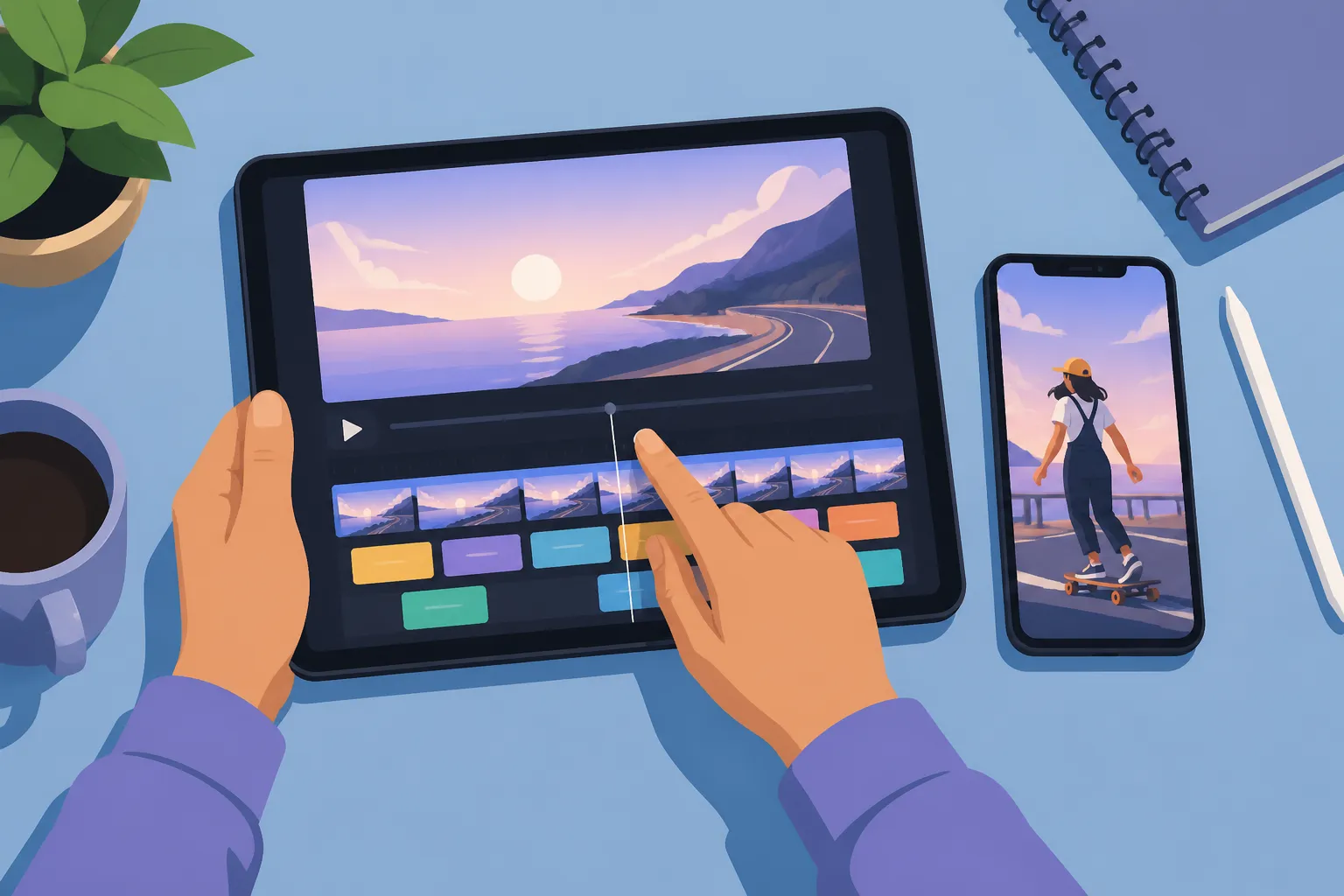
You shot something worth sharing. The part that slows you down is captions. Instead of typing every line by hand, you can go from raw clip to clean, on-brand subtitles in minutes with SubtitlesFast.
Below is a simple flow you can run end to end. It covers accurate auto-transcription, quick fixes, pacing on the timeline, styling that reads well on phones, and a clean export for TikTok, YouTube, Instagram, and X.
Upload and generate subtitles automatically
Drop your file into the editor and pick the spoken language. SubtitlesFast uses AI Subtitles to auto-transcribe speech in 50+ languages with word-level highlighting, so you can click any word to jump to that moment in the video. If your goal is to add subtitles to video online without juggling desktop apps, this is the shortcut that saves the most time.
Make the audio easy to read
- Record close to the mic. A hand’s width from a lav or 10 - 15 cm from a dynamic mic keeps voices clear.
- Control the room. Turn off fans, face soft furnishings, and avoid hard echoes. Less noise equals fewer corrections later.
- Keep music under dialogue. If you recorded music in-camera, set it low. You can add a cleaner track later in the editor.
- Avoid cross-talk. Do quick retakes instead of talking over each other. Overlaps confuse any ai subtitles generator.
Once the upload finishes, the tool analyzes your audio and lays out draft captions synced to the timeline. Now you can scan and fix small things fast.
Clean the text and set readable timing
The first pass will be strong, but it will miss a brand name, slang, or a number now and then. Use the word-level highlight to jump right to the spot and fix it. Apply a few simple rules so your captions read fast on a small screen.
- Standardize names and terms. If your product uses a specific capitalization or spelling, lock it in now.
- Keep lines short. Aim for two lines max, about 32 - 42 characters per line, so viewers do not need to pause.
- Break at natural phrases. Split on breaths or punctuation, not mid-thought. It keeps rhythm clean.
- Use simple punctuation. Periods and commas are enough. Avoid ellipses that make captions feel laggy.
- Mind numbers and acronyms. Write “3 pm” instead of “three PM,” and spell acronyms the same way every time.
Small edits here prevent re-exports later. Tools that trim busywork are worth it. ApplyTOP does this for job hunting, and an AI subtitles workflow does the same for editing so you can focus on story and pacing.
Sync for reading speed
- Keep most captions on screen 1.5 - 3.5 seconds. Faster for short phrases, longer for complex lines.
- Avoid flashing text. If a caption is under one second, split the sentence or tighten the cut so it lands clean.
- Match breaths. Start a caption slightly before the first syllable so the eye lands as the voice starts.
Edit pacing and layout on the timeline
Now shape the story so the words land when they should. Use Timeline Editing to trim dead air, cut stumbles, and reorder clips. Tighter pacing makes captions feel intentional and keeps viewers from bouncing.
- Trim on silence. Cut right before a breath or between words. Mid-word cuts make subtitles feel jumpy.
- Let long sentences breathe. If two clips butt together, leave a few frames of overlap so the subtitle does not blink.
- Keep beats close for Shorts and Reels. Fast cuts pair well with quick-reading lines and steady motion.
Set the canvas early so you see what the audience will see. Use Change Aspect Ratio to switch between 9:16 vertical, 1:1 square, and 16:9 landscape while you edit. Place captions where they will not collide with platform UI: avoid the bottom 15% on TikTok and Reels and leave space on the right edge for buttons.
Style captions for clarity and brand
Readable beats fancy, but you can have both. With Subtitle Style Customization you can pick from 30+ animated styles, then adjust fonts, colors, and motion to match your brand. Keep mobile readability as your north star.
- Pick a legible typeface. Use a clean sans serif with strong shapes. Avoid thin weights at small sizes.
- Max contrast. Use a dark stroke or drop shadow on light footage, or a semi-opaque box behind text for busy scenes.
- Line height and padding. Add enough space between lines so the eye can skim without merging rows.
- Consistent placement. Lock your caption position so it does not drift between shots unless a subject blocks it.
Want motion that helps, not distracts? Subtle is your friend. A light pop-in or slide can catch the eye for the first frame without stealing attention.
Karaoke highlighting for short clips
Karaoke Style Captions and Karaoke Style Subtitles highlight words as you speak. Use one highlight color that matches your brand accent and keep the speed tight so the highlight tracks your voice. This style can lift retention on intros, hooks, and punchlines.
Music and thumbnails
Need to wake up a silent clip? Use Add Music to drop in a track that sits under your voice. Keep music low enough that auto-transcription stays accurate and viewers do not fight the mix. Planning a thumbnail before export helps keep the story coherent in feeds. Use the AI Thumbnail Generator to grab a frame that matches your subtitle style and keep that look across versions.
Translate, burn, and export for every platform
Going global or speaking to bilingual audiences? Use Translate Subtitles to create versions in other languages from the same project. Keep line length comparable to the source so timing still feels natural, and do a quick native-speaker check for idioms if you can.
When the timing and look feel right, finish with Burned-In Subtitles. This locks your design to the pixels so every platform shows captions exactly as styled. If you prefer sidecar files for search, you can still export your master with burned-in text for brand consistency and upload platform captions separately as needed.
- Export sizes: 1080x1920 (9:16) for TikTok and YouTube Shorts, 1080x1080 (1:1) for some Instagram feeds, 1920x1080 (16:9) for YouTube.
- Check safe areas. Keep captions inside platform-safe margins to avoid cropping or UI overlap.
- Mind file limits. Short-form platforms favor smaller files and shorter runtimes. Trim intros and cold opens.
Common pitfalls and easy fixes
- Noisy audio makes messy text. Record closer to the mic and lower any background track before auto-transcribing. You can add music cleanly later.
- Low contrast kills readability. Add a stroke, shadow, or box background so white text never sits on white glare.
- Too many words per line. Cap lines at two and keep them short so phone viewers can read without pausing.
- Forgetting platform UI. On TikTok and Reels, avoid the bottom 15 percent and the right edge where buttons sit.
- Double captions. If you burn subtitles into video, turn off native auto captions on upload to avoid stacked text.
- Awkward pacing after cuts. After any timeline change, play through that section to confirm the subtitle rhythm still lands.
Key takeaways
- Start with AI Subtitles, then do a fast pass for names, slang, and numbers.
- Set readable timing: short lines, natural breaks, and steady on-screen durations.
- Use Timeline Editing plus Change Aspect Ratio early so layout matches the final platform.
- Style for clarity first, then add light motion or Karaoke Style Captions for engagement.
- Translate once, export many. Finish with Burned-In Subtitles for consistent brand across TikTok, YouTube, Instagram, and X.
Whether you want clean burned-in text or animated karaoke highlights, this flow keeps editing light and your videos easy to watch. Run it once and you will have a repeatable path to automatic subtitles for every clip you publish.
FAQ
How long does it take to create automatic subtitles for a short video?
For a 30 to 60 second clip, the AI transcript and a quick cleanup usually take 2 to 5 minutes. Longer videos scale linearly with length and review time.
Should I burn subtitles into the video or upload a caption file?
Burned-in subtitles keep your style consistent across platforms and avoid font issues. Caption files are fine for searchable text, but they will not match your custom look.
What subtitle style works best for TikTok and YouTube Shorts?
High-contrast text with short lines and simple animations performs well. Karaoke style captions can boost engagement by highlighting words as they are spoken.
Can I translate subtitles into multiple languages from one project?
Yes. Generate your main captions, then create translated versions from the same project so timing and style stay consistent.
Will timeline edits throw off my caption timing?
If you trim or rearrange clips, review the affected sections and play them back. Small timing tweaks after edits keep captions in sync with the new pacing.