

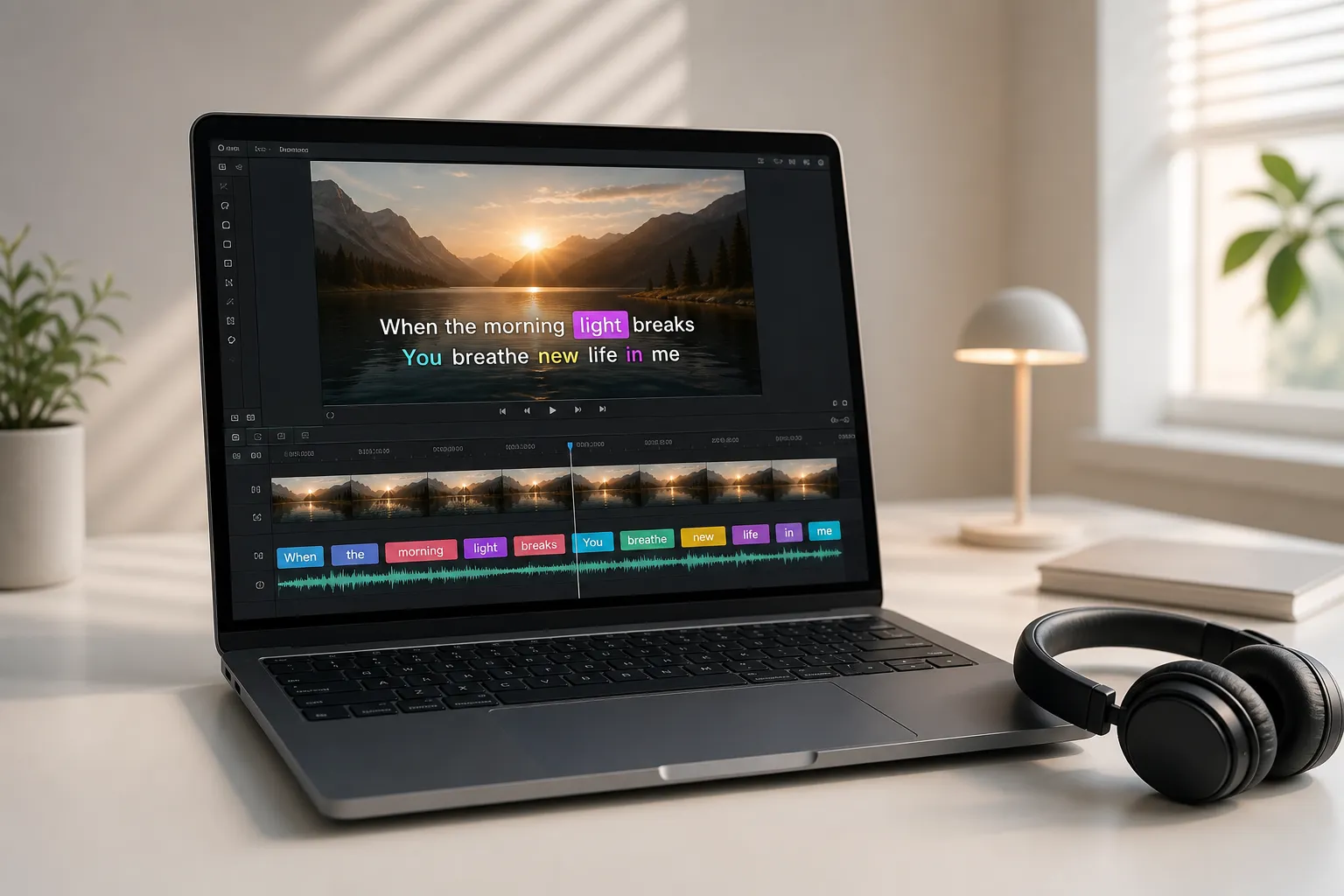
Karaoke captions look effortless when they hit every beat and stay readable on a phone. The hard part is tight timing and clean design that exports fast for TikTok, Reels, and Shorts. This guide shows a practical, repeatable workflow in SubtitlesFast to create animated karaoke subtitles with per word or per syllable highlights, plus brand styling and social ready exports.
Plan lyric timing and cues
The fastest edits start with a short cue sheet. You do not need sheet music. You need section markers, rough line timings, and notes about pickups and holds so you are not guessing later.
What to prepare
- Structure. Mark intro, verse, chorus, bridge. Drop approximate timestamps where each section begins. For example, Verse 1 at 0:14, Chorus at 0:44, Bridge at 1:56.
- Tempo and count. Get the BPM with a tap tempo app or count 1-2-3-4 for eight bars to feel the spacing. Note downbeats that matter for lyric entrances.
- Final lyric text. Lock spelling, capitalization, and punctuation. Flag pickups like "and I" or "’cause" that start before beat 1 so you can light them early.
- Breaths and ad libs. Decide what stays off screen. Showing every "yeah" can dilute the effect when the vocal is dense.
If your lyric source is on social, collect it cleanly. When an artist posts the hook on X, you can copy X.com posts with media to your clipboard so the text and reference video live in one note. That saves you from tab hopping when you start timing.
Pick animation styles that match the song
Animated karaoke works when motion matches the music and the text stays readable. In SubtitlesFast you can swap highlight modes, adjust easing, and set colors so the animation feels intentional.
- Color wipe. A left-to-right fill that travels across each word. Good for mid tempo pop and acoustic sets where phrasing is even.
- Word bounce. Each word pops as it is sung. Use for rapid rap or punchy indie hooks where attacks are clear.
- Underline grow. A bar expands under the syllable. Subtle and performer-friendly when faces fill the frame.
- Karaoke bar. A continuous progress bar under the line, with per word steps on top. Helps dense lyrics stay trackable.
Pick one effect for the whole song. If you need variety, change only at section breaks such as verse to chorus. Prioritize contrast. High-contrast pairs like #FFFFFF fill with a #111111 outline or yellow fill with black stroke read on bright phones. Avoid low contrast choices like light green on yellow. SubtitlesFast presets include legible combos with stroke and shadow set for small screens.
Sync words and syllables with SubtitlesFast
Tight timing sells the effect. Start with AI, then refine by ear and waveform so each highlight snaps to the vocal attack.
- Create a project and import media. Add your video or a high quality audio stem. Higher bitrate audio shows clearer transients in the waveform, which makes alignment faster.
- Auto transcribe. Run Auto Captions to generate the base text. Fix spelling and punctuation first. Combine or split lines so each line feels like a singable phrase. A good target is 5 to 8 words per line.
- Enter Karaoke mode. Toggle Karaoke mode to enable per word highlights. SubtitlesFast auto splits lines into words and sets initial timings from the model.
- Refine word hits. Zoom into the waveform. Align each word marker to the consonant attack, not the vowel sustain. Use arrow keys to nudge in small steps so you do not overshoot. For pickups that start before beat 1, drag the first word slightly left so it lights on the upbeat.
- Handle held notes and short bursts. Extend the out point on held syllables so the highlight stays on the note. For rapid-fire passages, keep tiny gaps between markers consistent so the motion reads as rhythm, not noise.
- Split into syllables where needed. For melismas or long vowels, split a word into syllables like be-fore or hal-le-lu-jah. Keep the total duration equal to the sung phrase so the last syllable does not outlast the audio.
- Use the beat grid as a guide, not a rule. If you set BPM in the project, you can snap rough placements to beats and eighths, then fine tune by ear. Vocals rarely sit perfectly on the grid, so trust transients.
- Preview in loops. Loop one line, then the whole section. Do one pass at low volume to hear consonants and sibilants, then another at normal volume to check feel.
Translate without breaking the effect
If you publish in multiple languages, translate inside SubtitlesFast so timing survives. Generate the base karaoke timing in the source language. Duplicate the track, translate lines, then reflow long translations onto two lines where needed. Keep the highlight mode and color system identical so viewers recognize the effect. For right-to-left scripts, pin alignment to the leading edge so wipes travel in the correct reading direction. Always do a manual read to confirm line length and legibility.
Common pitfalls
- Overstuffed lines. More than 8 to 10 words per line forces rushed reading. Break dense lines or use a two-line stack.
- Late highlights. If you align to vowels, motion will feel behind. Snap to the first audible consonant.
- Inconsistent spacing. Random gaps look wrong even when technically accurate. Keep spacing patterns uniform inside a phrase.
Brand fonts and layout for visibility
Design for legibility first, then layer brand flavor. Set a reusable style so every clip looks consistent.
- Font choice. Use a clean sans serif with solid hinting on small screens. Medium to semibold weights resist compression shimmer better than hairline or heavy script.
- Contrast and outline. Use a two-color system. Main fill in your brand color, backed by a 2 to 4 px dark outline or a soft black shadow at 60 to 80 percent opacity. Add a subtle translucent matte only when the background is chaotic.
- Line length. Aim for 28 to 42 characters per line so viewers can scan and sing. Break on natural phrase boundaries.
- Safe zone. Keep lyrics at least 10 percent in from left and right edges and about 12 percent up from bottom so TikTok, Reels, and Shorts UI does not cover text.
- Hierarchy. For duets or call and response, assign a secondary color to the second voice and keep the same animation style. Label speakers only when needed.
Save these decisions as a reusable style in SubtitlesFast. Next time you add subtitles to video online, apply the style in one click and stay on brand without redoing settings.
Export for TikTok, Reels, and Shorts
Lock timing and style, then export clean. SubtitlesFast lets you switch canvas sizes, burn subtitles into video, and keep caption files for platforms that support them.
- Aspect and size. Vertical 9:16 at 1080x1920 covers most short form uploads. For square carousels, use 1080x1080. Keep captions inside the safe zone you set earlier.
- Frame rate. Match the source. Do not convert 24 fps to 60 fps. That adds duplicates and can jitter the highlight.
- Codec and bitrate. H.264 MP4 with AAC audio at 15 to 25 Mbps is a reliable default for short clips. Complex footage with fast motion benefits from the higher end of that range.
- Burned-in vs sidecar. For karaoke consistency, choose burn-in. Also export SRT or VTT if you want platform captions for accessibility and search.
- Audio loudness. Keep peaks clean and aim for an integrated loudness near platform norms. Many short-form players normalize toward about -14 to -12 LUFS, so leave a little headroom.
- Versions and batch. Save a master, then duplicate to create 60, 30, and 15 second cuts. Reuse your style and timing where possible. SubtitlesFast renders quickly, so you can test multiple hooks without re-timing lines.
Before posting, do a phone check in bright light. Watch once with sound off to confirm the highlight motion alone communicates rhythm, then once with sound on to confirm feel. If both passes make sense, you are ready to publish.
Key takeaways
- Build a cue sheet with sections, BPM, and pickups before editing. It removes guesswork.
- Pick one animation style that matches the song and keep it consistent within sections.
- Align to consonant attacks, split into syllables only when it improves readability.
- Use a branded, high-contrast style and respect safe zones so text stays legible on small screens.
- Export vertical H.264 at source frame rate, burn in the karaoke effect, and keep SRT or VTT for accessibility.
With SubtitlesFast, you can go from raw performance to polished karaoke subtitles in one browser tab. Auto transcription gives you a clean start, Karaoke mode delivers precise per word or per syllable highlights, translation keeps timing intact across languages, and exports are ready for TikTok, Reels, and Shorts without extra steps.