

You want captions that are fast, accurate, and easy to read on a phone. The slow part is usually cleaning up AI mistakes and fixing timing. Use this workflow and you can caption a 60–90 second video in under 10 minutes, with consistent styling that holds up on TikTok, YouTube, and Instagram.
1. Capture clean audio for clean captions
Good subtitles start with good sound. If the recording is crisp, the transcript comes back clean and you spend less time correcting.
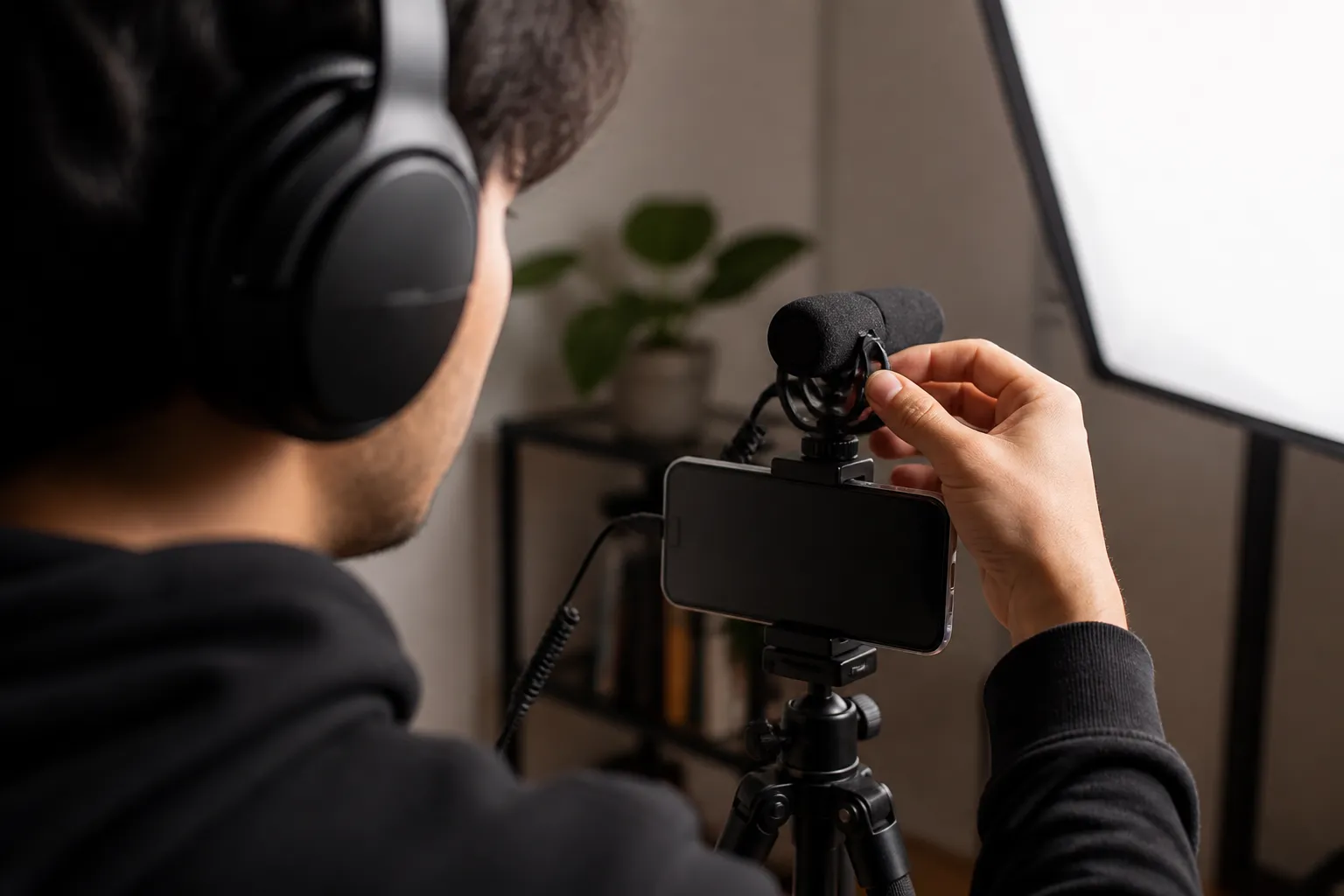
- Mic placement: keep a lav about a handspan from your mouth, or place a small shotgun just out of frame pointed at your chest.
- Levels: aim for peaks around -12 dB. If your meters turn red, back off gain. Clipping ruins words the AI cannot guess.
- Room choice: soft furniture, rug, curtains. Kill HVAC and fridge hum. Close windows. Silence notifications.
- Steady pace: speak clearly, pause between thoughts. Those micro-pauses give cleaner line breaks.
- One voice at a time: avoid crosstalk. Overlapping voices create misses and odd timing.
- Room tone: record 5 seconds of silence at the start. It helps you spot hiss and gives a clean trim point.
- No background music yet: add it later in the editor so the speech model hears only you.
If you can, record at 48 kHz. It does not make your voice sound better by itself, but it keeps audio in sync with video timelines and avoids tiny drift that can nudge captions off.
2. Auto-transcribe, fix fast, and translate smartly
Upload your clip and run AI Subtitles. You get an instant transcript with word-level highlighting, so fixes are quick and you never have to chase timecodes.
- Pick the language up front. If your accent is heavy, select the closest regional model.
- Build a quick dictionary: add brand names, people, and product terms before you start editing. It saves repeat fixes.
- Trim dead air first: use Timeline Editing to cut lead-in and wrap-up. Captions should start on action.
- Scan names and jargon: once per video, do a pass for proper nouns and hashtags. Use find and replace to standardize.
- Keep lines short: target 32–42 characters per line, max two lines. Split long sentences at natural pauses.
- Readable timing: aim for 1.0–6.0 seconds per subtitle, roughly 12–17 characters per second. Too short and people miss it.
- Use the word-level highlight: click the misheard word, listen, retype. Stay out of the timing panel unless something is off by more than half a second.
Publishing Shorts or Reels? Check the opening three seconds. Make sure the first subtitle lands right as you start speaking and is short enough to read in one glance.
Going multilingual is simple after the first pass. Use Translate Subtitles to generate versions for other markets, then spot-check idioms, names, and numbers. For right-to-left languages, set alignment to right and keep the same line length and timing rules.
3. Style once, stay readable on every screen
Subtitle Style Customization lets you pick fonts, colors, and animations. Lock a preset and reuse it across videos so your look is consistent.
Practical styling tips
- Contrast first: light text on dark, or dark on light. If your footage changes a lot, add a semi-opaque background box at 60–80% opacity or a 2–3 px stroke.
- Type choice: clean sans-serif fonts read fastest at phone sizes. Avoid ultra-thin weights.
- Size for mobile: at 1080×1920, subtitles in the 48–64 px range are readable at arm’s length. Test once, then keep it fixed.
- Safe areas: keep text inside roughly 10% margins from edges. That clears TikTok buttons and YouTube player chrome.
- Line breaks: break on phrases, not mid-word. Keep punctuation with the line it belongs to.
- Animations: use quick fades or simple pop-ins. If you want a beat-synced feel, turn on Karaoke Style Subtitles for key phrases only.
- Branding: use brand colors for accents like keyword highlights or the background box, not the full line of text.
If you need that animated karaoke captions editor vibe, highlight just the hook, CTA, or numbers. Constant bouncing text pulls focus from your message.
4. Export and publish without rework
When it looks right, finish with Burned-In Subtitles so your styling travels with the video. If a platform prefers optional captions, also export an SRT or VTT in one click. That gives you accessibility and search benefits without changing the look of your hard subs on other platforms.
Quick finishing checklist
- Aspect ratio: 9:16 for TikTok and YouTube Shorts, 16:9 for YouTube landscape, 1:1 or 4:5 for Instagram feed.
- Frame rate and bitrate: match source fps. For 1080p vertical, 8–12 Mbps H.264 keeps text crisp.
- Audio balance: add Music only after captions are final. Keep music around -24 to -18 LUFS integrated with peaks below -3 dBTP so the voice stays clear.
- Thumbnail: use the AI Thumbnail Generator to grab a frame with eyes visible and a strong mid-expression. Add a 2–4 word text sticker if it helps clarity.
- Phone test: watch the export on a small screen with volume low. If you can read every line without squinting, ship it.
Planning to slot captioning into a larger toolchain? If your team already uses resume screening software, think about integrations the same way you would for HR tech. This clear breakdown of ATS integrations for AI CV screening shows how native features, direct APIs, and iPaaS connectors each fit, where to run a step, and what to centralize.
Common pitfalls that slow you down
- Low contrast: footage changes, your text disappears. Use a background box or stroke and a high-contrast palette.
- Too many words: walls of text force viewers to choose between watching and reading. Cut or split.
- Over-animated styles: fun once, tiring in a feed. Keep movement subtle.
- Wrong ratio late: styling in 16:9 and exporting 9:16 chops lines. Set the ratio before you style.
- Music under dialogue during transcription: the AI spends cycles unmixing, you spend time fixing. Add music after text is final.
- Skipping name checks: do one dedicated pass for proper nouns and product codes.
Key takeaways
- Clean audio saves editing time and boosts accuracy.
- Use AI Subtitles for the first draft, then fix with word-level highlights, short lines, and sensible timing.
- Style for contrast and consistency. Use Subtitle Style Customization and add karaoke highlights only where it helps.
- Export with Burned-In Subtitles, keep an SRT handy, and match aspect ratio and bitrate to the platform.
- Do a quick phone test before posting. If it reads clean at arm’s length, you are good to go.