

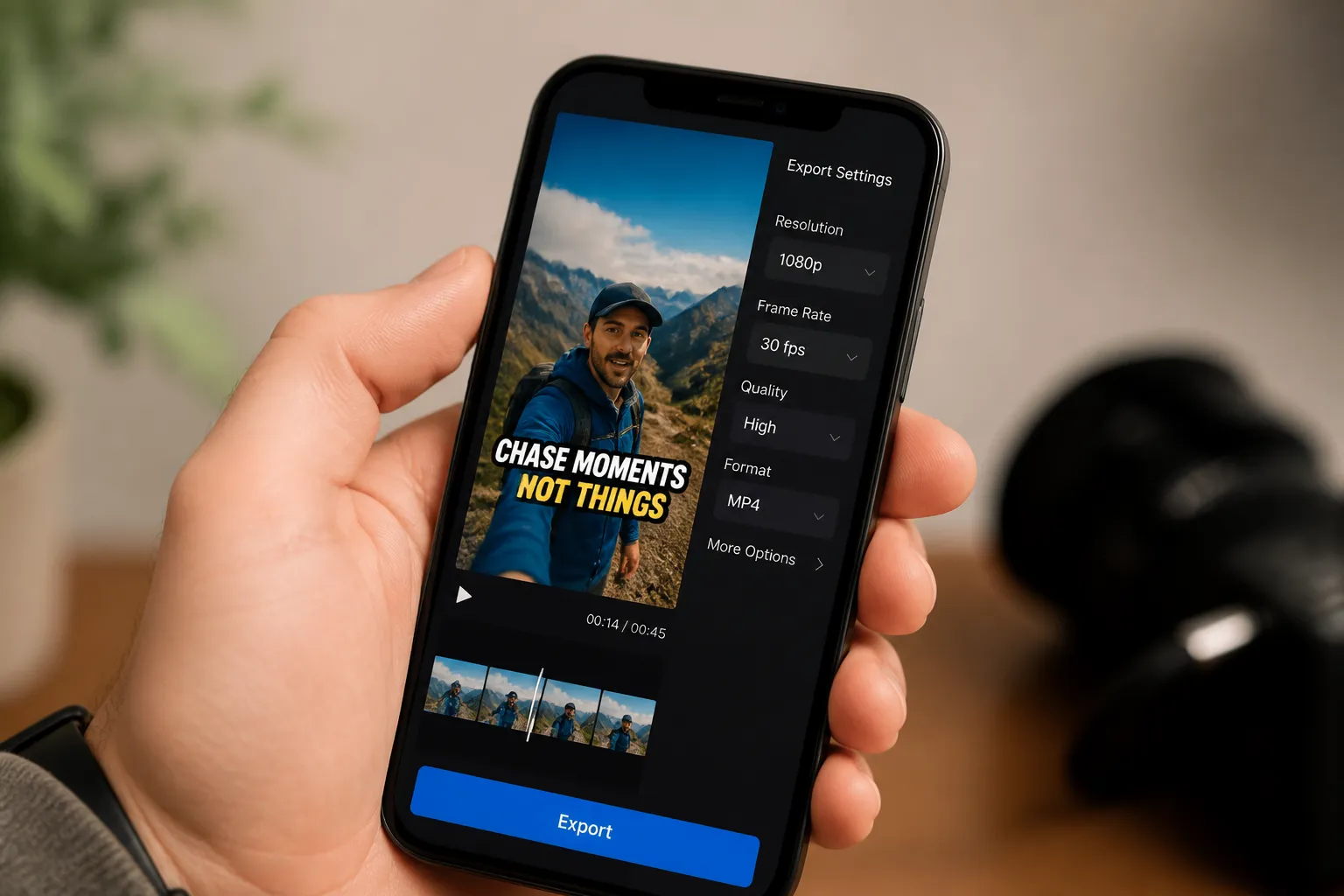
If your captions look sharp in the editor but go mushy after upload, the issue is not your font, it is how you burn and export. Hardcoding captions bakes text into the pixels so everyone sees them by default, which is perfect for muted autoplay feeds and cross-posting. It also gives you brand control that .srt files cannot guarantee.
Use hardcoded captions for TikTok, Instagram Reels, YouTube Shorts, and X where sound is off by default and attention is short. You can keep fonts, size, colors, and animations consistent across platforms and reuse the same edit. It is also the easiest way to do karaoke-style timing where each word highlights with speech.
Generate and edit accurate subtitles online
You can add subtitles to video online in minutes with SubtitlesFast. The flow below keeps your source clean and your final export sharp.
-
Start with a high-quality source.
Upload the original file if you have it. 1080p or 4K beats a copy pulled from a social platform. Every re-encode blurs fine edges, and captions are all edges.
-
Generate AI subtitles.
Use AI Subtitles to transcribe in 50+ languages with word-level timing. An ai subtitles generator is ideal for short clips and long tutorials. If you create auto captions for TikTok and YouTube, set the language correctly up front for better accuracy.
-
Proof once, early.
Scan names, jargon, numbers, and brand terms before styling. Fixing these now prevents a cascade of re-exports later. If a word is repeated often, add it to your custom dictionary for future projects.
-
Edit for pace.
Use Timeline Editing to trim silence, cut tangents, and move your hook forward. Clean pacing makes lines easier to time and read. Aim for 1.5 - 3 seconds per subtitle card in short-form content.
-
Control line breaks.
Break lines at natural pauses and keep them scannable. As a rule of thumb, target 35 - 42 characters per line, two lines max. Manually add line breaks on long sentences to avoid three-line stacks.
Style for legibility on small screens
SubtitlesFast includes Subtitle Style Customization with 30+ animated styles, plus font, color, and animation controls. Use these settings to keep text readable after compression.
Font and size that survive compression
- Pick a sans-serif with medium weight. Thin and ultra-light weights break down. Clean options include Inter, Open Sans, Montserrat, or Arial.
- Use a solid fill with a 2 - 4 px stroke at 1080p, or scale outlines proportionally at higher resolutions. A high-opacity shadow can work if you prefer no stroke.
- Size for phones first. On 1080x1920, captions in the 28 - 36 px range usually read cleanly. Keep two lines max and avoid full-width lines that touch the edges.
- Keep letter spacing normal. Overly tight tracking smears letters; overly wide spacing makes scanning slow.
Color, contrast, and backgrounds
- High contrast wins. Use light text with a dark stroke on bright footage, or dark text with a light stroke on dark footage.
- Avoid neon gradients and heavy glows that can band after compression. Solid fills or subtle two-tone styles hold up better.
- If your footage is busy, enable a soft, semi-opaque background box behind the text. Keep padding consistent so lines do not wrap awkwardly.
Karaoke for engagement
- Use Karaoke Style Subtitles or karaoke style captions for music, hooks, and step-by-step demos. Word-level highlighting pulls the eye to the next word and keeps viewers locked in.
- For an animated karaoke subtitles editor feel, pick an animated template, set a brand-matched highlight color, and keep the animation speed steady rather than jittery.
Layout and safe areas
- Place captions inside safe margins. Keep them at least 10% above the bottom edge on vertical videos so UI chrome does not cover your text. Reels and TikTok controls often sit near the bottom and right edges.
- Keep captions centered or use a consistent horizontal offset if your framing requires it. Re-check safe areas any time you change aspect ratio.
Optional polish
- Add Music inside the editor if it supports the pace. Set the bed under the voice by about 12 - 18 dB so narration stays clear.
- Use Translate Subtitles to create localized versions. Keep the same style and timing where possible so your brand feels consistent.
- Use AI Thumbnail Generator for YouTube. A frame that echoes the first caption line connects the click to the content.
Export specs that keep caption edges sharp
When you burn subtitles into video, export choices determine whether text stays razor-sharp. SubtitlesFast supports Burned-In Subtitles for quick sharing. Set the right aspect ratio and quality before you encode.
Match aspect ratio first
- Use Change Aspect Ratio to 9:16 for TikTok, Instagram Reels, and YouTube Shorts. Use 16:9 for standard YouTube, and 1:1 or 4:5 for some feed posts.
- After switching ratios, re-check safe areas. Make sure the caption box sits above bottom UI and away from the sides.
Resolution, frame rate, and codec
- Export at your source resolution and frame rate. Do not upscale or change fps unless absolutely necessary.
- Use H.264 High Profile for widest compatibility. If available, enable two-pass or a high target bitrate so edges render cleanly.
- Suggested bitrates: for 1080p vertical, 10 - 20 Mbps; for 4K, 30 - 60 Mbps. Audio AAC at 128 - 320 kbps is fine for voice-first clips.
Target specs by platform
- TikTok, Reels, Shorts: 1080x1920 at 30 or 60 fps. Keep captions large and high contrast for small screens.
- YouTube long-form: 1920x1080 or 3840x2160 at native fps. If you shot 4K, export 4K to preserve fine text detail.
- X and LinkedIn: 1080x1920 for vertical or 1920x1080 for landscape. Keep two-line captions centered with healthy margins.
General rule: export once from your editor, then upload that master to each platform. Avoid downloading from one app and re-uploading to another, which adds extra compression that softens text.
Common mistakes and a quick reusable workflow
- Too-thin fonts. Delicate type looks fine on the timeline, then turns jagged after compression. Use medium weight.
- Weak contrast. Light text on light backgrounds smears. Add a stroke, shadow, or subtle box.
- Tiny size. If you cannot read it at arm’s length on a phone, it is too small.
- UI overlap. Bottom-hugging captions get covered by progress bars and buttons.
- Over-animated effects. Excessive bounce, glow, or color cycling distracts and can create artifacts.
- Bad timing. Too many words per card or captions out of sync cause fatigue. Keep lines short and on-beat.
- Multiple re-encodes. Round-tripping through social apps softens text. Export once and upload the master.
- Unreviewed translations. Machine translations are fast, but scan tone and brand terms before you publish.
Here is a fast 5-minute setup you can repeat:
- Upload your highest quality file to SubtitlesFast.
- Run AI Subtitles, fix names, terms, and numbers, and add manual line breaks.
- Pick a bold, high-contrast style or karaoke subtitles for the hook. Set stroke 2 - 4 px at 1080p.
- Use Change Aspect Ratio for your target platform. Re-check safe margins and test readability on your phone.
- Add Music if needed, then export with Burned-In Subtitles using a high bitrate. Upload that master directly.
- Optional: Translate Subtitles for a second language version and export again.
If you are unsure which caption style your audience prefers, collect feedback and compare watch time after a few posts. Tools like Feedjolt make it simple to gather viewer opinions and rank requests so you refine your caption style with real input.
Key takeaways
- Hardcode captions online when you want brand control and instant readability on silent autoplay feeds.
- Start with a clean source, use AI Subtitles, and keep fonts medium-weight, large, and high contrast.
- Switch to the right aspect ratio before export so platform UI never covers your text.
- Export once with burned-in subtitles at a high bitrate, then upload that master to each platform.
- Karaoke style captions and restrained animation can lift engagement without hurting clarity.
FAQ
What does hardcoding captions mean?
Hardcoding embeds the captions into the video pixels, so the text is always visible. You do not need external subtitle files and every platform shows the same styled captions.
How do I avoid blurry subtitles after upload?
Use a high-resolution source, choose bold high-contrast fonts, export at your native resolution and frame rate, and avoid re-exporting clips downloaded from social platforms.
Can I make karaoke style captions?
Yes. Choose karaoke style subtitles with word-level highlighting for music, hooks, or tutorials. Keep animations smooth and colors high contrast for readability.
Should I translate captions or create separate videos?
Translate when the visuals work across languages. If jokes or idioms depend on language, create separate cuts with timing matched to the new captions.
What aspect ratio should I use for TikTok and Reels?
Use 9:16 vertical at 1080x1920. Keep captions two lines max and above the bottom UI so nothing is cropped or covered.