

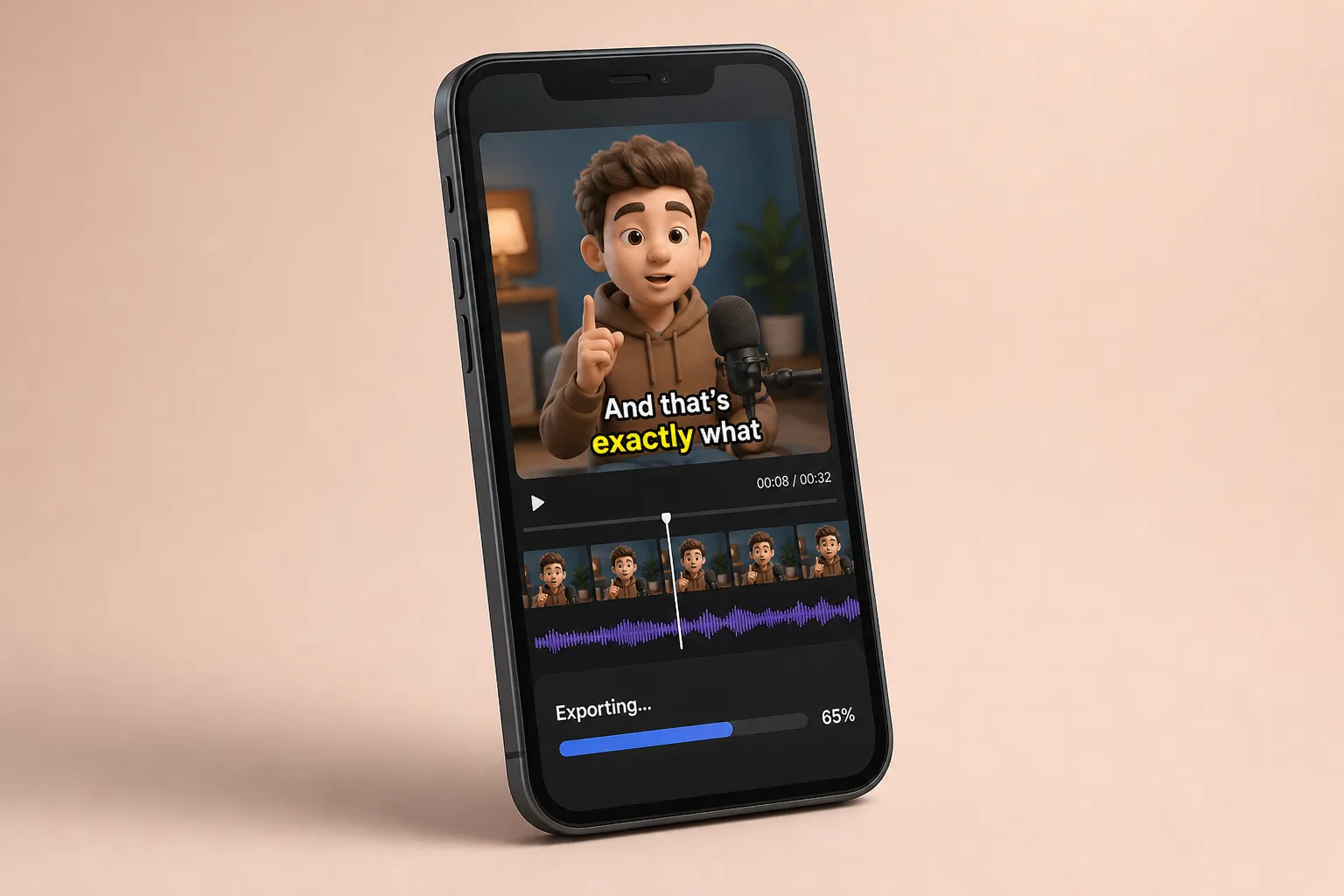
Reels are fast and unforgiving. If captions lag, sit under UI, or look fuzzy, viewers swipe. This comparison shows what matters for Instagram Reels subtitles and which tools make vertical video feel polished without slowing you down.
We scored options on three things: how quickly you go from upload to export, how much control you get over style on a phone screen, and how cleanly you can cross post to TikTok and YouTube Shorts without redoing work.
What Reels needs from captions
Captions on Reels carry the hook, the jokes, and the CTA when audio is muted. Good tools help you get that on screen fast and readable.
- Speed and accuracy. You want near real-time transcription with word-level timing so edits are granular. Fixing a misheard name should be a click, not a rebuild.
- Vertical styling. On a 1080x1920 canvas, text must be big, high contrast, and inside safe areas. Keep captions at least 8 - 12% away from the edges so they dodge Instagram UI and your own overlays.
- Engagement effects. Karaoke highlights help viewers track speech. Used sparingly, per-word reveals and subtle motion can lift retention without feeling busy.
- Export that holds up. Burn captions into the video to avoid platform quirks. Crisp vector text at export looks sharp after Instagram compression.
- Cross posting. If you also ship to Shorts and TikTok, you need fast aspect ratio checks, safe zone presets, and reusable styles so one edit becomes three posts.
Top Instagram Reels subtitles generator tools compared
SubtitlesFast
SubtitlesFast is built for short social clips. It generates AI Subtitles in 50+ languages with word-level timing and optional Karaoke Style Subtitles. Style controls cover 30+ animated presets plus custom fonts, colors, outlines, and background boxes. You can trim on a simple timeline, Change Aspect Ratio for Instagram, TikTok, YouTube, or X, Add Music inside the editor, and export with Burned-In Subtitles for clean uploads. If you publish globally, Translate Subtitles lets you reuse timing and design for other languages. An AI Thumbnail Generator helps you spin a quick cover image.
- Pros: Fast transcription, precise timing edits, strong Subtitle Style Customization with karaoke options, easy aspect swaps, and reliable burned-in exports.
- Cons: Focused on social. Long-form, multi-cam, or color-heavy grading belongs in a full NLE.
Who it is for: Creators and social teams who want to add subtitles to video online, keep brand styling tight, and export fast without extra apps.
Native Instagram captions
Instagram’s auto captions are instant and fine for simple talking heads. You get minimal styling and no way to burn text into the image. Edits are basic, and you cannot lock in brand fonts or line breaks, so consistency is hard.
- Pros: Free, instant, zero setup.
- Cons: Limited control, no burned-in option, style varies across posts.
Who it is for: Quick updates and low-stakes clips where speed beats polish.
Desktop video editor with captioning
Premiere Pro, Final Cut Pro, and DaVinci Resolve can auto caption and give you deep timeline control. If you already cut on desktop, keeping everything in one project is convenient. The tradeoff is speed and phone-first preview. Getting sharp, legible text on a 6-inch screen often takes trial and error.
- Pros: Precise editing, advanced keyframing, audio mixing in one place.
- Cons: Slower for short clips, steeper learning curve, easy to overbuild what should be simple.
Who it is for: Editors who live in an NLE and want captions inside a broader post pipeline.
Mobile-first editor app
Phone editors like CapCut or InShot are convenient and handle quick auto captions. They shine for shoot-edit-post workflows. Styling depth and export consistency vary, and branded type can drift across videos if you are not careful.
- Pros: Shoot, caption, and publish from one device.
- Cons: Limited fine control, soft text risk after compression, harder to lock brand styles.
Who it is for: Solo creators who value speed on mobile and need simple auto captions.
Browser-based editor
Online tools split the difference. Upload, auto caption, style for vertical, and export without installing anything. The key is whether they give you karaoke timing, real style controls, and dependable burned-in exports that survive platform compression.
- Pros: No installs, team friendly, easy sharing of drafts.
- Cons: Features vary. Test caption accuracy, style presets, and export sharpness on a real phone.
Who it is for: Teams and creators who want fast online edits with brand-ready polish.
Style options that work in vertical video
Small text and low contrast sink retention. Strong, simple styles win. SubtitlesFast includes Subtitle Style Customization across 30+ animated looks so you can match brand fonts, set a clear outline or background box, and add light motion. Karaoke Style Subtitles and Karaoke Style Captions can highlight each word as it is spoken. That guide-the-eye effect helps viewers read in rhythm when timing is tight and motion is subtle.
Practical style tips for Reels:
- Two lines max, short phrases. Aim for 5 - 8 words per line with a large font that reads at arm’s length.
- High contrast always. White or bright text with a 2 - 4 px dark outline, or a semi-opaque background box.
- Respect safe zones. Keep captions clear of the bottom action bar and away from faces, product shots, and stickers.
- Use karaoke sparingly. Reserve per-word highlights for fast talkers or key hooks so it helps, not distracts.
- Animate with intention. Quick fades or slides feel snappy. Avoid big bounces that fight the footage.
Export workflows and quality
Export choices decide whether your text stays crisp. For Reels, a safe default is 1080x1920 MP4 (H.264), 30 fps, and a 10 - 16 Mbps bitrate. Audio at AAC 128 - 192 kbps stereo works well. Always review the exported file on a phone before posting.
SubtitlesFast lets you Burned-In Subtitles so captions ship as part of the picture and stay sharp after upload. You can also Change Aspect Ratio for Reels, then reuse the same edit for TikTok and Shorts. That saves a rebuild. Trim on the Timeline Editing panel, Add Music from within the editor, and spin a cover with the AI Thumbnail Generator. If your audience spans languages, run Translate Subtitles on the same cut and export localized versions with identical timing and style.
If LinkedIn is in your mix, repurpose a Reels cut as a vertical post and schedule it alongside other content. This guide to the best B2B LinkedIn marketing tools for 2026 shows how an AI-powered scheduler and page builder can slot into a video-first workflow.
Best picks by creator type
For solo creators on a phone
Keep it tight: record, generate captions, choose one bold style, export, post. A mobile-first editor works, but if you want karaoke highlights and burned-in exports with crisp text, run SubtitlesFast in a mobile browser and pick a preset that fits your brand.
For brand social teams
Consistency beats novelty. Build a template in SubtitlesFast with AI Subtitles, a branded animated style, safe zones, and default placements. Add music if needed and export with burned-in captions. Swap aspect ratios for other channels without remaking the edit.
For YouTubers repurposing to Reels
Cut a vertical teaser, then add subtitles to video online using a style that matches your thumbnails. SubtitlesFast can Change Aspect Ratio, generate a quick AI thumbnail, and export with burned-in captions. Post to Reels, then re-export for Shorts and TikTok.
For international accounts
Speed matters when you publish in multiple languages. Use AI Subtitles and Translate Subtitles so timing and design stay identical. Keep each language as its own export and check color contrast on the devices your audience uses most.
How we chose
We looked for fast, accurate captions; vertical-ready styling; karaoke effects that help reading speed; and exports that hold up to platform compression. Cross posting mattered too, including how quickly you can adapt safe zones for TikTok and YouTube without rebuilding.
Key takeaways
- Pick a tool that balances speed, accuracy, and vertical-first styling.
- Karaoke word highlights help when timing is tight and motion is subtle.
- Burned-in subtitles prevent soft or missing text on upload.
- Export at 1080x1920, H.264, 30 fps, and verify sharpness on a phone.
- For a fast, styled Reels workflow with painless cross posting, SubtitlesFast fits well.
FAQ
What makes a good Instagram Reels subtitles generator?
Fast, accurate auto captions, clear styles for vertical video, karaoke-style timing if you want highlights, and a clean burned-in export.
Should I burn subtitles into my Reels?
Yes. Burned-in subtitles keep text crisp and visible in the same place across devices, and they avoid platform caption quirks.
Can I reuse my captions for TikTok and YouTube Shorts?
Yes. Re-export the same cut for each platform and adjust aspect ratio as needed. Keep styles bold for phone readability.
Do karaoke subtitles help engagement?
They can. Word-level highlighting guides the eye and helps viewers follow along, especially on fast or complex lines.
How do I keep captions from covering Instagram UI?
Place text above the bottom safe area and test on a phone. Use two short lines and high-contrast colors with a light shadow.