

You tried the Kapwing AI subtitle generator and it mostly works, but exports can drag, timing needs extra cleanup, and the styles do not always match your brand on TikTok, YouTube, and Instagram. If captions are central to your workflow, you have better options. Below are five alternatives that focus on speed, tighter timing, animated karaoke effects, and burned-in subtitles that look the same everywhere. You will also find quick testing tips so you can pick a tool with data, not guesses.
What matters when you add subtitles to video online: first-pass accuracy on real audio (music, cross-talk, accents), timing controls that let you nudge words without redoing a whole line, styling that reads on a phone, and fast burn-in so you can post the same cut to multiple platforms without rework.
SubtitlesFast: quicker AI subtitles with precise timing and karaoke
Best for: creators and social teams who want speed, animated styles, and burned-in subtitles for easy cross posting.
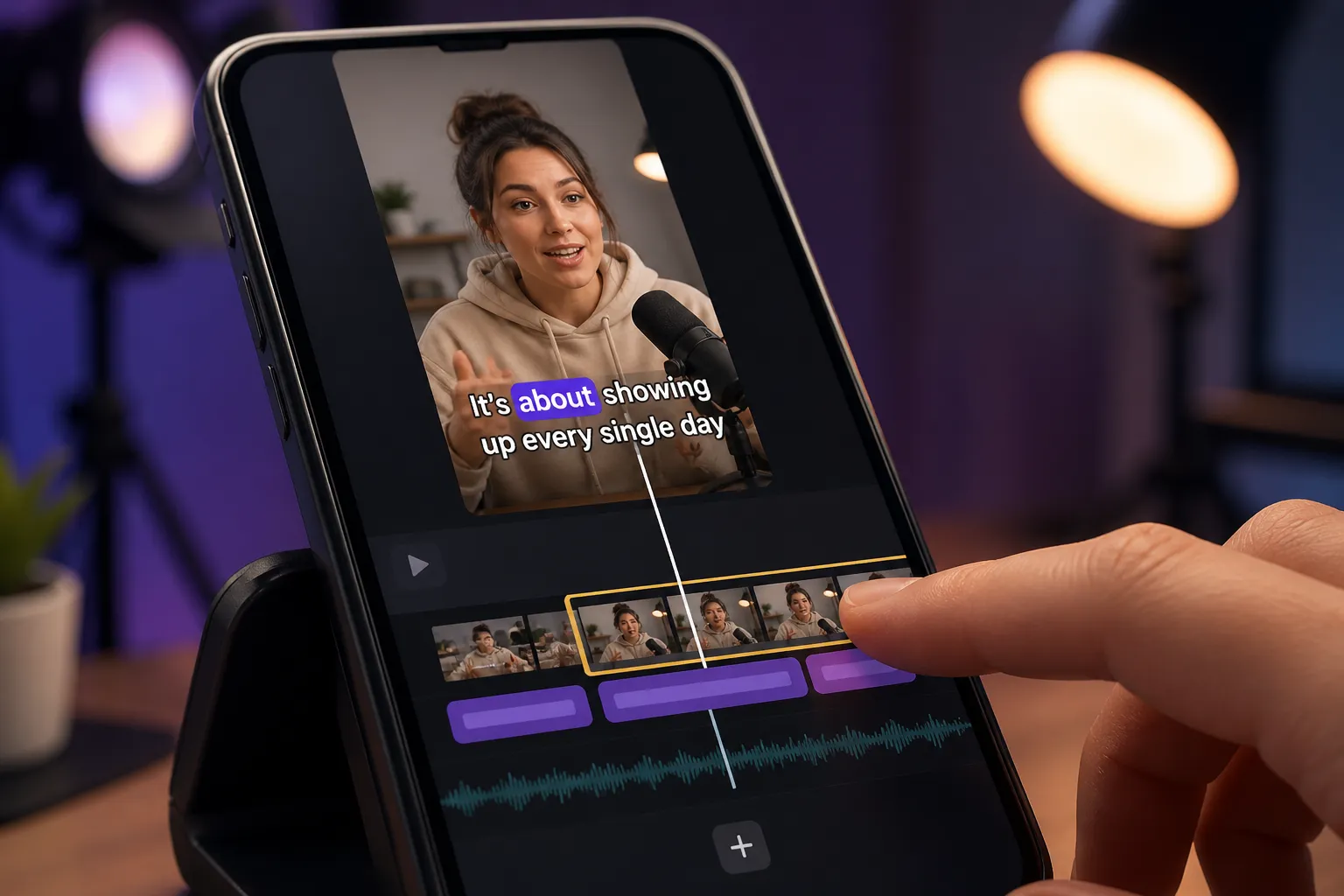
SubtitlesFast is built for caption-first editing. You get AI Subtitles in 50+ languages with word-level highlighting and frame-level timing nudges for fixing tricky overlaps. One-click Translate Subtitles helps you reach new audiences without opening a second tool. If you want movement that keeps people watching, the editor includes true Karaoke Style Subtitles and Karaoke Style Captions that highlight as you speak. With Subtitle Style Customization you can choose from 30+ animated styles, set fonts and colors, tweak stroke and background, and save templates so every series ships with the same look. When you are done, Burned-In Subtitles keep that look consistent on TikTok, Shorts, Reels, and Stories.
Basic editing is covered: a clean Timeline Editing view for trims and cuts, Add Music for tracks inside the editor, and Change Aspect Ratio presets for 9:16, 1:1, and 16:9 so you do not fight crops. An AI Thumbnail Generator helps you ship a cover that matches the cut without leaving the browser. For accessibility or handoffs, export subtitle files as SRT or VTT in addition to burned-in video.
- Strengths: very fast subtitle generation, word-level edits, 30+ animated styles, easy burned-in export, one-click translation, social aspect ratios, SRT/VTT downloads.
- Trade-offs: focused on captions-first workflows rather than heavy multi-cam projects. Very large raw files are smoother if you rough-cut them before upload.
Typical workflow: import your clip, run AI Subtitles, fix names with the search-and-replace tool, apply a karaoke style, set a 2 - 4 px stroke and 10% margins for safe areas, export a burned-in 9:16 and an SRT for YouTube.
VEED.io: broad online editor with good caption tools
Best for: teams that want a general online editor with captions folded into a larger toolkit.
VEED.io is a familiar all-in-one editor that includes auto subtitles, manual fixes, and simple styling. It suits teams that need graphics, screen recordings, and light motion on top of captions, and it is easy to share projects with non-editors.
- Strengths: wide feature set, brand kits and templates, straightforward auto captions, useful for edits that go beyond subtitles.
- Trade-offs: the interface can feel heavy when you only need fast captions. Long videos and packed timelines can push render times, and free tiers often watermark exports.
Tip: if you only need captions, keep a separate, lean project per cut. You will avoid waiting on extra layers you do not plan to ship.
CapCut: creator-friendly captions for short vertical clips
Best for: short-form creators who live on mobile and want quick auto captions for TikTok and YouTube.
CapCut is the default for many TikTok-first creators. Auto captions are quick, it runs on phones and desktops, and the jump from edit to publish is smooth. For punchy vertical edits, it covers most basics without adding steps.
- Strengths: fast on short clips, handy mobile workflow, templates for trends, easy publish to TikTok.
- Trade-offs: simpler subtitle styling and fewer animated options. If you want karaoke-style word highlights or strict brand templates, you may outgrow it. Check exports when you reuse clips on YouTube or Instagram to avoid soft text or letterboxing.
Tip: keep captions to two lines, 32 - 42 characters per line, and add a thin stroke so text stays readable on busy B-roll.
Descript: text-first editing that can caption
Best for: podcasters and educators who edit by transcript and publish to multiple channels.
Descript shines when your workflow is transcript-driven. You can cut filler words, reorder answers, and build a clean episode, then add readable captions for video versions. It is strong for screen recordings and talking heads that already need a transcript.
- Strengths: accurate transcription on clear speech, powerful text-based editing, good for long-form interviews and lessons.
- Trade-offs: animated karaoke effects and heavy brand styling are not its focus. Bigger projects can feel slow on older machines, and you may finish styling in another tool before you burn subtitles into video.
Tip: edit the story first, then generate captions. You will spend less time fixing timing after big cuts.
YouTube Studio and TikTok native captions: free and simple
Best for: creators who want free auto captions for TikTok and YouTube with minimal setup.
Native captions are getting better. For quick posts, letting the platform auto-generate subtitles is often enough, and you get instant compliance for accessibility. You can usually edit the text in the platform if names or terms come out wrong.
- Strengths: free, no extra tools, decent accuracy on clear audio, easy for one-off uploads.
- Trade-offs: limited style control and no reliable way to burn the same look into files you export for other platforms. Timing and karaoke-style highlighting are not the focus.
Tip: if you plan to repurpose a clip, generate captions in an editor first, then upload an SRT alongside your video.
How to pick and test in 30 minutes
- Use the same 60-second clip with music under dialogue, two speakers talking over each other once, and two proper nouns. Run it through each tool.
- Measure accuracy. Pick five lines and calculate a quick word error rate by counting substitutions, insertions, and deletions. Under 5% on clean audio is a solid target.
- Check timing. Words should land within ~80 - 120 ms of speech. Make sure you can nudge cues by frame or millisecond without retyping.
- Test readability. Export 9:16 and 16:9. Aim for 2 lines max, 32 - 42 characters per line, 2 - 4 px stroke, and at least 10% padding from edges.
- Burn and post. Export one burned-in cut and one SRT. Upload to two platforms and review on a small phone. If you squint, can you still read it?
Styling that holds attention
Movement keeps eyes on the words. An animated karaoke subtitles editor that highlights each word can lift retention on Reels and Shorts, especially in the first three seconds. In SubtitlesFast, apply Karaoke Style Subtitles, set a bold keyword color for hooks, and use Subtitle Style Customization to save that as a template. Keep line breaks natural, avoid stacking three lines, and do not let captions cover faces or product labels.
Pricing, limits, and real-world roles
Daily posters care about queue limits and export speed. Social managers care about aspect ratios, brand templates, and fast translation. Educators care about accurate transcripts and clean reading on slides. Map your top two needs to the tool. If you have ever typed “find a tutor near me,” you already know that picking the right source saves time. This breakdown of tutor directories vs tutoring agencies shows how matching the format to your goal gets you to results faster. Use the same lens here.
Key takeaways
- Kapwing is fine for basic captions, but you can get faster renders, tighter timing, and better styling elsewhere.
- SubtitlesFast is built for captions-first workflows: AI Subtitles, Translate Subtitles, 30+ animated styles, Karaoke Style Captions, SRT/VTT, and Burned-In Subtitles.
- Short-form creators who value speed over style can stick with CapCut or native platform captions.
- Teams doing broader edits may prefer a general online editor like VEED.io, then add burn-ins at the end.
- Test with the same clip, compare accuracy and exports on a phone, then commit to one workflow.
FAQ
Is the Kapwing AI subtitle generator good enough for most videos?
Yes for basic captioning. If you need faster exports, animated karaoke captions, or more brand control, try a tool focused on subtitles and burned-in outputs.
What is the difference between burned-in subtitles and captions?
Burned-in subtitles are baked into the video pixels, so every platform shows them the same way. Closed captions are a separate file that platforms render differently.
Can I make karaoke style captions online?
Yes. With SubtitlesFast you can add Karaoke Style Subtitles and customize fonts, colors, and animations to match your brand without extra software.
How do I add auto captions for TikTok and YouTube quickly?
Use an online tool with AI Subtitles, then change the aspect ratio to 9:16 or 16:9 as needed and export with burned-in subtitles for instant posting.
Which tool is fastest for short vertical videos?
If you mainly shoot, trim, and post, CapCut or platform-native captions are quick. For brand styling and consistent exports, SubtitlesFast is built for speed.