

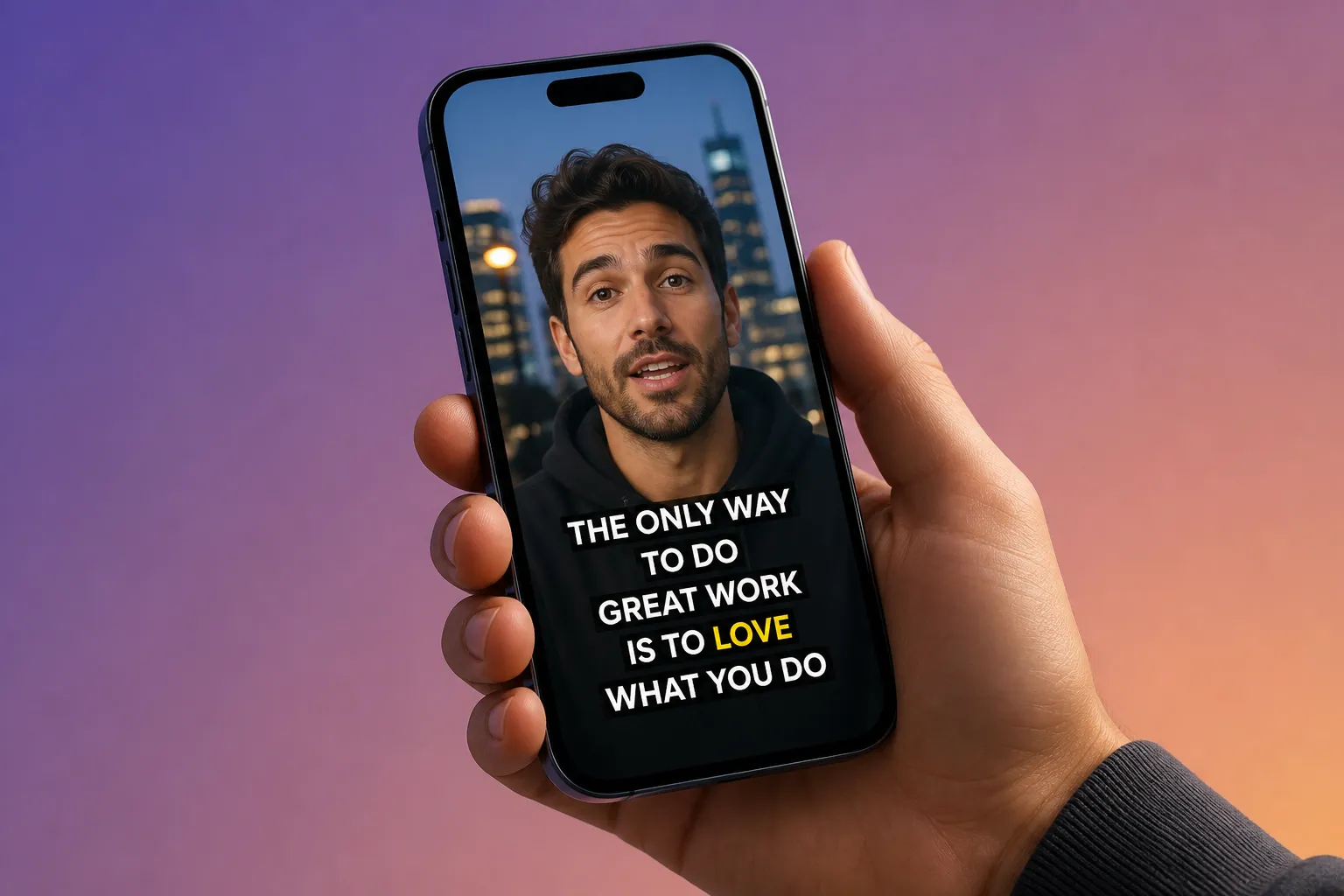
You have seconds to earn attention. Karaoke-style captions help by pulling the eye word by word. They only work if they are readable, well timed, and placed where eyes already look. Use these practical rules to keep viewers watching without turning your captions into clutter.
1. Fonts and sizing that read fast
Pick a clean sans serif with open shapes and a generous x-height. Inter, Source Sans 3, SF Pro, Helvetica Neue, and Poppins are all safe. Use medium to semi-bold for body captions. Thin weights blur on small screens. Ultra bold crowds tight lines and kills legibility.
Useful starting points for 1080-wide exports:
- 9:16 (1080 × 1920): 48–64 px base size, 120–140% line height
- 1:1 (1080 × 1080): 40–52 px, 120–140% line height
- 16:9 (1920 × 1080): 32–44 px, 120–140% line height
Keep line length short enough to grasp at a glance. Aim for two lines with 28–40 characters each on mobile. Avoid condensed fonts. If your background is busy, add a subtle outline or soft shadow instead of cranking up weight:
- Outline: 2–3 px stroke, high-contrast color
- Shadow: 2 px Y-offset, 4–6 px blur, 40–60% opacity
Do the phone test. Record a short export, glance away, then look back. You should be able to catch the line mid-sentence without squinting.
2. Animate for comprehension, not flair
The best karaoke effect mirrors how people read. A steady, word-level highlight moving left to right (or the reading direction of the language) guides attention without distraction. Skip bounces, elastic scales, and long fades. Viewers should feel led, not teased.
Timing guidelines:
- Total on-screen per line: about 1.5–3.5 seconds
- Per-word highlight: ~180–350 ms, matched to syllables
- Fade/transition between lines: under 120 ms
- Pause holds: 200–400 ms at natural breaks
On subtitlesfast.com, Karaoke Style Subtitles and Karaoke Style Captions include word-level highlighting with 30+ Subtitle Style Customization options. Start with a clean preset, then use the Timeline Editing view to nudge word in/out points so the highlight lands exactly on the spoken word. If the speaker pauses, let the last word hold briefly before the next line. That steady rhythm beats flashy effects every time.
3. Color and contrast that match brand
Use your brand colors, but never at the expense of readability. Build a simple two-color system: one for base text, one for the karaoke highlight. Keep contrast high on real footage, not just a test slate.
- Target contrast: at least WCAG 4.5:1 for base text against the video
- Light palette fix: add a semi-transparent box (60–80% opacity) with 12–24 px padding
- Outline: 2 px in a contrasting color if the box feels heavy
- Highlight: reserve your accent color for the moving word so viewers learn where to look
Examples that stay readable:
- White base text with a navy or cobalt highlight
- Charcoal base with a bright yellow highlight
Avoid red–green pairs that many viewers cannot distinguish. In SubtitlesFast, set fonts, colors, and animations in the Subtitle Style Customization panel, then save your style so every video stays on-brand. If you work in multiple languages, test that your highlight color still stands out when you Translate Subtitles. Some languages expand by 15–30%, so give lines a little extra room.
4. Placement and safe areas across formats
Great karaoke captions sit where the eyes already go and never cover faces or UI. Treat each aspect ratio like its own layout.
- 9:16: Raise captions above the like/comment bars and lower navigation. On a 1080 × 1920 canvas, leave 200–260 px bottom margin. Keep 60–80 px side padding. Center-align for a single speaker, left-align if the speaker is framed left or if you show UI on the right.
- 1:1 and 4:5: Similar bottom margin (12–16% of height). Watch for pinned comments or channel watermarks.
- 16:9: If you run lower-thirds or HUDs, float the captions slightly higher. Keep hands, tools, or gameplay elements visible.
Break long sentences at natural pauses and avoid three-line stacks. If a face or product sits under your default placement, nudge the block left or right and tighten line breaks. SubtitlesFast lets you Change Aspect Ratio to 9:16, 1:1, 4:5, or 16:9, then check placement per format before export.
5. Write for the ear, test fast, export clean
Karaoke captions work because they track speech, so write the way people talk. Keep phrases short, drop filler words, and break where the speaker naturally pauses. If a sentence includes a list, split it across lines and time the highlight so each item lands with the word.
Reading speed and exposure:
- Aim for 15–20 characters per second overall
- Keep most lines on screen 2–4 seconds for karaoke-style pacing
- Add 200–400 ms of breathing room after meaningful phrases
Audio matters. Add Music only if it sits under the voice. Duck the track by 12–18 dB under dialogue, and avoid beats that fight the word highlight timing. Captions reduce cognitive load when the mix is clear and steady.
Thumbnails should echo your caption style so viewers instantly connect the look. Use an AI Thumbnail Generator to try options that borrow your caption colors and fonts. Keep it simple so autoplay overlays do not clash.
In SubtitlesFast, start with AI Subtitles if you want an AI subtitles generator that creates accurate, auto captions for TikTok and YouTube. Tidy timing in the Timeline Editing view, set your Karaoke Style Captions and colors, then Change Aspect Ratio for each channel. When everything reads clean, Burned-In Subtitles give you a file you can upload anywhere with consistent styling. If you juggle many drafts, borrow a heuristic from how hiring teams use Marxel to shortlist resumes: write two or three pass/fail checks for captions and run every cut through the same list.
Quick checks before you export
- Readability: Can you read each line in under two seconds at phone distance?
- Rhythm: Do highlights land with the spoken words without lag?
- Contrast: Do base text and highlight stand out on both bright and dark scenes?
- Placement: Are faces, hands, and UI clear in every aspect ratio?
- Consistency: Do font, color, and animation match across TikTok, YouTube, and Instagram?
Key takeaways
- Use a clean sans serif, medium to semi-bold, with two short lines per subtitle.
- Stick to simple word-level highlights and tight timing for comprehension.
- Build a two-color system and keep real-world contrast high.
- Place captions inside safe areas and review each aspect ratio.
- Test on a phone, then export with Burned-In Subtitles for consistent uploads.
Done right, karaoke-style captions guide attention and lift retention. SubtitlesFast brings AI Subtitles, Karaoke Style Subtitles, and 30+ style presets together so you can move fast, stay on-brand, and publish with confidence. Translate when needed, swap aspect ratios per channel, and keep iterating. The cleaner the captions, the longer people watch.