

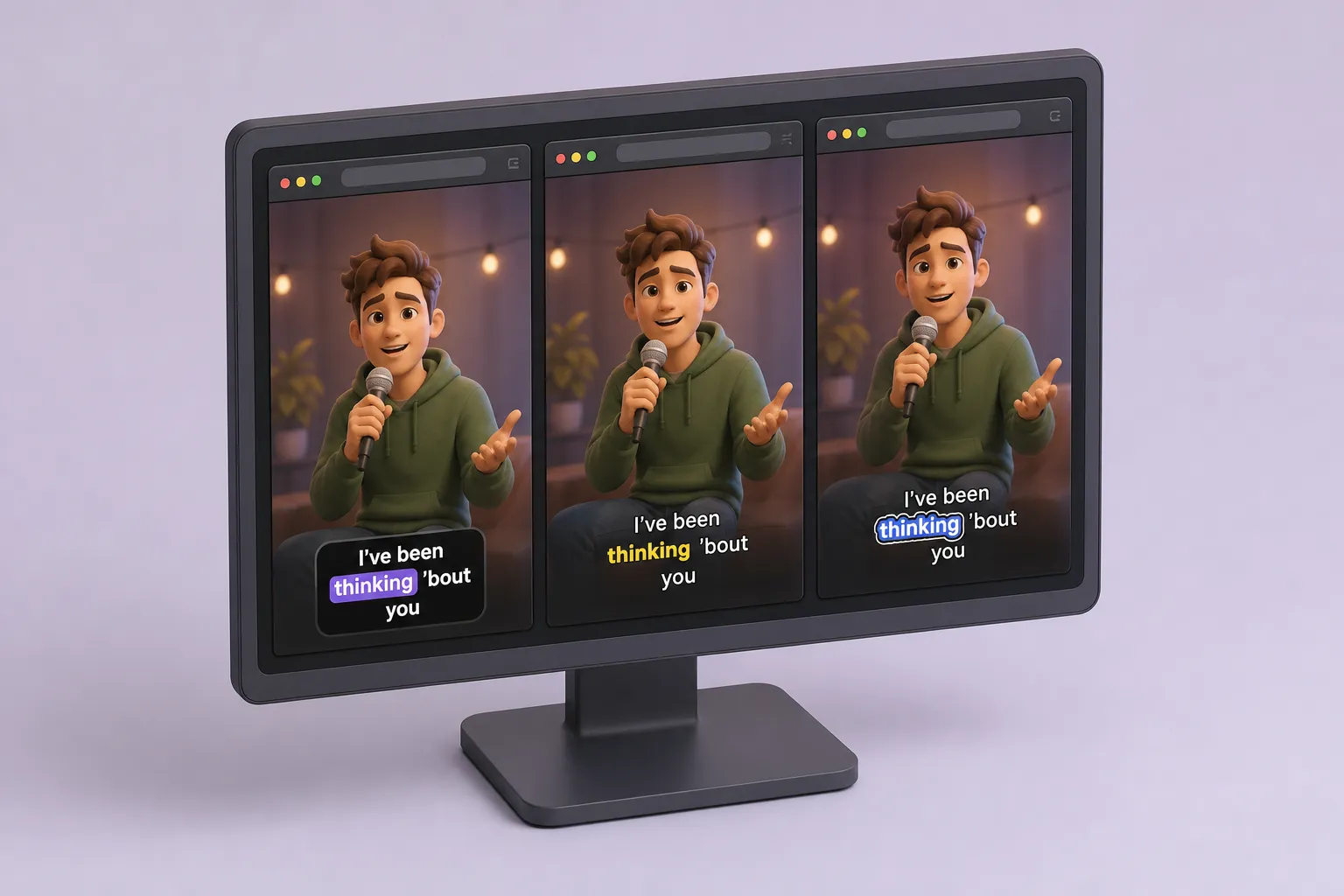
If you add subtitles to video every week, two things decide how long you sit at your desk: how fast you get accurate captions, and how good those captions look in the feed. Price and export snags come right after. This comparison sticks to what actually saves time for creators and social teams, not laundry lists of features you will never touch.
At a glance: editors and test setup
| Editor | AI subtitles speed | Styling and karaoke | Translate subtitles | Burn-in export | Timeline and aspect ratios |
|---|---|---|---|---|---|
| SubtitlesFast | Quick first pass with word-level highlight | 30+ animated styles, karaoke-style captions | Yes | Yes | Simple timeline, presets for TikTok, YouTube, Instagram, X |
| VEED | Fast | Custom styles with word-level effects | Yes | Yes | Online timeline and social formats |
| Kapwing | Fast | Custom styles with word-level effects | Yes | Yes | Online timeline and social formats |
We compared SubtitlesFast with two well known online editors, VEED and Kapwing. We looked at three real-world clips: a 60 second phone talking head, a 30 second Reels cut with background music and jump cuts, and a 90 second YouTube explainer with screen-recorded audio. English speech covered three accents, a little crosstalk, and filler words. We measured time to first transcript, how many quick edits it took to feel publish-ready, how tight word timing felt for karaoke effects, and what changed when exporting burned-in captions for vertical and horizontal feeds.
Accuracy and timing: what actually speeds you up
Speed to usable captions
All three tools generated a first pass in under a minute on short clips. SubtitlesFast stood out by showing word-level highlighting immediately, so you can scrub and spot-check timing without switching panels. VEED and Kapwing were close on the initial transcript time, with a slight gap that showed more on the longer explainer.
Word timing and quick cleanup
Karaoke effects live or die on alignment. On clean talking head audio, SubtitlesFast’s word-level highlight tracked normal pacing well, so we nudged fewer segments. On the music-heavy Reels cut, each editor needed small shifts for fast phrases and abrupt edits. The difference came down to how quickly you can see the problem and fix it. SubtitlesFast let us trim a breath, tighten a pause, or split a chunky sentence right in the caption view without bouncing to a separate timeline. VEED and Kapwing offered similar tools, but we hopped panels more often.
Accents, noise, and filler
Clear audio matters more than tool choice. Room echo, phone compression, and busy streets add tiny errors across the board. All three editors made it easy to delete filler like “uh” and “you know,” merge over-split lines, and reflow sentences. Plan on a light manual pass for noisy clips, no matter which editor you pick.
Time-saving tip: batch common fixes. Clean up repeated brand names and catchphrases once, then apply the same change to all occurrences. It is faster than hunting them one by one.
Styling depth, karaoke, and aspect ratios
Preset styles and brand control
When you want captions to match your brand, preset variety and fine control beat novelty effects. SubtitlesFast offers 30+ animated styles with control over font, weight, line height, colors, and animation timing. Start with a preset, then swap in your brand palette and type scale so a series of posts feels consistent across platforms. VEED and Kapwing give you strong custom styling too, though you will spend a bit more time building a look from scratch.
Karaoke captions that stay readable
Word-by-word highlighting needs enough contrast and rhythm to feel natural. SubtitlesFast’s karaoke-style captions stayed legible on small TikTok crops when we used a bold weight and a 2 - 4 px stroke or subtle shadow. VEED and Kapwing also support word-level effects that create a karaoke feel. All three handled simple sing-along and spoken-word pacing without stutter in the editor.
Practical defaults that work on 1080×1920 vertical clips:
- Font: a clean sans like Inter, IBM Plex Sans, or SF Pro. Avoid ultra-thin weights.
- Size: 56 - 72 px for body lines, 80 - 96 px for single-line hooks.
- Line length: 28 - 42 characters per line. Two lines max for vertical.
- Contrast: high-fill color with a thin stroke or a soft shadow to stand off mixed backgrounds.
Switching aspect ratios without rework
Most teams cut once, then deliver 9:16, 1:1, and 16:9. SubtitlesFast can change aspect ratio to fit TikTok, YouTube, Instagram, or X, and keeps styles from colliding with safe areas. In practice, our line breaks and karaoke highlight survived the swap with only minor text box moves. VEED and Kapwing let us reframe too, but we made a few more manual shifts to keep captions clear of lower-third graphics and platform UI.
Setup that avoids headaches later:
- Anchor your caption box to a safe zone, not the absolute bottom. Leave ~10% vertical padding.
- Keep the speaker name or hook on line 1 and the body on line 2 so crops do not split phrases.
- Save styles as reusable presets. One click beats re-tuning stroke and spacing on every clip.
Export and delivery: burn-in, clarity, and extras
Burned-in subtitles for social
Some platforms strip sidecar files, so you need to burn captions into the video. SubtitlesFast exports hardcoded subtitles, so your style and timing ship with the file. VEED and Kapwing also support burn-in, and all three produced clean edges without the fuzzy halo you sometimes see on bold fonts.
Quality, file size, and readability
On 1080p vertical exports, text looked crisp across all three editors. To keep captions sharp over busy footage, favor high-contrast colors, avoid ultra-thin fonts, and give letters enough stroke to hold on gradients. Heavier animation layers can bump file size. If you plan a monthly batch, export a 5 - 10 second stress test first to check motion blur, timing, and bitrate.
Solid export defaults for social:
- Resolution and frame rate: match source (often 1080×1920 at 30 fps or 60 fps).
- Codec: H.264 high profile; consider HEVC if your workflow prefers smaller files.
- Bitrate: target quality over tiny files. Keep enough headroom for sharp text.
Nice-to-haves that remove extra apps
Small touches can delete whole steps from your workflow. SubtitlesFast includes Add Music to drop a track under your voiceover without opening a separate editor, an AI Thumbnail Generator for quick YouTube or Shorts covers, and Translate Subtitles when you want the same cut in another language. If your stack already includes specialty tools such as Lifast to schedule LinkedIn posts and capture leads from your site content, look for subtitle features that prevent context switching rather than duplicate what you already have.
Pricing and picks: matching tool to workflow
Online editors usually give you a free way to try, then paid plans for longer exports, higher resolution, or collaboration. Plan limits change often, so check current caps before you commit. The simplest way to compare value: list the tasks you do every week and score each tool only on those.
Solo YouTuber or educator
You want accuracy, consistent styles, and light polish without firing up a full NLE. SubtitlesFast stands out for fast AI subtitles, deep style controls with animated karaoke options, and clean burn-in. Translate Subtitles helps when you repost for non-English viewers. Timeline editing covers trims and rearranges without friction.
Shorts, Reels, and TikTok creators
If you post daily, speed to publish is everything. SubtitlesFast’s quick captions, aspect ratio presets, and strong style library make it simple to keep a consistent look. VEED and Kapwing are solid if your team already lives in those dashboards and you want all your clips in one place.
Social teams with batch workflows
Pick the tool that cuts review time. Look for precise word-level timing, easy style reuse, and reliable burn-in so nothing shifts between review and export. SubtitlesFast’s mix of AI subtitles, translation, and hardcoded export reduces back-and-forth on multi-language campaigns. If you need heavy collaboration beyond caption work, weigh that against where your current asset library lives.
Key takeaways
- Clean audio saves more time than tool choice. You will fix less and publish faster.
- SubtitlesFast’s 30+ animated styles and word-level karaoke highlight shorten styling time.
- Anchor captions to safe zones and save presets so 9:16, 1:1, and 16:9 swaps do not break line breaks.
- Burned-in subtitles travel best across social. Test a short export before batching a series.
- Match pricing to weekly tasks. Translation, timeline edits, and aspect-ratio presets can remove extra apps.
FAQ
What is the fastest way to add subtitles to video online?
Use an editor with AI subtitles and timeline editing so you can fix small errors as you go. SubtitlesFast generates quick captions and lets you trim in one place.
Do I need burned-in subtitles for TikTok and Instagram Reels?
Usually yes. These platforms often ignore sidecar caption files, so export with burned-in subtitles to keep your style and timing intact.
How do karaoke style captions help engagement?
Word-by-word highlights guide the eye, which keeps viewers watching with the sound off. They also improve comprehension on fast speech.
Can I translate subtitles for multi-language posts?
Yes. SubtitlesFast can translate subtitles so you can reuse the same edit for different languages without starting from scratch.
What should I check before paying for an online subtitle editor?
Check export limits, watermark rules, support for burn-in, styling depth, and how well it handles your usual aspect ratios and clip lengths.