

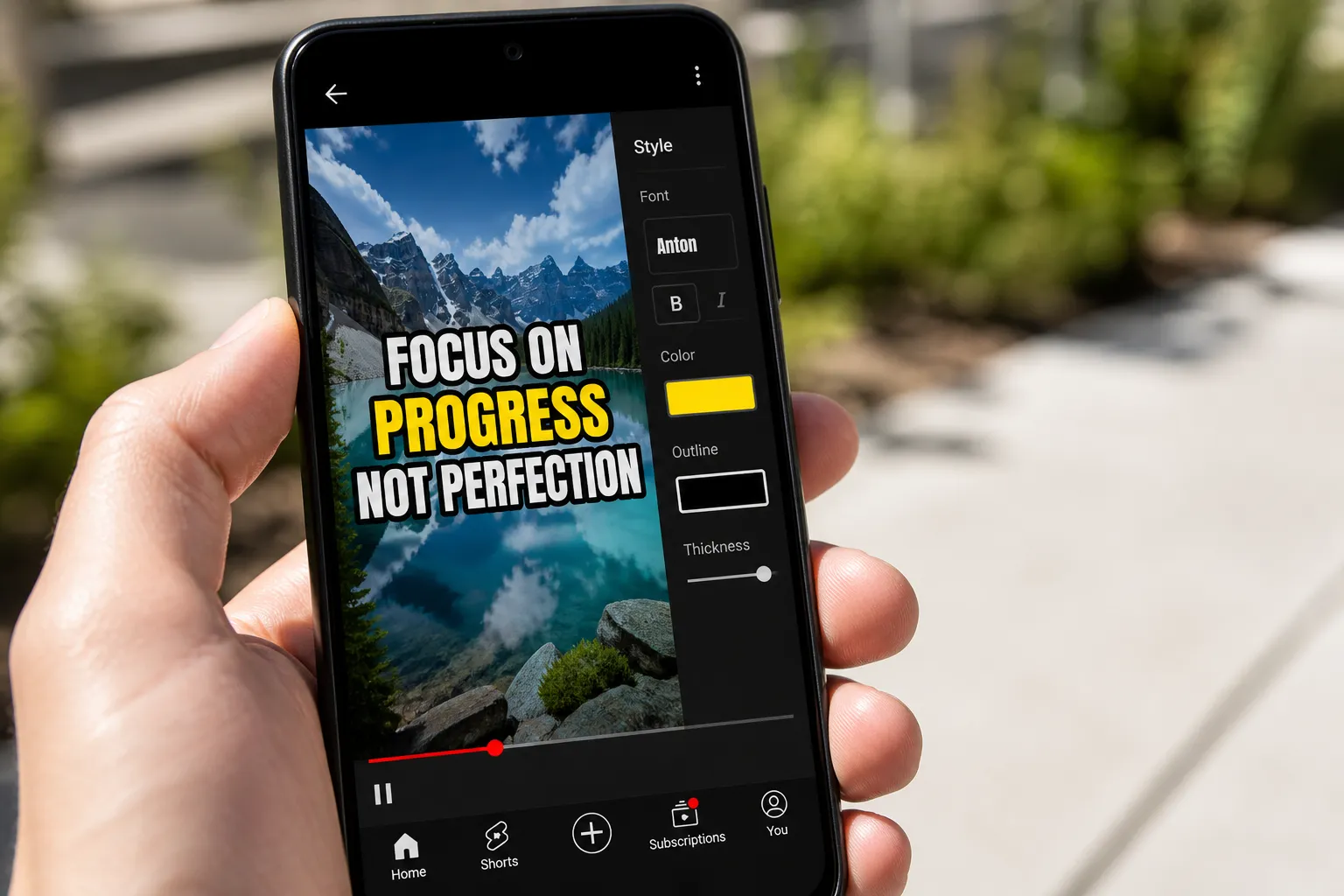
Shorts move fast. Your captions need to land on the beat, stay readable on a phone, and still feel like your brand. Use this checklist to set clean rules you can repeat every time.
Make words readable on a phone
Speed: aim for 2–3 words per second. Most viewers scan, not read. If you talk quickly, split the thought so each chunk hits a natural pause. Example line break: “Stop scrolling” on line one, “try this caption fix” on line two.
Line length: keep two lines max, 28–35 characters per line. If you need more, add another subtitle, not a smaller font.
Font size: for a 1080×1920 export, keep body text large enough to read at arm’s length. A practical range is 54–72 px depending on your font. If your font is thin, size up.
Contrast: legibility beats aesthetics. Start with white or near-white text on a dark backing. Two reliable options:
- Outline: a 3–6 px dark stroke around light text
- Background box: 60–75 percent black behind the text with 8–16 px padding
Color and brand: use your brand color as an accent, not the whole caption. Try color for keywords, speakers, or the highlight bar, and keep the base text neutral. If you add a drop shadow, keep it tight and subtle so it does not fuzz the edges.
Case and punctuation: sentence case reads faster than ALL CAPS. Use periods and commas normally. Save ALL CAPS for one or two emphasis moments, not whole sentences.
Where to break: place the key word at the end of the first line. The eye rests there and is more likely to remember it. Avoid orphaning short connector words like “to” or “of” on their own line.
Sync, layout, and motion that guide the eye
Time to phrases, not the waveform. Set in and out points around spoken phrases so the caption appears a split second before the words and clears right after. That tiny lead helps the viewer anticipate the line.
Word-level highlight: use karaoke-style highlights for hooks, lyrics, or quotes. A single moving highlight bar or per-word tint is enough. Do not animate every element.
Safe placement: keep captions clear of YouTube UI. As a rule of thumb, inset at least 10 percent from each edge on a 9:16 frame. If you like bottom captions, lift them high enough that the progress bar and description do not touch them on smaller phones. Test on a real device, not just the preview.
Aspect ratio: lock 9:16 before you caption. Use Change Aspect Ratio to keep faces and important objects centered, then review a full vertical preview to spot crowding or crops.
When you point to UI, give it space. If your hand or cursor crosses the words, move the caption to the opposite side for that beat so viewers can watch both the action and the line.
Animated styles: one motion style across the video keeps things cohesive. Use a simple fade, pop, or slide for entry, and reserve bouncier moves for single callouts.
Screen recordings need cleaner motion so captions carry meaning. On Mac, a macOS product demo video maker with automatic zoom and pan smooths cursor paths, adds styled backgrounds, and exports sharp vertical clips. Your captions will sit on frames that already look polished.
A fast, reliable workflow
Auto captions save hours. An AI subtitles generator can build a draft transcript in minutes. Edit right on the timeline so you keep timing while you fix typos, numbers, and names. Aim for word-level accuracy on hooks and on-screen steps.
Translate for reach. If your Shorts pull views from more than one country, generate translated captions and export separate language versions. Keep key brand terms translated consistently across videos.
Burn captions into the video. Shorts do not always render sidecar subtitle files. Burned-in subtitles guarantee your styling and placement travel intact across re-uploads, duets, stitches, and reposts.
Trim to the beat. Cut dead air before and after lines so captions do not linger while nothing happens. If a sentence is long, split it into two captions so the viewer always has something fresh to read.
Music under voice. If you add music, keep it lower than your voice by about 10–15 dB so consonants stay crisp. Avoid heavy sidechain pumping that makes the music jump under every word.
Export settings that keep text sharp:
- Resolution: 1080×1920 (9:16 vertical)
- Frame rate: match your source, usually 30 or 60 fps
- Codec: H.264 with a high profile
- Bitrate: 8–12 Mbps for 30 fps, 12–16 Mbps for 60 fps
Web-based editors are handy when you are moving between machines. You can add subtitles to video online, style them once, and export from anywhere without a heavy install.
Pre-upload checks in 90 seconds
- Mute test at 1x and 1.25x. Can you follow every beat without pausing
- Safe margins. No collisions with the progress bar or engagement buttons
- Brightness test outdoors. Still readable on max brightness
- Names, numbers, slang. Fix capitalization and spelling
- Line breaks. Move keywords to the end of line one where possible
- Device spot check. Preview on both iOS and Android if you can
- Final audio pass. Voice is clear, music sits under it, no harsh S sounds
If you want a CTR bump, try two or three frames from your Short and test them as thumbnails. Match one to your caption color so the grid looks intentional.
How SubtitlesFast fits this checklist
SubtitlesFast is a web-based AI video editor built for quick, accurate captions. Create AI Subtitles in 50+ languages, then edit the transcript on the timeline with word-level highlights so your timing matches how the line is spoken. Style everything in one place with Subtitle Style Customization, including your font, color, outline, and background rules. Switch any clip to 9:16 using Change Aspect Ratio, preview full vertical, and export Burned-In Subtitles so your lines look the same on YouTube and TikTok. You also get Timeline Editing for tight cuts, Add Music with simple ducking, Karaoke Style Captions for hooks, Translate Subtitles for global versions, and an AI Thumbnail Generator to finish your upload flow without extra apps.
Key takeaways
- Write for speed: two lines max, about 2–3 words per second
- Design for phones: high contrast, clear fonts, and safe placement
- Use motion sparingly: one animation style, highlight only the key beats
- Ship reliably: translate, then burn subtitles in so they always display
- Do a fast mute and margins check before you upload
Great Shorts captions feel invisible. They guide the eye, carry the story on mute, and help your brand look sharp without extra effort from the viewer. Make these steps your default and your next Short will read cleaner and hold attention longer.