

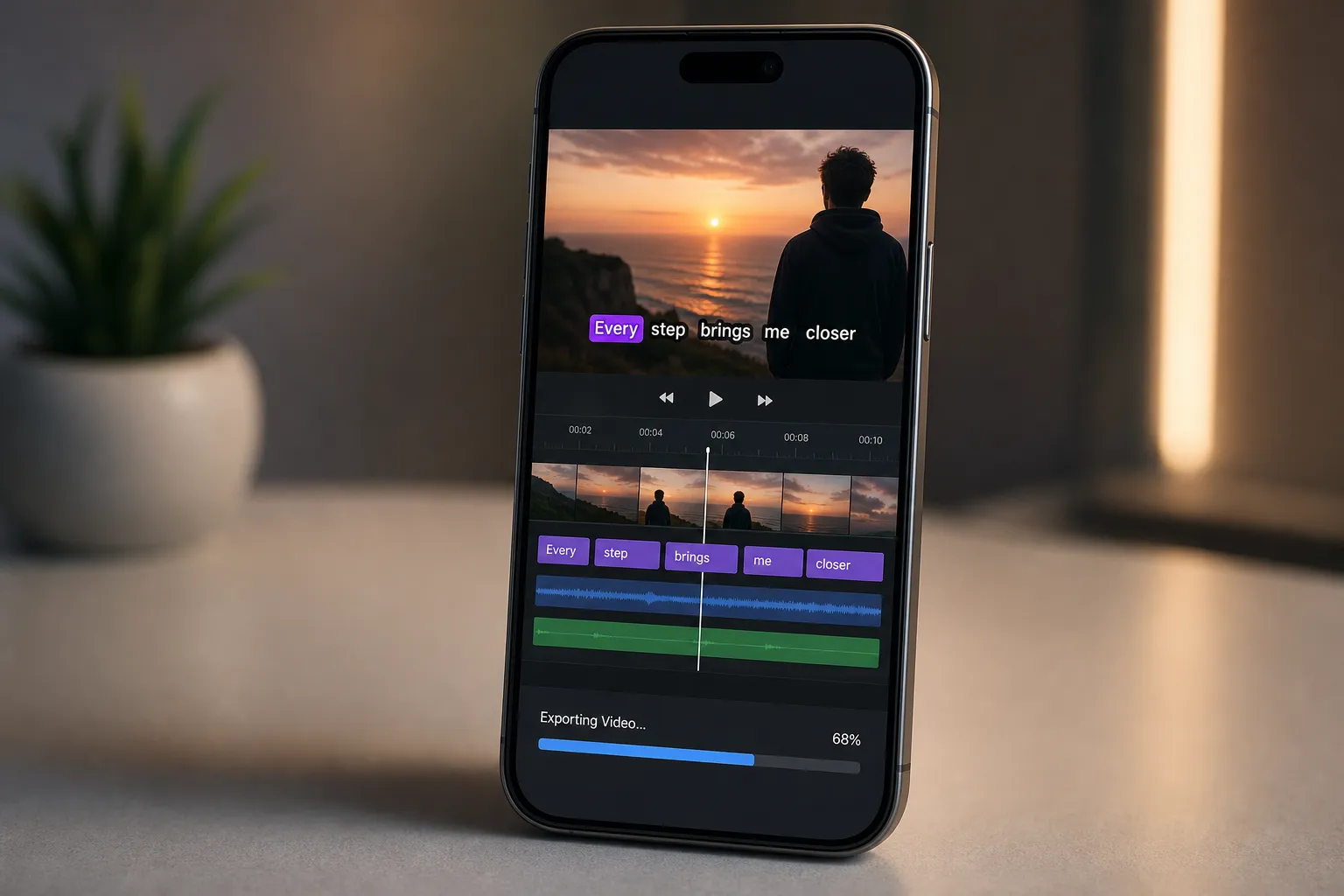
You want captions that hit the beat, look on-brand, and export cleanly without babysitting timelines. VEED might cover the basics, but if you need faster AI subtitles, better karaoke-style highlights, or a simpler way to burn captions into vertical clips, there are sharper options. This guide shows what to check, how VEED compares, and the best fits by workflow in 2026.
What to evaluate in a VEED alternative
Make a short testing script and run the same 2 - 5 minute clip through each tool. Score each item below so you are comparing results, not marketing pages.
- AI subtitle accuracy and speed: Check names, jargon, and filler words. Look for easy word-level fixes in the subtitle track. Time how long it takes to go from upload to first draft and from first edit to re-render.
- Karaoke-style timing: You want per-word or per-character highlights that track speech tightly. Good tools let you adjust highlight color, weight, and animation speed so captions feel synced, not laggy.
- Styles and brand controls: Test font families, weights, stroke, drop shadow, background box, line spacing, and safe-margin controls. Save a style preset once and reuse it across projects.
- Translations: Try one language you know and one you do not. Look for editable translations, punctuation fixes, and quick language switching on the existing subtitle track.
- Burned-in export quality: Export a 9:16 and a 16:9 MP4. Check edge crispness on text, antialiasing, and motion blur on animated highlights. Verify 1080x1920 or 1920x1080 at 30/60 fps without bitrate surprises.
- Timeline editing and resizing: Simple trims, J/L cuts, and snap-to-captions should be quick. One-click aspect ratios for 9:16, 1:1, and 16:9 save hours when repurposing.
- Export formats: You may need burned-in video plus SRT/VTT for YouTube. Confirm both, along with subtitle styling that stays consistent when hardcoded.
- Price, limits, and watermarks: Count monthly subtitle minutes, translation quotas, and export caps. Watermarks or 720p ceilings on free plans can kill a daily posting schedule.
How VEED compares in 2026
VEED is an all-in-one web editor with captions, templates, and social exports. It suits teams that want a general studio in the browser. Where people look elsewhere is speed and control: getting a tight karaoke-style highlight, applying a saved brand preset across formats, and burning in subtitles for shorts without extra steps. If your day is mostly short clips with on-screen text doing the heavy lifting, a tool built for fast captioning can feel much lighter.
Best VEED alternatives
SubtitlesFast
Best for AI subtitles, karaoke-style captions, and burned-in exports
Why pick it: SubtitlesFast is focused on getting clean, animated captions onto social videos quickly. It auto-transcribes in 50+ languages with word-level timing, so you can nudge a single word on the beat without shifting a whole sentence. Translate the same track, switch styles, and export burned-in video without leaving the page.
Where it shines:
- AI Subtitles with word-level timing for on-beat highlights and fast touch-ups.
- Translate Subtitles in-editor to publish the same cut in multiple languages.
- Karaoke Style Subtitles and Karaoke Style Captions with 30+ animated presets you can tweak for font, color, stroke, and box.
- Burned-In Subtitles that stay crisp on TikTok, YouTube Shorts, Instagram, and X.
- Timeline Editing for trims, cuts, and quick rearranges that keep captions in sync.
- Change Aspect Ratio between 9:16, 1:1, and 16:9 without redoing the design.
- Add Music for reels and shorts without moving files between apps.
- AI Thumbnail Generator for a cover image that matches your caption style.
Workflow example: Drop a 60-second vertical clip, auto-generate subtitles, pick a bold style with a soft shadow and box padding, tweak two misheard brand terms, translate to Spanish, then export a burned-in 1080x1920 MP4 and a separate SRT for YouTube. Total time: minutes, not hours.
Trade-offs: It focuses on captions and social edits. For complex compositing or heavy motion graphics, pair it with a full suite and use SubtitlesFast for subtitles and final social cuts.
Kapwing
Good for quick web edits with templates
Strengths: A broad browser studio with text overlays, meme formats, and simple captions. Useful when you want a fast layout with stock elements and do not need deep timing control.
Watchouts: Free tiers often watermark or cap resolution. Styling depth and per-word animation can be limited compared to a captions-first tool.
Descript
Best for script-first editing and podcasts with captions
Strengths: Edit by transcript, then export with captions. Great for interviews, webinars, and screen recordings where the text is the timeline.
Watchouts: If you are cutting 15 - 60 second clips with animated karaoke highlights, a lighter, subtitles-focused editor will usually be faster.
CapCut
Great for TikTok-native edits
Strengths: Snappy effects and mobile/desktop parity for trends. Auto captions are quick, and the app is dialed for vertical formats.
Watchouts: Style controls for branded karaoke captions can be basic. Double-check burned-in quality and font control if your look is strict.
Adobe Express
Helpful for on-brand social graphics with captions
Strengths: Brand kits and templates keep fonts and colors consistent across posts. Handy for captioned promos and simple cuts.
Watchouts: Template flows can feel slow when you only need rapid AI subtitles and a hardcoded export.
Clideo
Simple web tools for quick subtitle tasks
Strengths: Straight to the point for adding or embedding subtitles, trimming, and resizing without a full editor.
Watchouts: Limited animation and styling. Better for quick fixes than polished karaoke captions.
Pricing, limits, and real-world speed
Skip feature grids and run a speed test on your own files. Here is a simple way to compare costs and time-in-chair:
- Minutes and translations: Tally your weekly volume. If you publish 5 shorts at 60 seconds plus two 8-minute clips, you will need roughly 18 subtitle minutes per week before retries and translations.
- Watermarks and caps: Daily posting makes free tiers painful. If a plan removes watermarks, raises resolution to 1080p or higher, and unlocks more subtitle minutes, it is usually worth it.
- Render tests: Time a 60-second 9:16 export with burned-in captions at 1080x1920, 20 - 30 Mbps. Do this twice after small text edits. The second pass shows how fast the tool re-renders.
- Quality checks: Look for crisp edges on thin fonts, proper kerning, and no flicker on animated word highlights. Verify that saved style presets apply consistently after resizing.
- Team vs. solo: Teams need shared styles, comment/review, and stable links. Solo creators can favor the fastest path from transcript to burned-in export.
Recommendations by use case
- Best VEED alternative for AI subtitles and karaoke-style captions: SubtitlesFast. You get AI Subtitles in 50+ languages with word-level timing, Translate Subtitles, 30+ animated styles, and Burned-In Subtitles in one place.
- Fastest path to auto captions for TikTok and YouTube: SubtitlesFast for precise styling and crisp hardcode exports. CapCut is fine if you prefer a mobile-first editor and basic captions.
- Long interviews and podcasts: Descript, thanks to text-first editing and clean caption exports for long runtimes.
- Branded templates across graphics and simple videos: Adobe Express or Kapwing when layout variety matters more than per-word timing.
- Quick one-off add-subtitles-to-video tasks: SubtitlesFast for style-rich, on-beat outputs. Clideo for small, fast fixes.
Key takeaways
- Test on your own clips. Time the first draft, re-renders, and check how tightly word highlights track speech.
- If karaoke captions and clean burned-in exports drive watch time, pick a captions-first tool.
- SubtitlesFast stands out as a VEED alternative for AI Subtitles, translations, animated styles, and social-ready exports with minimal setup.
- Match the editor to your workflow. Short-form speed beats generalist feature sets when deadlines are tight.
FAQ
What is the best VEED alternative for karaoke style captions?
SubtitlesFast. It offers Karaoke Style Subtitles and Karaoke Style Captions with 30+ animated styles, plus burned-in exports for social platforms.
Can I add subtitles to video online without extra software?
Yes. SubtitlesFast runs in your browser, generates AI subtitles, lets you edit styles, and exports with burned-in captions for easy sharing.
How do I get auto captions for TikTok and YouTube with the right size?
Use AI Subtitles, then switch aspect ratios to vertical or horizontal before export. SubtitlesFast lets you change aspect ratio for each platform.
Can I burn subtitles into video for platforms that ignore caption files?
Yes. Choose a burned-in export so the subtitles are permanently embedded. SubtitlesFast supports burned-in subtitles for clean playback anywhere.
Do karaoke subtitles help watch time?
Often, yes. Karaoke style captions with word-level highlights guide attention and keep viewers engaged in silent or noisy environments.