

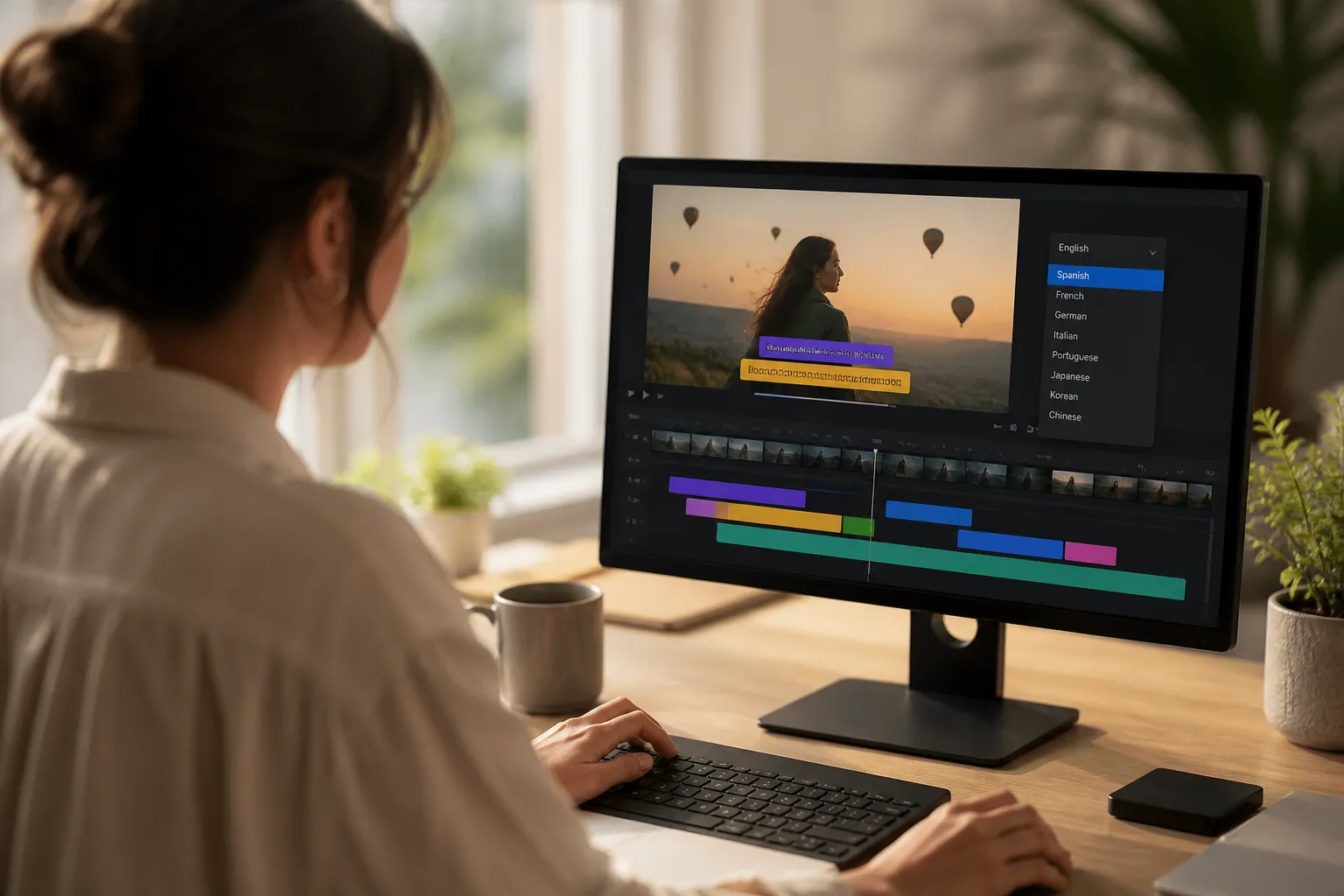
Translating your video should not blow up your brand look or your schedule. The fix is a tight flow that turns one styled caption set into many languages without redoing fonts, colors, and animations each time.
Below is a clear, repeatable way to translate subtitles online with SubtitlesFast. You will start with AI Subtitles, lock in your Subtitle Style Customization, translate cleanly, then export Burned-In Subtitles that are ready for social.
1) Set up your source captions and style
Lock the source language first so the rest of the workflow stays consistent. If your video is not captioned yet, run AI Subtitles. It will auto-transcribe your audio with word-level highlighting and generate time-aligned captions in 50+ languages. Before you move on:
- Fix names, brands, and product terms. Choose one spelling and keep it throughout.
- Check numbers and units. Keep currency, measurements, and dates in the format your audience expects.
- Confirm punctuation and casing. Clean input captions make every translation better.
Next, set your visual system once so it carries through to every language. In Subtitle Style Customization, choose:
- Font family with wide language support. For global sets, pick a family with strong glyph coverage so you do not see missing characters.
- Size and line height for mobile readability. Two lines max, large enough to read on a small screen at arm’s length.
- Color and contrast. White or light text with a dark outline or box keeps captions visible on busy footage.
- Animation. Pick from 30+ animated styles. If you like a sing-along look, Karaoke Style Subtitles highlight words in sync and pull the eye to the beat.
If you create for multiple platforms, pick an aspect ratio now. Use Change Aspect Ratio to size for 9:16 vertical, 1:1 square, or 16:9 horizontal so line lengths and placement look right from the start. Keep captions inside safe margins and away from app UI. Bottom center with a small inset is a reliable default.
2) Translate your subtitles
With your base captions styled, open Translate Subtitles and choose your target language. SubtitlesFast translates line by line while keeping your original timing and style. Because you started with AI Subtitles, there is no file juggling. It is a straight handoff from transcription to translation.
Want to test more than one market? Duplicate the track and run Translate Subtitles again for a second or third language. You can keep separate language tracks in one project and toggle them on export.
This same flow works when you need auto captions for TikTok and YouTube. Set the style once, translate as needed, and you are ready to burn in for platforms that strip sidecar files.
3) Tighten timing, breaks, and reading speed
Translations often expand or contract. That affects readability. Play through with word-level highlighting and adjust where needed so lines appear and clear at a comfortable pace.
- Reading speed. Aim for roughly 10 - 15 characters per second. Keep each subtitle on screen for about 1.5 - 6 seconds. Short lines should live at least a second.
- Line length. 32 - 42 characters per line is a safe target. Two lines max. Break at natural pauses, not mid-word or mid-name.
- Segmentation. Keep clauses together. Move a conjunction or preposition down when it reads cleaner on the next line.
- Beats and cuts. Use Timeline Editing to nudge captions so they land on music beats or scene changes instead of straddling them.
Common pitfalls to catch now
- Names and brands. Do not translate brand names unless your brand team does so. Keep capitalization consistent.
- Punctuation rules. Spanish needs inverted question and exclamation marks. French often adds a thin space before certain punctuation. Fix these so tone reads right.
- Numbers and formats. Localize commas and periods in large numbers, currency symbols, dates, and time. 1,000 vs 1.000 changes meaning by region.
- Right-to-left scripts. For Arabic or Hebrew, confirm direction, alignment, and punctuation order look correct.
- Overlapping captions. If two lines collide during quick cuts, shorten or shift one in the timeline.
- Speaker changes. When two people trade lines fast, make sure each line starts cleanly and does not inherit the other speaker’s timing.
- Reading pressure. If a joke or key claim flashes too fast, widen the timing. You will get more laughs and clicks when viewers can read without rushing.
4) Keep style across languages and export cleanly
Style should not reset just because the language changed. SubtitlesFast preserves your Subtitle Style Customization across translations, including fonts, colors, size, and animations. That keeps your channel consistent and saves time on every export.
Before you render, check a few style details that matter in other scripts:
- Font support. Pick families with full glyph coverage for Arabic, Hindi, Japanese, or Korean. Swap in a fallback if you see missing characters.
- Outline and shadow. On vertical video, a 2 - 4 px outline at 1080x1920 or a subtle drop shadow improves contrast on bright scenes.
- Letter spacing. Some scripts need a touch more spacing to stay legible at small sizes. Adjust, then preview on a phone.
- Karaoke timing. If you use Karaoke Style Subtitles, confirm the highlight sweeps match the new language’s syllable pacing.
When everything reads clean, export with Burned-In Subtitles so the text is permanently embedded. This keeps captions visible on apps that ignore or strip sidecar files and makes cross-posting simple.
Posting to more than one platform? Use Change Aspect Ratio and export separate versions for vertical, square, and horizontal feeds. Keep your frame rate and resolution consistent with the source to avoid jitter. If your clip needs a backing track for mute-first feeds, Add Music inside the editor before export. Need a cover image? Use the AI Thumbnail Generator so your video and caption style match in the grid.
Final spot-checks
- Watch the first 10 seconds with sound off. Do the captions grab attention and stay readable on mobile?
- Rewatch the fastest scene. Are line breaks clean and centered, with no crowding near the edges?
- Scan for brand terms. Are product names and CTA verbs translated the way your team prefers?
- Post a private test link and view it on a small phone. If anything feels tight, bump the font up a notch and re-export.
Key takeaways
- Start with AI Subtitles, clean the source, then run Translate Subtitles for a fast handoff from transcription to translation.
- Lock your brand look early. Subtitle Style Customization carries fonts, colors, and animations into every language.
- Keep lines short, two max, and target 10 - 15 characters per second for easy reading. Nudge timing on the timeline.
- Use Karaoke Style Subtitles when you want sing-along emphasis that holds attention during music or fast cuts.
- Export Burned-In Subtitles for apps that do not keep sidecar files, and resize with Change Aspect Ratio for each feed.
If you publish global content every week, this flow removes the busywork. You get the speed of an AI subtitles generator with the control to keep your style, timing, and voice intact.
FAQ
Will my subtitle styles carry over after translation?
Yes. Subtitle Style Customization is preserved when you translate, so your fonts, colors, sizes, and animations stay consistent across languages.
What is the fastest way to create captions before I translate them?
Use AI Subtitles to auto-generate time-aligned captions with word-level highlighting, then run Translate Subtitles to convert them into your target language.
Can I export with captions embedded for social platforms?
Yes. Export with Burned-In Subtitles to embed captions in the video file, which makes posting to apps easier and prevents caption loss.
Does this work for TikTok and YouTube shorts?
Yes. You can create auto captions for TikTok and YouTube, change aspect ratio for each platform, and export burned-in versions for quick posting.
How do I keep karaoke subtitles in translated videos?
Choose Karaoke Style Subtitles or karaoke style captions in your style settings. The animation and color choices carry through when you translate.