

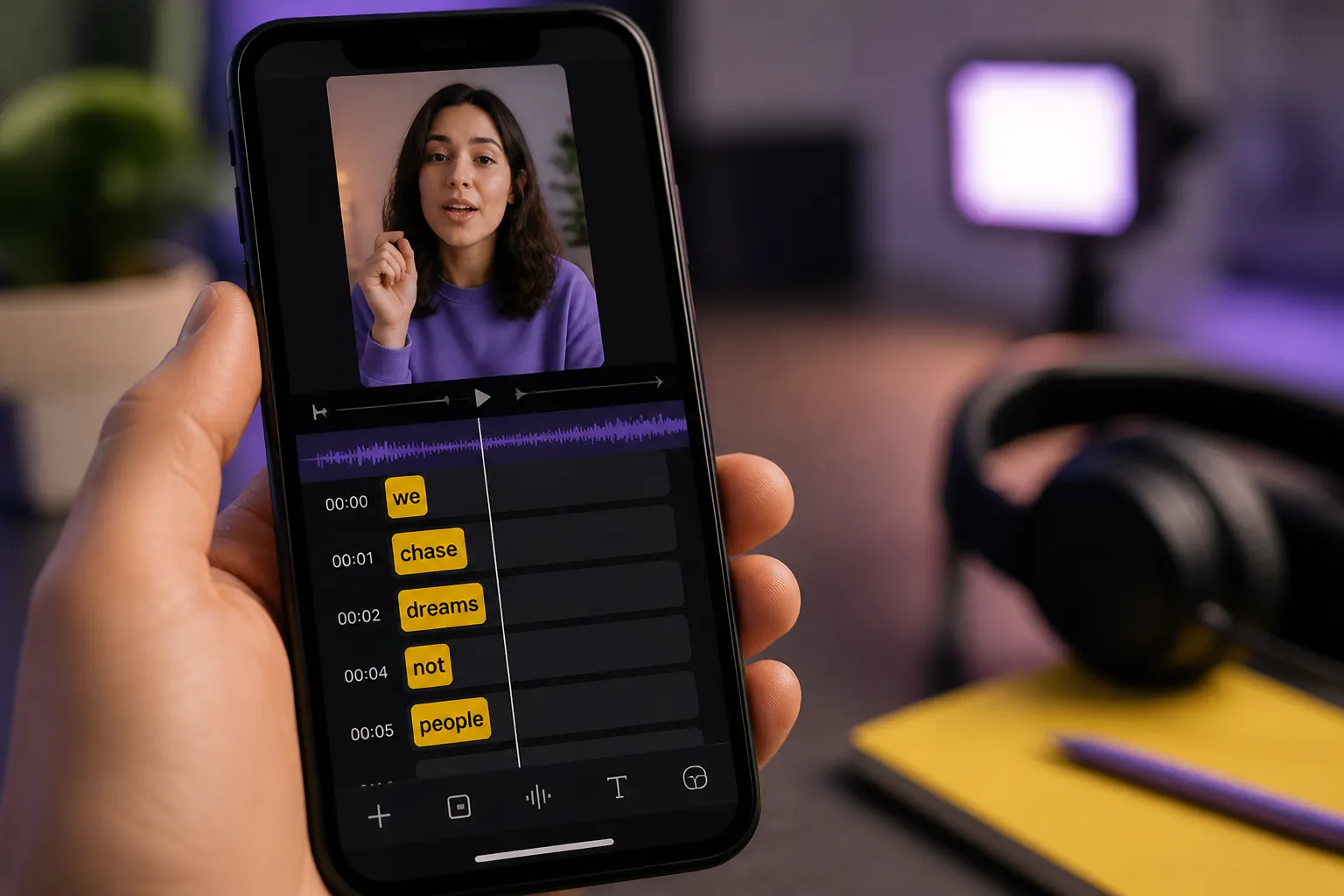
Your video might be sharp, funny, and on topic. If most people see it muted or can’t find it in search, you still lose them. Captions fix both. They turn speech into text that platforms can index, and they carry your hook when sound is off. Done right, captions add clarity, raise completion rates, and keep your story readable on any screen.
Here is a practical, fast path to video SEO captions that look good, read clean, and help you rank. No fluff. Just settings, workflow, and a few rules that work.
Make your audio searchable and skimmable
Discovery starts when platforms understand what your video says. That means your first line of audio should say the topic, and your first captions should show the same words. Treat captions like part of your script, not an accessory.
- Front-load keywords. Say and show your primary phrase in the first 3 to 5 seconds. If your topic is “how to cut B-roll faster,” speak it and let the first caption read it verbatim.
- Keep reading speed comfortable. Aim for 14 to 17 characters per second and no more than two lines on screen at once. Break lines on natural phrases, not mid-word or mid-name.
- Name things correctly. Spell product names, people, and places exactly. These terms drive search and help recommendation systems tag your clip.
SubtitlesFast AI Subtitles auto-transcribes in 50+ languages with word-level timing. Do a quick pass to fix names or slang, then use Timeline Editing to nudge any captions that feel late or early. If you like automation that saves you from checking a feed every hour, this Automated Job Matching Guide to Cut Your Search Time in Half shows how AI hourly job alerts work in a different world but follow the same time-saving idea.
To hold attention on fast hooks, turn on Karaoke Style Subtitles. Word-by-word highlights make dense lines easier to track and keep eyes anchored when you cut quickly.
Style captions for phone-first readability
Most views happen on small screens. Legibility beats decoration every time.
- Font size that scales. For 1080p video, set captions around 5 to 6 percent of frame height. For 4K, keep the same percent so it scales cleanly across exports.
- Two lines max. Keep each line under 32 to 42 characters. If a line wraps ugly, split it where a speaker would pause.
- Contrast you can trust. White or light text with either a thin 2 to 4 px dark stroke at 1080p or a semi-opaque background box works best. If you use a box, 60 to 80 percent opacity keeps busy frames readable without turning into a banner.
- Safe zones. Keep captions at least 10 percent above the bottom edge on vertical video to avoid scrub bars and UI. Leave 5 percent padding from left and right edges.
- Color with purpose. Use a single accent color to emphasize key words or speaker changes. Do not color every other word. It tires the eye.
- Consistent placement. Do not bounce captions around the frame unless they are clearly pointing at on-screen text or a speaker. Consistency helps scanning.
With SubtitlesFast Subtitle Style Customization, you get 30+ animated styles and full control over fonts, colors, and animations. For most talking heads, pick a simple style: light text, subtle shadow, steady placement. Save a brand preset so your series looks uniform.
Translate and localize without reshoots
Captions are cheaper than dubbing and still unlock new audiences. They also surface your video in search for each language you support.
- Translate the script, not just the words. With Translate Subtitles, generate versions per market, then check idioms, names, and measurements. Keep product names in the original if your market expects it.
- Mind right-to-left languages. Pick a font with full glyph support and test punctuation and numbers. Keep layouts simple so mirroring does not break your look.
- One timeline per language. Export or publish separate caption tracks named with clear tags, for example, myvideo_en.srt, myvideo_es.srt, myvideo_ar.srt.
If you cut shorts in English, consider posting a Spanish or Portuguese version with the same visuals and translated captions. Keep the style identical so the series feels consistent, then let the algorithm find the audience in each language.
Burn in when reliability matters
Closed captions are flexible, but they can break on re-uploads, cross-posts, and third-party apps that ignore sidecar files. That is when you burn them in.
- Use Burned-In Subtitles for TikTok, Reels, and Shorts, where reposts and stitches are common. Burn-in ensures your words survive screen recordings and edits.
- Protect brand control. Burned captions keep your style intact when others embed or react to your clip.
- Save a clean master too. Keep a version without baked text for future edits, then export platform cuts with burn-in from SubtitlesFast.
For auto captions that always show, export with burn-in and test on a second device. Scrub through fast cuts to confirm timing holds.
Publish for every feed: framing, hooks, and thumbnails
Great captions can still fail if the frame crops them off or the hook does not match the click.
- Resize before you style. Use Change Aspect Ratio to set 9:16, 1:1, or 16:9 first, then style your captions inside those bounds. This avoids clipped lines on export.
- Respect UI zones. On vertical feeds, keep text above the bottom 15 percent and away from the right edge where action buttons sit. On YouTube, avoid the lower third where progress and subtitles may overlap.
- Match the promise. If the thumbnail says “Fix choppy slow motion,” your opening caption should say the same words in the first seconds. Do not bait and switch.
- Thumbnail and captions share keywords. SubtitlesFast AI Thumbnail Generator can draft options that echo your opening line. Pick a frame with a clear subject and simple text that matches what you say on screen.
Quick SEO checklist before you hit publish
- Say the primary keyword early. Show it in the first caption.
- Keep to two caption lines, 32 to 42 characters per line.
- Target 14 to 17 characters per second for reading speed.
- Use consistent casing and punctuation. Write captions like a script, not a raw transcript.
- Sync tight with Timeline Editing. Nudge late or early lines until they feel invisible.
- For shorts, turn on Karaoke Style Captions to carry the hook.
- Translate top clips and test burn-in on platforms that drop sidecar files.
- Export per platform. 1080x1920 for vertical, 1920x1080 for horizontal. Check safe areas.
Wrap-up: captions are your easiest watch-time lift
Captions help platforms understand your topic and help viewers follow your story without sound. With SubtitlesFast you can add subtitles to video online, style them for legibility, translate them for reach, and export burn-ins that survive every repost. Set your framing first, keep styles clean, make the first seconds count, and ship.
Key takeaways
- Front-load spoken and captioned keywords so your topic is crystal clear.
- Style for phones: two lines max, strong contrast, steady placement.
- Use karaoke timing for fast hooks and short clips to hold attention.
- Translate top videos and burn in when you need reliable playback on any app.
- Resize early and match thumbnails, hooks, and captions so the click feels rewarded.
FAQ
Do captions help with video SEO on YouTube and TikTok?
Yes. Clear captions make speech searchable and keep muted viewers engaged, which can improve discoverability and watch time on both platforms.
What caption style is best for short-form videos?
Karaoke style captions work well for short clips because word-level highlights keep attention on the hook and make fast speech easier to follow.
Should I burn subtitles into my videos?
Burned-in subtitles ensure your text shows everywhere, including re-uploads and apps that ignore closed captions. They are a safe default for social sharing.
How can I quickly add subtitles to a video online?
Use an AI subtitles generator to transcribe the audio, then spot-check and style the text before exporting. SubtitlesFast does this in a simple web editor.
When should I translate subtitles?
Translate when you have viewers in multiple languages or plan to reach new regions. It expands search reach without reshooting your content.