

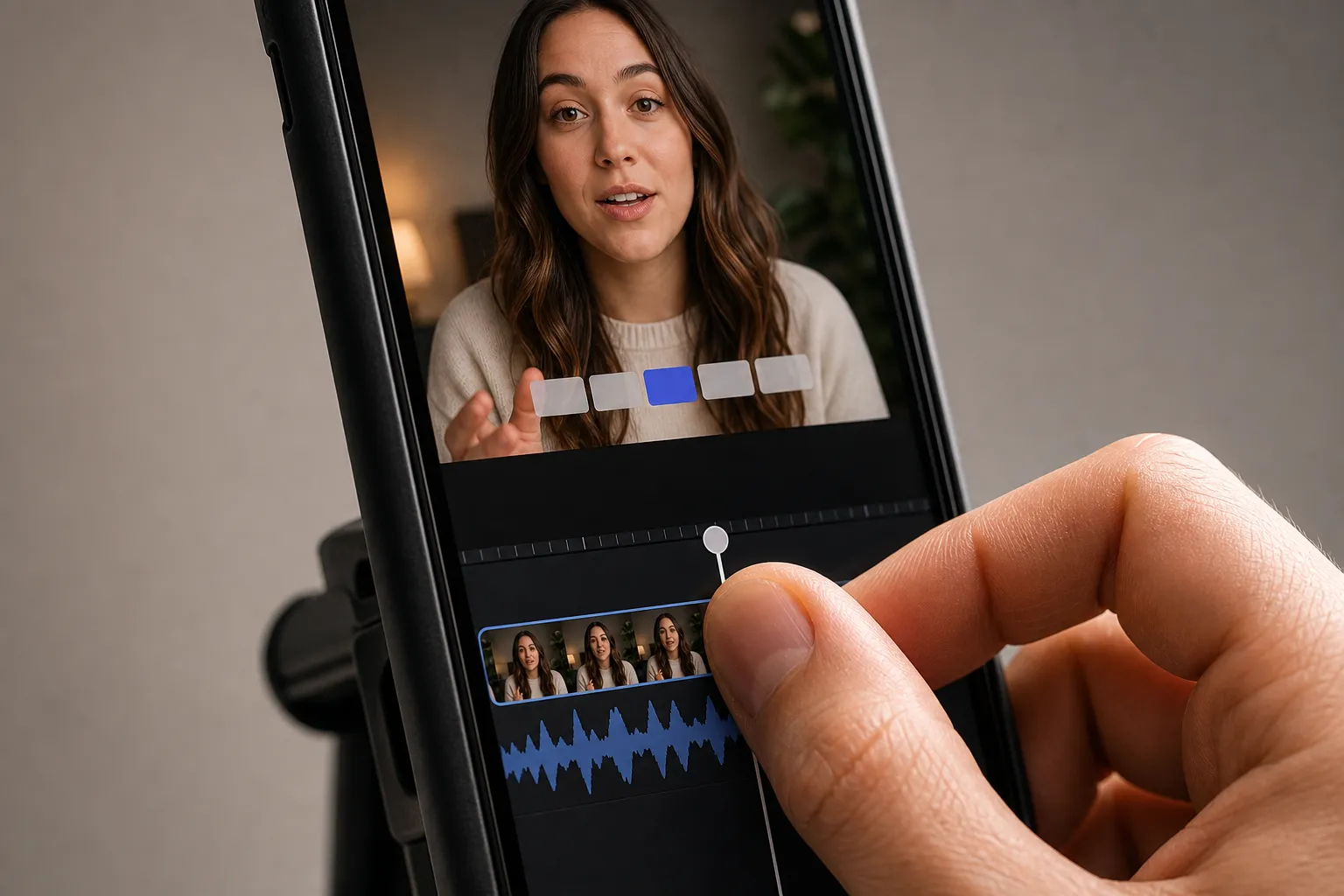
Most people watch on mute and scroll fast. Give them a moving target to follow. Word-by-word captions with a karaoke highlight keep eyes locked to the next word, match your speaking rhythm, and make short clips easier to finish.
Below is a practical workflow for clean, readable karaoke subtitles in SubtitlesFast. You will set timing that feels natural, style for small screens, and export burned-in files that hold up on TikTok, YouTube, Instagram, and X.
Why word-level highlighting works
Reading is not smooth. Eyes jump in short bursts called saccades and pause for 200 to 250 ms. A moving highlight reduces the effort of deciding where to look next. Viewers track the active word, not the whole line, so they miss less and re-read less.
It also fixes pacing. The highlight advances in time with your voice, which helps in noisy feeds and over quick cuts. On mobile, where text is small and backgrounds are busy, the guided motion makes captions feel effortless.
The highlight can carry emphasis. Color on verbs, names, or numbers draws attention without all-caps or shouting. Keep it subtle so meaning beats motion.
Build captions that sync
You can add subtitles to video online in minutes with SubtitlesFast. Start with clean audio, then let the AI create per-word timings you fine-tune lightly.
1) Prep audio so timing locks in
- Record in a quiet room. Aim for peaks around -12 dBFS and keep your mouth a hand’s width from the mic to avoid plosives and echo that throw off alignment.
- Slow your delivery slightly. Normal speech is 140 to 160 wpm. For shorts, 120 to 140 wpm gives the highlight room to travel across each word.
- Leave a small beat between sentences. Clean gaps help the generator segment lines neatly.
Quoting a social post on screen? A small helper saves time. Use a Chrome extension to copy X.com posts with media, then drop the screenshot or saved clip into your timeline while your karaoke captions track your narration.
2) Generate AI subtitles with word timing
- Upload your video to SubtitlesFast. Select the spoken language and run AI Subtitles. It supports 50+ languages and maps timing down to each word.
- Play the result end to end. If a section drifts, trim stumbles or long pauses on the Timeline Editing track and preview again.
- Need other languages? Use Translate Subtitles and review brand names, product terms, and numbers so they stay consistent across versions.
3) Enable Karaoke Style Captions
- Turn on Karaoke Style Subtitles. The active word will progressively highlight as the line plays, which works well for dialogue, explainers, and lyrics.
- Pick a base template in Subtitle Style Customization. Start simple, then dial in the details for your footage and brand.
- Choose the active-word color and background. High-contrast pairs like white text with a near-black outline or a bright highlight over neutral text read well on busy video.
4) Nudge timing without over-editing
- Trim silences. If the highlight stalls between words, tighten gaps on the Timeline Editing track to keep a steady cadence.
- Cut restarts. Remove false starts so the highlight never backtracks.
- Re-record rushes. If a phrase blurs past, a clean re-take at about 90 percent of your original speed beats micro edits.
Design captions for small screens
Karaoke captions must be readable at arm’s length on a phone. Set sizing, layout, and color so the highlight guides the eye without fighting the footage.
Layout and line length
- Two lines max. Keep lines to about 28 to 36 characters on vertical video. Break at natural pauses. Short lines keep the highlight from spanning half the frame.
- Safe zones. Keep captions above the bottom 10 percent of the frame and away from the far edges. That clears player UI and avoids accidental crops.
- Vertical-first framing. If you plan Shorts, Reels, or TikTok, switch the canvas to 9:16 early with Change Aspect Ratio. Place captions so they also survive a 1:1 or 16:9 cut.
Font, sizing, and spacing
- Font choice. Use a clean sans like Inter, Roboto, or SF Pro for tight letter shapes that remain legible at small sizes.
- Size. For 1080x1920, start around 54 to 64 px, or roughly 4 to 5 percent of frame height. Increase if your background is busy.
- Line spacing. Set 1.2 to 1.35 line-height so stacked lines breathe without splitting apart.
- Stroke and shadow. A 4 to 6 px dark outline or a soft shadow at 40 to 60 percent opacity keeps white text readable over bright shots.
Color, emphasis, and animation
- Contrast first. White text (#FFFFFF) with a near-black outline (#0A0A0A) is a reliable base. Use a saturated highlight like amber (#FFC042) or cyan (#00D1D1) for the active word.
- Use emphasis sparingly. Bold or a color swap on one or two words per sentence is enough. Let the karaoke motion carry the focus.
- Keep motion calm. Limit yourself to one entrance animation and the moving highlight. Set entrance duration around 200 to 300 ms so it feels snappy but not jittery.
Sound, music, and pacing
- Add Music if the clip needs energy, but keep it below the voice by 8 to 12 dB so alignment stays accurate. Simple loops under dialogue are safest.
- Let breaths live. Tiny pauses reset the eye before the next highlight run and help viewers keep up.
Common mistakes to avoid
- Low contrast. Pastel text over bright B-roll washes out. Add an outline, shadow, or a semi-opaque box.
- Overlong lines. Long sentences make the highlight sprint. Split lines and cut fillers.
- Over-animated styles. If every line slides and bounces, the highlight loses meaning. Pick one style and stick to it.
- Placing too low. Player buttons can cover captions. Lift them a bit and test on-device.
Export and publish with burned-in subtitles
Platform caption tools vary and often strip styling. To keep your karaoke look everywhere, export with Burned-In Subtitles so the captions live inside the video.
- Match aspect ratios. Use Change Aspect Ratio to export 9:16, 1:1, and 16:9 versions. Design once, then nudge placement per format so nothing gets cropped.
- Use sensible codecs. H.264 video in an MP4 container with AAC audio is widely accepted. Match source frame rate. For 1080x1920, 10 to 16 Mbps video and 48 kHz AAC at 160 to 320 kbps keep text crisp without bloating the file.
- Check edges on-device. Before posting, preview on an actual phone and scrub. Watch for cut-off descenders, covered lines, or stuttery highlights.
- Create a thumbnail. With the AI Thumbnail Generator, grab a frame where the highlight sits on a strong keyword. It tees up the message in the preview.
If you also need a text layer for accessibility, keep a version without burned-in captions and upload a sidecar file where platforms support it. For most public feeds, a single burned-in master delivers the most consistent look.
Key takeaways
- Word-by-word highlights pace reading and keep viewers oriented on muted, fast feeds.
- SubtitlesFast generates accurate word timing and Karaoke Style Captions, so you do not hand-key every beat.
- Design for phones first: short lines, high contrast, solid placement, and calm motion.
- Export burned-in versions per aspect ratio so your style survives TikTok, YouTube, Instagram, and X.
With clean audio, light timing passes, and a simple style, karaoke captions become a fast, repeatable step that lifts clarity and watch time clip after clip.
FAQ
What is the difference between word by word captions and normal subtitles?
Normal subtitles show whole lines at once. Word by word captions highlight each word in sync with speech, which makes fast clips easier to follow.
Do I need to manually time each word?
No. SubtitlesFast’s AI Subtitles create word-level timing automatically. You can trim silences on the timeline if the pacing feels off.
Should I burn subtitles into video or upload a caption file?
For consistent karaoke styling across platforms, export burned-in subtitles. Use caption files only when you need native accessibility options.
How can I make karaoke captions readable on TikTok and YouTube Shorts?
Keep lines short, increase contrast, and design on a 9:16 canvas using Change Aspect Ratio. Avoid placing text where UI elements overlap.
Can I translate karaoke subtitles for different audiences?
Yes. Use Translate Subtitles to create language versions. Keep brand names and product terms consistent when reviewing translations.