

Shorts are decided in a second. Subtitles are how your message lands, even on mute. If the words lag, cram, or hide behind UI, people swipe. Here is a simple, proven way to make subtitles that win views and retention without slowing you down.
Time and structure subtitles for fast clips
Shorts cut quickly, so timing needs to snap. Keep 1 to 2 lines on screen at a time. Each line should stay up long enough to read once at a calm pace. As a rule, keep most lines under two seconds unless the sentence is long or complex.
Write for the eye. Aim for 28 to 40 characters per line and never more than two lines. Break lines at natural phrases, not mid-word or mid-name. Use punctuation to create micro-pauses that make fast edits feel easier to follow.
Be exact with names, numbers, and symbols. If you make finance Shorts, tools like TickerLists help you confirm tickers and levels so your subtitles match what is on screen.
If you use an ai subtitles generator, check timestamps and tighten any slack after jump cuts. Word-level highlighting helps the eye track speech in noisy feeds. SubtitlesFast gives you AI Subtitles with word-level syncing and a simple timeline, so you can nudge a line a few frames and keep everything locked to your edit.
Design for tiny screens: fonts, contrast, placement
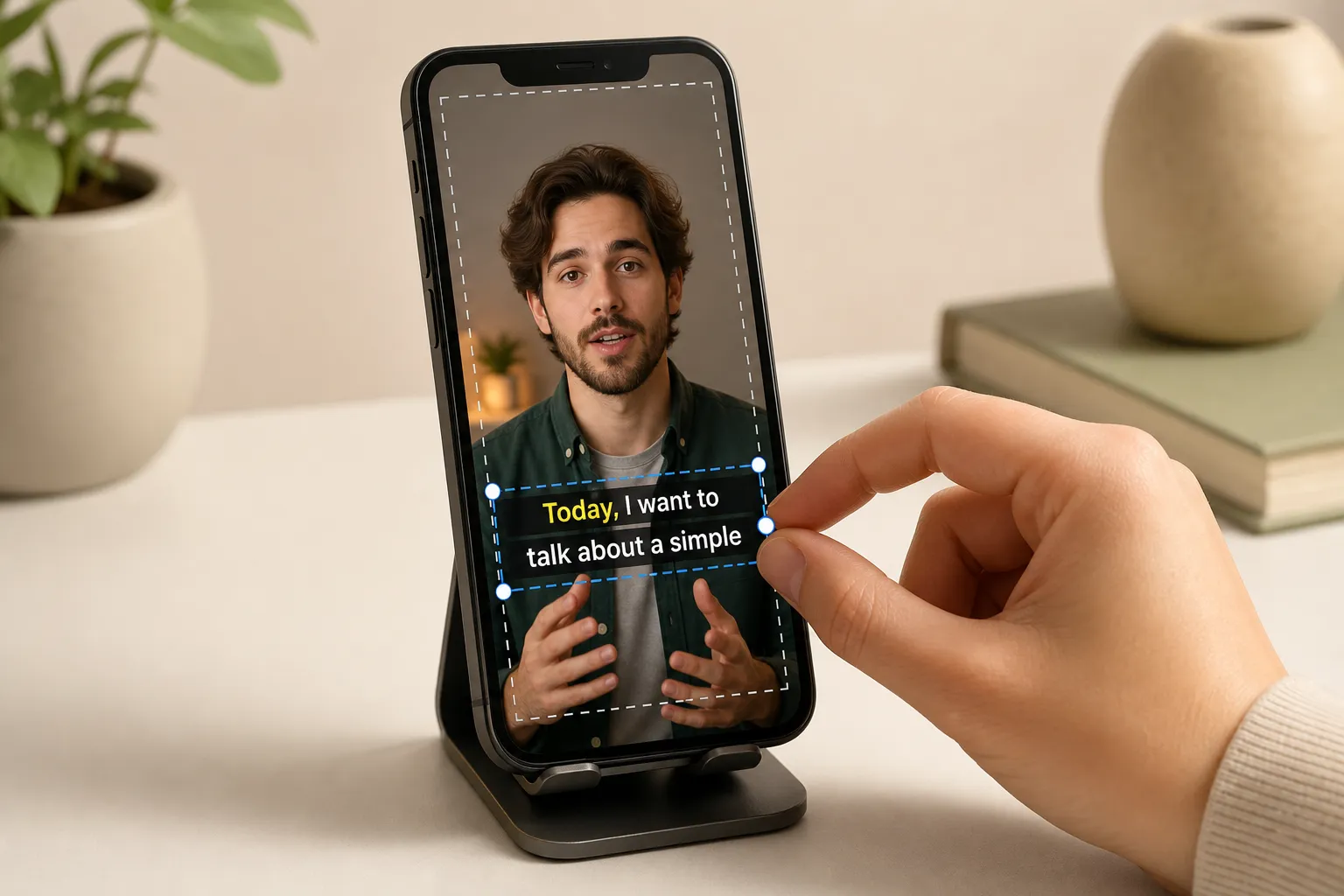
Most viewers watch on a phone. Pick a clean sans-serif font in medium or bold weight. Size it to feel big without touching the edges. Use high contrast: light text over a dark box or outline, or dark text over a light box. A soft shadow or semi-opaque box keeps text legible over bright footage and quick camera moves.
Brand with restraint. Keep body text neutral for readability, then use your brand color for the box, highlight, or speaker tags. With Subtitle Style Customization in SubtitlesFast, you can test fonts, colors, and subtle animations, then save a preset you apply to every Short.
Respect safe zones. On YouTube Shorts, the player overlays the title at the top and the channel, like, and comment buttons near the bottom. Place captions in the center third, slightly above the bottom. Avoid the lower 15 percent where buttons live and the top 15 percent where the title sits. Set your project to 9:16 from the start so you never fight crop lines later. The Change Aspect Ratio tool in SubtitlesFast switches to 9:16 and shows safe zones so your captions do not collide with UI on YouTube or TikTok.
Hook attention with motion, not clutter
The first two seconds decide everything. Karaoke style captions add motion that pulls focus to the words being spoken. A simple left-to-right or word-by-word highlight guides the eye without overpowering the speaker. This also helps people who watch on mute.
Use Karaoke Style Subtitles for your hook, key tips, and punchlines. If your Short opens with a line like “Stop scrolling,” let the highlight reveal each word as it is said. SubtitlesFast includes Karaoke Style Captions and 30+ animated styles, so you do not need a separate animated karaoke subtitles editor to get that effect.
Match rhythm. A gentle background track can set a comfortable reading pace. If you use karaoke highlights, try syncing the reveal to the beat or phrase starts. Keep music under the voice. It should support comprehension, not compete with it. Use Add Music in SubtitlesFast to tuck in a low-volume track and trim it in the same timeline where you edit captions. If you cut a pause or a breath, ripple the subtitles with the clip so timing stays aligned.
Translate and ship consistent styles everywhere
YouTube can auto caption, but it may miss words and it will not match your style. If your look is part of the brand, burn subtitles into video so the experience is the same on every device and in every feed. Burned-in keeps karaoke highlights and animations intact and prevents font or layout surprises across platforms.
With Burned-In Subtitles in SubtitlesFast, your export is baked and ready to upload. That makes repurposing easy when you post the same Short on TikTok and Instagram Reels. For creators who reach across languages, translate cleanly. Use one language per cut or make separate versions. Avoid stacking three lines of bilingual text; it shrinks everything and kills readability. SubtitlesFast can Translate Subtitles after you generate them, so you can make a second export for Spanish, Hindi, or any market you care about. Title each video for that audience.
Here is a fast, repeatable flow:
- Start a 9:16 project and import your clip.
- Run AI Subtitles, then fix timing in the timeline. Keep lines short and break at phrases.
- Apply your saved brand style. Test contrast on a busy frame and a dim frame.
- Add karaoke highlights to the hook or key moments. Keep motion simple.
- Place captions in the center third. Avoid the top and bottom 15 percent.
- Optional: Translate and prepare a second version for another language.
- Burn in subtitles, then export 1080x1920 MP4 at 30 or 60 fps.
- Upload to YouTube. Write a clear title and add relevant tags.
If you also post on TikTok and Instagram, this setup lets you add subtitles to video online once and reuse the same file. SubtitlesFast also includes an AI Thumbnail Generator if you want a matching cover for your channel and Shorts shelf.
Key takeaways
- Keep timing tight for quick cuts. Use 1 to 2 lines, most under two seconds.
- Write short lines, 28 to 40 characters, and break at natural phrases.
- Use high-contrast fonts, subtle boxes or shadows, and safe placement in the center third.
- Karaoke highlights help the first seconds and improve comprehension on mute.
- Burn in subtitles so your style and animations look right across platforms.
- Translate separate versions for clean, readable captions in each language.
- Lock a simple 9:16 edit-export-upload workflow you can repeat daily.
Shorts reward clarity and speed. Tight timing, readable design, and a reliable workflow keep people watching and help you post more often. SubtitlesFast brings AI Subtitles, karaoke effects, brand styles, 9:16 projects, and burned-in exports together so you can ship better Shorts without extra steps.
FAQ
What is the best font size for YouTube Shorts subtitles?
Use a clean sans-serif font at a size that fits two lines without touching the edges. On 1080x1920, aim for subtitles around 70 - 90 px depending on the font.
Should I use burned-in subtitles or YouTube’s auto captions for Shorts?
Use burned-in subtitles if you want consistent style and karaoke effects. Platform auto captions are fine for accessibility but do not match custom design.
How long should each subtitle stay on screen in a Short?
Keep most lines visible for 1 - 2 seconds. Longer lines can sit a bit longer, but avoid crowding. Sync changes with your cuts.
Where should I place subtitles on YouTube Shorts?
Place them in the center third, slightly above the bottom, and away from the like, comment, and share buttons. Avoid the bottom and top 15% of the frame.
Can I translate subtitles for Shorts without cluttering the screen?
Yes. Create separate language versions or alternate by scene. Avoid stacking three lines of bilingual text, which hurts readability on small screens.