

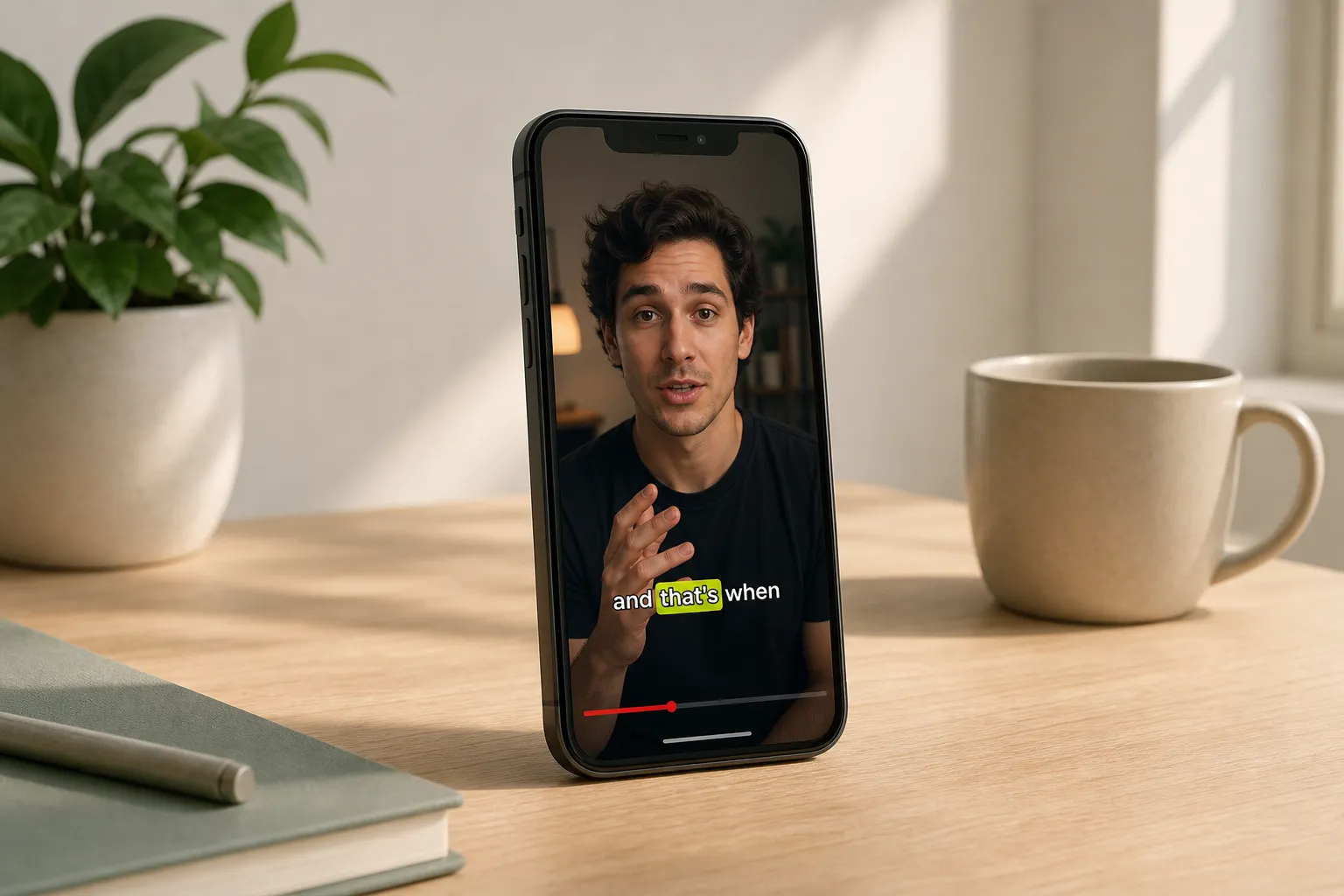
YouTube Shorts scroll fast and most people watch with sound off. Clear captions keep viewers from swiping away. Here is a tight workflow in SubtitlesFast to set 9:16, auto caption with AI Subtitles, add karaoke-style highlights, style for small screens, and export clean burned-in text that reads at a glance.
Step 1: Set up a 9:16 canvas for Shorts
Start by framing your video for vertical viewing. In SubtitlesFast, use Change Aspect Ratio and pick 9:16 so your canvas matches YouTube Shorts. This prevents letterboxing and keeps text out of the crop.
- Upload your clip, then set the aspect ratio to 1080x1920 or 9:16 with Change Aspect Ratio. If your source is horizontal, use crop and reframing to keep the subject centered.
- Use Timeline Editing to trim dead air and tighten pacing. Aim for 15 to 35 seconds unless the idea truly needs more. Cut filler words that do not move the story.
- Reframe your subject so their eyes sit in the upper third. Leave open space where captions will live.
Mind the safe zones. On a 1080x1920 frame, keep subtitles above the bottom 130 to 180 pixels (about 12 to 17 percent) and at least 80 to 100 pixels from left and right edges so YouTube UI, likes, and the seek bar do not cover text. If your line wraps, limit width to about 60 to 70 percent of the frame so eyes do not travel too far each line.
Step 2: Auto-transcribe with AI Subtitles, then make quick fixes
Run AI Subtitles to auto caption your video. It creates time-synced text in 50+ languages with word-level highlighting, which sets you up for karaoke-style effects in the next step. If you need multilingual reach, use Translate Subtitles to create versions for other languages.
- Click AI Subtitles and pick the spoken language. Let the transcript generate.
- Scan for names, brand terms, tickers, and slang. Correct these first so viewers trust the captions.
- Fix punctuation for rhythm. Short lines read faster on phones. Break after natural pauses, not mid-phrase. Example: change "We tested three mics in one room" to two lines like "We tested three mics" on line one and "in one room" on line two.
- Combine micro lines to reduce flicker. Target 28 to 40 characters per line, 1 to 2 lines per subtitle.
- Keep speed readable. As a rule, stay near 12 to 17 characters per second with a minimum display time of 1.0 second and a practical max around 6.0 seconds per card.
If your script repeats a key phrase, make that line stand alone. It becomes a visual beat you can style for recall. For translations, watch for number formatting, dates, and right-to-left scripts. Set alignment to match reading direction and keep line lengths conservative when character width varies.
Step 3: Add karaoke highlights for punch
Word-by-word highlights make spoken lines feel alive. Turn on Karaoke Style Subtitles or Karaoke Style Captions so each word lights up in time as it is said. This often lifts retention because the viewer gets a clear cue to keep reading.
- Enable Karaoke Style. Preview the sweep and adjust timing so the highlight lands on syllables, not after them. If it feels rushed or sluggish, nudge speed by small steps until it matches your speaking cadence.
- Pick a highlight color that contrasts with your base text. Yellow, cyan, or bright green over white text with a black stroke are reliable. If your footage is warm, lean into cooler highlight colors for contrast.
- Emphasize hooks. For the first sentence, slightly increase font size or switch the highlight color for the first 1 to 2 seconds to grab attention.
Make it niche-specific. For finance Shorts, open with the number viewers care about. A quick "Up 4.3% today" with the karaoke highlight riding the digits can stop the scroll. To source timely ideas, tools that offer stock price alerts help you react to moves fast, then you can caption those updates so viewers follow along without sound.
Step 4: Style captions for small screens
Now make your captions easy to read on a 6-inch screen. SubtitlesFast has Subtitle Style Customization with 30+ animated styles plus font, color, and animation controls. Pick something that matches your channel and stays legible at a glance.
Make it readable
- Font: use a bold sans-serif like Inter, Montserrat, SF Pro, or Bebas for short hook words. Aim for weight 700 to 900.
- Size: target a text height around 8 to 10 percent of the video height. If people squint, it is too small.
- Contrast: white text with a 4 to 6 px black stroke at 1080 width is dependable. On busier shots, add a semi-opaque background bar (70 to 85 percent opacity) with 8 to 12 px vertical padding.
- Line count: stick to two lines max. Keep lines balanced so they appear as a block, not a staircase.
- Placement: sit captions just above the bottom UI area. Center alignment is fine, but avoid blocking faces or product details.
- Spacing: line height 120 to 140 percent and slight letter spacing (0 to 2 percent) improves readability on small screens.
Add motion with taste
- Use light in or out animations to introduce lines. Keep them under 200 ms with gentle ease so they feel snappy, not floaty.
- Let the karaoke highlight carry most of the motion. Extra bounces or spins distract on Shorts and can hurt clarity.
- Reserve a bold animated style for your hook line, then switch to a calmer style for the body so the rhythm feels intentional.
If your Short benefits from audio energy, use Add Music to layer a background track under your voice. Duck the music by 4 to 6 dB when you speak. A simple target is voice around -16 LUFS integrated and music around -26 to -22 LUFS. Then time your karaoke highlights to key beats for extra snap.
Step 5: Export and upload checklist
When your edit looks right, export with Burned-In Subtitles. Shorts do not always respect soft captions, and many viewers watch with the sound off. Burned-in text guarantees your words show up on YouTube and on reposts to TikTok and Instagram.
Smart export settings
- Resolution: 1080x1920. If you shot 4K vertical, export 2160x3840 for extra crispness.
- Frame rate: match your source. 30 or 60 fps both work for Shorts. Avoid frame interpolation that creates artifacts around text.
- Codec: H.264, High profile, Level 5.1 in an MP4 container. Color space Rec.709, 8-bit.
- Bitrate: for 1080x1920, 8 to 16 Mbps is plenty to keep edges of text clean. For 4K vertical, 35 to 45 Mbps. YouTube will recompress, so do not overshoot.
- Audio: AAC, 48 kHz, 192 to 320 kbps. Check that voice is not clipping after upload.
Common pitfalls to avoid
- Tiny text. If you cannot read it at arm’s length on your phone, viewers will bail.
- Low contrast. Stylish pale colors get lost over bright footage. Use strokes or background bars.
- Too many characters per line. Keep lines short so eyes can scan quickly.
- Blocking on-screen UI. Test your layout in the YouTube app to confirm nothing overlaps.
- Relying on auto-only. AI Subtitles are fast, but always fix names, numbers, and brand terms before you post.
- Forgetting sound-off viewers. If you add music, keep the voice track dominant and the captions readable without audio.
Final posting tips
- Open strong. Use a plain hook that promises a result in one line, then let karaoke highlights carry the first sentence. Examples: "Stop shaky phone video" or "The fastest way to fix audio hiss."
- On-screen CTA: keep it short and visual, like "Full breakdown on my channel" or "Link in bio for gear list." Use a distinct color so it does not blend with captions.
- Metadata: put your primary keyword in the first 60 characters of the title and in the first line of the description. Add 3 to 5 relevant tags.
- Thumbnails: even for Shorts, a clean vertical still helps on your channel page. SubtitlesFast includes an AI Thumbnail Generator to create a simple, legible image.
Key takeaways
- Set 9:16 with Change Aspect Ratio and keep captions inside safe zones so UI never covers your text.
- Use AI Subtitles, fix key terms, and format lines for fast reading at 12 to 17 characters per second.
- Turn on Karaoke Style Captions to highlight words in sync and hold attention.
- Style for small screens with high contrast, two lines max, and simple motion using Subtitle Style Customization.
- Export Burned-In Subtitles with clean H.264 settings so captions look consistent everywhere.
With this workflow, SubtitlesFast works as a true YouTube Shorts subtitles generator and animated karaoke subtitles editor. You get fast auto captions, translation when you need it, and publish-ready files you can repost anywhere.
FAQ
What subtitle size works best for YouTube Shorts?
Keep text height around 8 - 10% of the video’s height. Use a bold sans-serif font with a black stroke or shadow for contrast.
Should I burn subtitles into my Shorts?
Yes. Burned-in subtitles ensure your captions display consistently across YouTube, TikTok, Instagram, and any reposts or embeds.
How do karaoke-style captions help retention?
Word-by-word highlights guide the eye through each line, which keeps viewers reading and reduces the chance they swipe away mid-sentence.
Can I translate my captions for Shorts?
Yes. Use Translate Subtitles to create versions in other languages, then export separate burned-in renders for each audience.
What is the fastest way to caption a batch of Shorts?
Auto-generate with AI Subtitles, fix brand terms, apply a saved style preset, then export with burned-in subtitles so each file is ready to upload.