

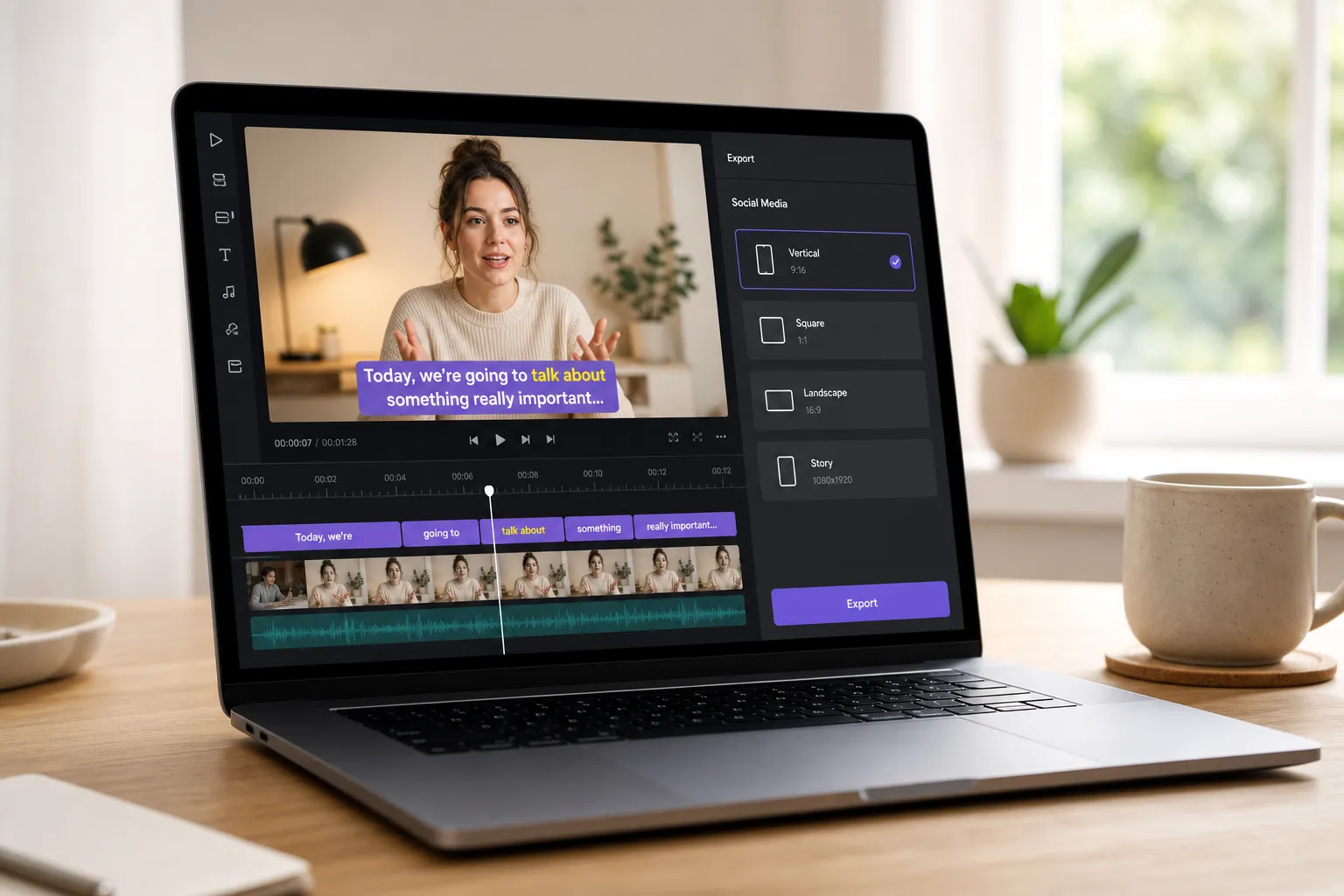
If you publish clips every week, the bottleneck usually is not cutting footage. It is getting clean subtitles on-brand and out the door fast. VEED is solid for quick, template-led edits, but if speed, messy-audio accuracy, or karaoke timing matter, there are sharper fits.
Here is a clear look at where VEED helps, where it stalls, and the best alternatives for adding, translating, styling, and burning captions so you can ship to TikTok, YouTube, Shorts, and Reels without delays.
VEED at a glance: strengths and gaps
Where it shines
- Browser-based, easy start: upload, auto caption, tweak, export. Good for solo creators and quick team reviews.
- Templates and social layouts that help first-time editors land a clean look without fiddling with canvas sizes.
- Usable accuracy on short clips with clear speech. You can nudge timings and fix lines without breaking sync.
- Commenting and shared projects that reduce file-passing and keep feedback in one place.
Where it struggles
- Throughput dips on longer videos or peak queues. If you push daily volume, waiting for transcriptions, renders, or re-exports adds drag.
- Noisy rooms, crosstalk, and accents need more manual clean-up. Line-by-line corrections get slow when a transcript needs heavy surgery.
- Limited word-level timing and animation. If you want per-syllable highlights or true karaoke effects, you will hit the ceiling fast.
- Styling is fine for most brands, but advanced motion, layered stroke effects, and granular safe-area control are basic.
- Costs climb with more seats, longer exports, and higher usage. Teams paying for mostly captions may want a leaner pipeline.
Top VEED alternatives for captions and burn-ins
SubtitlesFast
SubtitlesFast is a focused VEED alternative built for speed. It is a web-based AI subtitles editor that generates, translates, styles, and burns captions, then pushes straight to social presets. The interface is tuned for fast correction and locked timing, so fixes do not break sync.
- Strengths: Quick AI captions on shorts and mid-length clips. Inline edits keep word timing intact as you type. Brand presets for fonts, color, shadow, and stroke that hold up on 9:16, 1:1, and 16:9. One-click hardcode or SRT/VTT exports. Handy for TikTok, Shorts, and Reels where burn-ins and quick turnarounds matter. Translation for global cuts without leaving the editor.
- Trade-offs: Not an all-in-one NLE. Use it alongside a primary editor for heavy compositing, complex audio repair, or color work.
CapCut (Web and Desktop)
CapCut is a crowd favorite for short-form content. Auto captions are fast, and the TikTok handoff is smooth. Templates and effects help clips pop without motion-design skills.
- Strengths: Quick captions on clean speech. Big effect library, decent hardcode exports, and familiar timeline tools. Mobile, web, and desktop options.
- Trade-offs: Heavier desktop footprint. Team review tools are simple. Caption styling and animated word-level highlights are limited next to specialist subtitle editors.
Descript
Descript flips editing to a transcript-first workflow. You cut video by editing text, then fine-tune the timeline. It shines for podcasts and talking-head content where filler removal, multitrack edits, and precise trims matter.
- Strengths: Strong transcription accuracy. Great on longer videos with deep audio cleanup. Reliable SRT/VTT and burned captions.
- Trade-offs: More to learn for quick social clips. Visual caption styling and karaoke effects are not the focus.
Kapwing
Kapwing offers a familiar browser editor with auto-captioning and a large template library. It suits meme-style edits, collaborative boards, and fast social formats.
- Strengths: Easy online workflow, brand kits, team comments, decent subtitle accuracy, and quick aspect-ratio swaps.
- Trade-offs: Export queues can slow at busy times. Fine timing control and animated word-level highlights are basic.
Aegisub + FFmpeg
For true karaoke and per-syllable animation, Aegisub with ASS styles and FFmpeg hardcode exports is still the gold standard. It is a craft workflow rather than AI-driven.
- Strengths: Surgical control over timing, easing, and effects. Ideal for lyric videos and music-driven edits.
- Trade-offs: Steep learning curve and manual timing. No built-in AI. Best when you import an AI transcript from another tool, then refine.
Migration and workflows that save time
Move your captions, not your headaches
Export SRT or VTT from VEED. Import that file into your new tool to avoid starting from zero. Retype only what is wrong, then restyle. Lock in brand presets for font, line height, stroke width, background blur, and safe margins so captioned clips survive platform UI overlays across 9:16, 1:1, and 16:9.
Get to publish faster
Caption early. You will spot pacing and clarity issues sooner than in a final render. Do short test exports to catch timing drift, emoji encoding hiccups, or line breaks that wrap off-screen on smaller phones. Keep a 1080x1920 template with captions sitting 8–12 percent above the bottom edge to dodge like/share bars. If you shoot on phones, transcode to constant frame rate before captioning to avoid sync creep.
Tighten accuracy with a simple loop
Run an AI pass, then review at 1.25x while you fix proper nouns, numbers, and branded terms. Keep a style guide or glossary inside the editor so repeats auto-correct. If the source is noisy, apply light noise reduction and a high-pass filter before captioning. Set speaker labels on multi-voice clips so viewers track who is talking.
Pressure-test styles with real viewers
Share 10–20 second drafts for feedback on readability and pace. If you want neutral input from creators, use a utility to find relevant subreddits. It analyzes Reddit to rank communities and suggests when and how to post based on engagement and mod rules. One round of outside eyes often catches long lines, low contrast, or too-fast reading speeds you will miss.
Keep formats clean
- Use SRT for widest support. Use VTT if you need positioning or italics on the platforms that honor it.
- Export hardcoded MP4s when platforms compress captions or you want on-brand fonts that players cannot render.
- Stick to two lines, 32–42 characters per line, and consistent placement. Favor high-contrast color pairs and readable sans-serif fonts.
- Set UTF-8 encoding so emojis and non-Latin scripts survive uploads. Test on both light and dark UI themes.
Pricing snapshot
Prices change, but these ranges help planning. Check each site for current details.
- SubtitlesFast: Focused captioning plans for creators, with a team option for shared brand styles and collaboration.
- CapCut: Core editing is free. Paid add-ons for stock, premium effects, and higher export options.
- Descript: Free tier for light use. Paid tiers typically in the tens per user per month for longer transcription and advanced features.
- Kapwing: Free basics with watermark. Creator and team tiers in the common web-editor price band.
- Aegisub + FFmpeg: Free and offline. Your cost is time, not subscription fees.
Most web editors cluster around 15–30 dollars per user per month. Full suites land higher but include broader editing. If your goal is fast, accurate captions and reliable burn-ins, a focused tool usually beats a generalist on both cost and speed.
Key takeaways
- Pick based on throughput, not feature lists. The best tool gets you to publish faster with fewer fixes.
- For fast AI captions and clean burn-ins, a focused VEED alternative like SubtitlesFast keeps the pipeline lean.
- For deeper audio edits and long-form, Descript’s transcript-first workflow pays off.
- For heavy templates and collaborative memes, Kapwing is a comfortable fit.
- For per-syllable effects and karaoke precision, Aegisub plus FFmpeg still wins.
Pick by need
- Fastest publish for shorts: SubtitlesFast or CapCut.
- Long-form with deep cleanup: Descript.
- Template-heavy, collaborative edits: Kapwing.
- Karaoke captions and ASS effects: Aegisub + FFmpeg.
- Translate and burn subtitles for global cuts: SubtitlesFast.